Speech-to-Text Transcription Guide
Convert audio and video to text free with this AI offline transcription tool. Whisper AI, 20 languages, SRT/VTT/PDF/JSON export, Smart Notes, Deep Analytics — 100% private.
Table of Contents
Last updated: June 2026
🔴 What Is an AI Offline Transcription Tool?
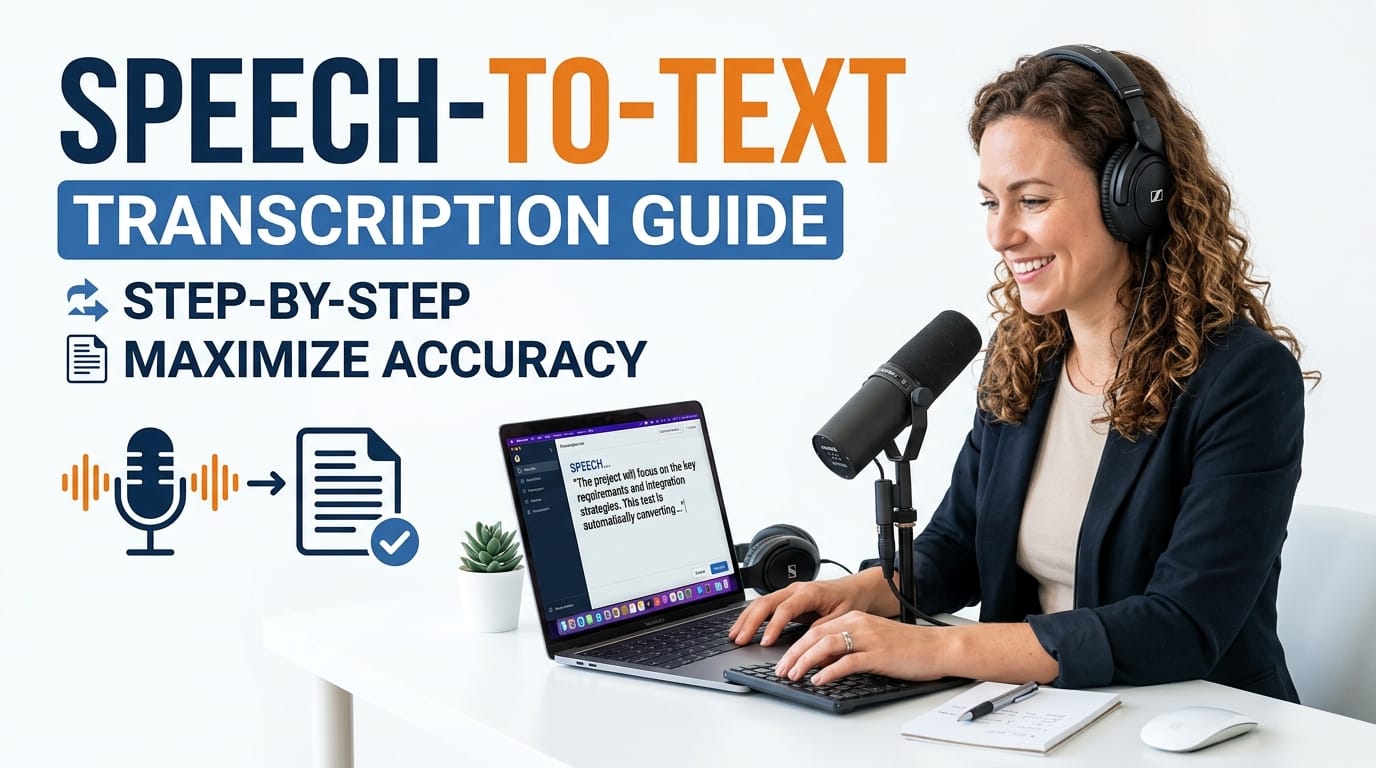
An AI offline transcription tool converts spoken audio into written text using a machine learning model that runs entirely inside your browser — no cloud API, no subscription, no data leaving your device. The PTH AI Offline Transcription Studio v3.0 uses OpenAI Whisper, the open-source speech recognition model, packaged via the Transformers.js library so it runs in a standard browser Web Worker thread. The model downloads once to your cache — after that, every transcription is completely local.
This matters for three reasons: privacy, reliability, and cost. Privacy because sensitive audio — medical consultations, legal interviews, confidential meetings — never touches an external server. Reliability because you are not dependent on an API rate limit, quota, or service outage. Cost because the tool is permanently free with no token limits, no per-minute charges, and no credit card required.
How Whisper AI Transcription Works in the Browser
When you click 🚀 Start Transcription, the tool extracts raw audio from your file using the browser’s AudioContext API and resamples it to 16 kHz mono — the format Whisper expects. If you set a Trim Range, only the audio between your start and end timestamps is extracted. The audio Float32Array is passed to a Web Worker where the Whisper model runs the automatic speech recognition pipeline, returning timestamped chunks. The main thread receives each chunk, applies hallucination cleaning (removing repeated words and noise labels like [Music]), and renders segments into the editor.
Whisper Tiny processes roughly one minute of clear English speech in about 8–12 seconds on a modern laptop. Whisper Base is slower but significantly more accurate for accented speech, technical jargon, and non-English languages. The tool offers Quick Mode (15-second audio chunks) for speed and Standard Mode (30-second chunks) for accuracy — select via the ⚡ Quick chip in Engine Settings.
🟡 The 5-Tab Workspace — A Full Transcription Pipeline
Most free transcription tools end at the transcript. The PTH AI Offline Transcription Studio continues into a five-tab pipeline that covers every downstream task.
Tab 1 — 🎬 Transcribe: The Inline Editor
The Transcribe tab is the heart of the tool. Each segment renders as an editable row with four components: a line number, a three-tier confidence dot, a clickable timestamp, and the editable text. Clicking the timestamp seeks your embedded audio or video player to that exact second — the fastest way to verify a segment without scrubbing manually.
The top toolbar gives Subtitle View and Paragraph View. Subtitle view shows one segment per row — ideal for caption editing. Paragraph view collapses everything into a continuous text block — ideal for article drafting. Both views support inline editing and update your session save automatically. Find & Replace runs a regex search across all segments simultaneously, replacing every instance in one click. Zoom slider adjusts font size from 80% to 140% without affecting layout.
The second toolbar row handles editorial operations. Speaker tagging marks segments with a blue or green left border for two speakers. Merge fuses short segments — useful when Whisper splits a single sentence across three rows. Undo and Redo stack up to 50 operations. Read Aloud uses the browser’s SpeechSynthesis API to read the full transcript in the detected language. The 🗑️ Clear button wipes the editor and resets all analytics.
Tab 2 — 📝 Smart Notes: Instant Meeting Documentation
Click ✨ Generate Notes and the tool constructs a meeting document in under a second. The output includes a date header, recording duration, eight key bullet points extracted from the highest-information sentences (filtering sentences under five words), a three-sentence summary, and an action items placeholder. The extraction algorithm picks sentences from the beginning, middle, and end of the recording to ensure balanced coverage.
The notes textarea is fully editable. • Bullets strips all list markers and reformats every line as a bullet point — works even if you mixed bullets and numbers during editing. 1. Numbered applies strict sequential numbering regardless of current formatting. A live word counter updates as you type. The 📝 Quick Summary button generates a three-sentence abstract and opens it in the Preview modal for download as a .txt file.
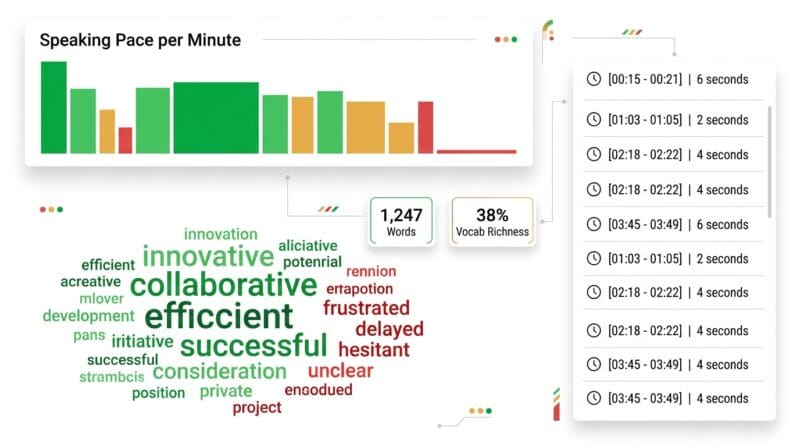
Tab 3 — 📊 Deep Analytics: Four Speech Intelligence Views
The Deep Analytics tab runs automatically after transcription and can be refreshed by switching to the tab. All four analyses run client-side in under 200ms on a typical transcript.
Sentiment Word Highlights maps every word against a curated positive/negative dictionary. This is not a machine learning sentiment classifier — it is a fast lexical scan that works offline without any model. Positive words like “success”, “excellent”, “agree”, and “clear” appear in green. Negative words like “problem”, “error”, “fail”, and “unclear” appear in red. For customer service call analysis, this scan takes three seconds vs. thirty minutes of manual reading.
Top Phrases extracts bigrams (two-word combinations) after filtering stopwords like “the”, “a”, “in”, “of”, and “to”. The top twelve phrases are displayed as badge-tagged chips showing their frequency count. This reveals the actual subject matter of a recording — if “quarterly revenue” appears eleven times and “headcount reduction” appears eight times, you know what the meeting was really about before reading a word.
Speaking Pace per Minute builds a bar chart with one row per minute of audio. Word count per minute is calculated from the timestamps of each segment. The three-color system (green / amber / red) makes it immediately clear which minutes were rushed. A presenter who spikes red at minutes 8, 12, and 19 was under time pressure at those specific points — actionable data for coaching.
Silence / Gap Detection finds every inter-segment gap over two seconds. Gaps between 2–5 seconds are normal conversational pauses. Gaps over 10 seconds indicate dead air, long pauses, or section breaks. The silence list shows time and duration for up to eight detected gaps. Audio editors use this list as a cut guide — each silence is a potential edit point.
Two vocabulary statistics sit at the bottom: Unique Words (the raw count of distinct terms) and Vocab Richness (unique words divided by total words, expressed as a percentage). A lecture with 35% vocabulary richness is linguistically more varied than a technical document at 18%. This metric is used in readability research and content quality assessment.
Tab 4 — 🔤 Text Tools: Eight Transformations
The Text Tools tab treats transcription output as raw material for content creation. Click 📥 Load Transcription to import the current transcript into the input panel, or paste any text. Eight transformation buttons cover the most common needs.
UPPERCASE and lowercase are self-explanatory. Title Case capitalizes the first letter of every word — the standard format for article titles and YouTube chapter names. Sentence case applies proper capitalization only at the start of each sentence, ideal for reformatting all-caps transcripts from older systems. Remove Filler Words strips the twenty most common spoken fillers in a single pass. Remove Duplicates catches consecutive word repetitions from Whisper output artifacts. Clean Spaces normalizes whitespace. ✂️ Trim 280 chars cuts to Twitter/X length with an ellipsis.
Three character-limit chips give one-click trimming to specific social media lengths: Twitter/X (280), YouTube short description (500), and Instagram caption (2,200). The character count updates live in both the input and output panels. A dedicated 📋 Copy Result button copies the output panel without touching the clipboard-in-use warning some browsers show on automated clipboard writes. For additional content formatting and keyword improvement after transcription, see the PTH Ultimate Text and SEO Studio.
Tab 5 — 🎯 Export Hub: Six Formats, Four Copy Modes
The Export Hub replaces the scattered export buttons of earlier versions with a single organized destination. Six export cards sit in a responsive grid.
.TXT exports one line per segment — the fastest format for note-taking apps. .SRT produces a correctly formatted SubRip file with segment indices, HH:MM:SS,mmm timestamps, and blank line separators — the format accepted by YouTube, Vimeo, VLC, Premiere Pro, and DaVinci Resolve. .VTT produces WebVTT format with the required WEBVTT header — used by HTML5 video players, Zoom, and most browser-based playback systems. .PDF generates a printable document using the html2pdf.js library, with the transcription formatted as timestamped paragraphs. .JSON exports structured data with start time, end time, text, speaker tag, and bookmark flag per segment.
The four Smart Copy Modes handle the workflows that do not need a saved file. 📄 Plain Text copies clean prose to the clipboard. ⏱️ With Timestamps adds [MM:SS] markers before each segment — the format YouTubers paste into their description box to create chapter links. 📝 SRT Format copies the full SRT block so you can paste directly into video editor subtitle import fields without downloading. 📋 Meeting Notes generates the Smart Notes document and copies it in one action — the fastest path from recording to shareable summary.
🟢 Engine Settings — Getting the Best Accuracy
The Engine Settings card in the left sidebar controls every aspect of the transcription process. Getting these right dramatically improves output quality.
Model selection is the most impactful setting. Whisper Tiny (~74 MB) handles clear, accented-neutral speech in common languages well. For technical content, legal language, medical terminology, or heavily accented speakers, Whisper Base (~140 MB) delivers significantly fewer errors. The model downloads once and is cached — subsequent transcriptions use the cached version with no additional download.
Language should be set explicitly when you know the source language. Auto-Detect works well for clear single-language recordings but can misidentify short clips or recordings with background noise. Setting the language explicitly also activates language-specific tokenization in the Whisper model, improving accuracy on language-specific phonemes.
Task offers two modes: Transcribe (output in source language) and Translate to English (Whisper’s built-in translation pipeline). The translation mode uses Whisper’s native multilingual translation capability — it is not a post-processing step. This means a French interview can be directly output as English text without running a separate translation API call.
Five chip toggles fine-tune behavior. ⚡ Quick sets 15-second audio chunks for faster processing. 🔇 Filter enables the hallucination cleaner that removes repeated words and noise labels. 📑 Chapters enables automatic chapter detection every 20% of the total segment count. 🌊 Wave shows the audio waveform visualization above the trim inputs. 🔤 Filler enables real-time filler word stripping in the Transcribe editor display.
🔴 Live Microphone, Playback Speed, and Audio Trimmer
The 🎤 Live Microphone card captures audio directly from your browser using the MediaRecorder API. Click Start Live Recording, speak, click Stop. The recording lands in the media player exactly like an uploaded file — full waveform, trim capability, and identical transcription pipeline. No intermediate download step.
Five playback speed buttons control the embedded media player: 0.5x, 0.75x, 1x, 1.25x, and 1.5x. These are direct controls on the browser’s HTMLMediaElement playbackRate property — zero latency, no buffering. Slowing to 0.5x is standard for verifying difficult segments. Speeding to 1.5x is standard for skimming long recordings during review. The active speed is highlighted in purple.
The Trim Range inputs let you define an exact audio region for transcription. Enter start and end times in MM:SS format. The AudioContext extracts only the specified Float32Array slice before sending to the AI worker. Transcription of a 90-minute file where you only need the first 15 minutes runs 6× faster this way. The Download Trimmed Audio button exports the trimmed region as a 16 kHz WAV file — useful for archiving clips, creating audio quotes, or re-uploading a cleaned segment for re-transcription.
🟡 Privacy, Session Storage, and Data Security
Every byte of audio processing happens in your browser. The Whisper AI model runs in a Web Worker — a separate thread isolated from the main page, with no network access during transcription. Your audio data is never serialized to a string, never logged, never sent anywhere. If you close the browser tab mid-transcription, the audio data is garbage-collected by the browser’s memory manager.
Session auto-save writes your transcript JSON to localStorage after every edit. This is local browser storage — only your browser can read it, on the same device. The session key is pth_transcribe_v30. Sessions expire after 24 hours. To recover a previous session, click the ♻️ Restore button that appears in the top bar when a valid session is found. To clear the session manually, use the 🗑️ Clear button and it will be overwritten on next transcription.
The Translate function is the only operation that makes an external request — it calls the Google Translate API to convert transcript text. This sends the text content (not audio) to Google’s servers. If you need end-to-end offline operation, set the Whisper Task to “Translate to English” instead — this runs the translation inside the Whisper model itself without any external call.
🟢 Comparing AI Offline vs. Cloud Transcription Services
Cloud transcription services like Otter.ai, Rev, and Descript offer high accuracy, speaker diarization, and team collaboration — at a price. Otter.ai’s free tier limits you to 600 minutes per month. Rev charges per minute of audio. Descript requires a subscription for serious use. All three send your audio to remote servers.
The PTH AI Offline Transcription Studio trades the accuracy ceiling of large cloud models for privacy, cost, and offline availability. Whisper Tiny and Base are smaller than the models powering paid services, so accuracy on heavily accented or noisy audio will be lower. The gap narrows significantly on clean, single-speaker recordings in common languages. For most podcast, meeting, and lecture use cases, Whisper Base accuracy is sufficient for a working first draft that needs light editing.
The five-tab workflow, Smart Notes generation, Deep Analytics, Text Tools, and Export Hub features are not available in any single cloud service at any price tier. You would need Otter.ai for transcription, a separate tool for subtitle export, another for text case conversion, and a spreadsheet for analytics. This tool combines all of that in one offline interface.
❓ Frequently Asked Questions
Is this truly free with no hidden limits?
Yes. The tool is 100% free with no account required, no minute limits, no file count limits, and no subscription. Processing happens in your browser using the open-source Whisper model — there is no paid API being called in the background. The only cost is your browser downloading the model file (~74 MB or ~140 MB) on first use.
How accurate is Whisper transcription for non-English audio?
Whisper Base performs well for Spanish, French, German, Portuguese, and Japanese. Accuracy drops for languages with less training data like Sinhala, Tamil, and Thai. For best results with low-resource languages, record in a quiet environment, speak clearly, and select the language explicitly rather than using Auto-Detect.
Can I use this for video files too?
Yes. MP4 and WEBM video files are fully supported. The tool extracts the audio track from the video using AudioContext, processes it through Whisper, and the embedded media player shows the video with playback controls. Timestamps in the editor sync to the video player — click a segment to seek to that moment in the video.
What is the maximum file size supported?
The tool accepts files up to 500 MB. For files larger than this, use the Trim Range inputs to extract and transcribe specific sections. For extremely long recordings (3+ hours), consider splitting the file into 30-minute segments using audio editing software before uploading for best performance.
How do I get SRT subtitles into DaVinci Resolve?
In the Export Hub tab, click the .SRT card to download the subtitle file. In DaVinci Resolve, go to your timeline, right-click the video clip, select Import Subtitles, and choose your .SRT file. The captions will be imported and synced to the timeline based on the timestamp data.
Does the Deep Analytics tab work on all languages?
The Sentiment Words and Top Phrases features work best on English transcriptions because the word dictionaries and bigram filters are English-tuned. The Speaking Pace graph and Silence Detection work on all languages since they are based on timestamps and word counts, not language-specific vocabulary.
Can multiple people use the same tool on different devices?
Yes — multiple users can use the tool simultaneously since it runs client-side in each user’s browser with no shared state. Sessions are stored in each user’s own browser localStorage. There is no account system, so different people on different devices are fully independent. Sharing transcripts is done by exporting and sending the file.
What is the difference between Translate and Transcribe tasks?
Transcribe outputs the text in the original spoken language. Translate to English uses Whisper’s built-in multilingual translation pipeline to output English text regardless of the source language — without calling any external translation API. Use Transcribe when you need the original language; use Translate when you need English output from non-English audio.
Why does my transcript have repeated words or [Music] tags?
Whisper occasionally hallucinates repeated words or noise labels like [Music] or [Applause] in quiet sections. The 🔇 Filter chip in Engine Settings enables the hallucination cleaner that removes these automatically. You can also use Remove Duplicates in the Text Tools tab to clean up any remaining repeated-word artifacts.