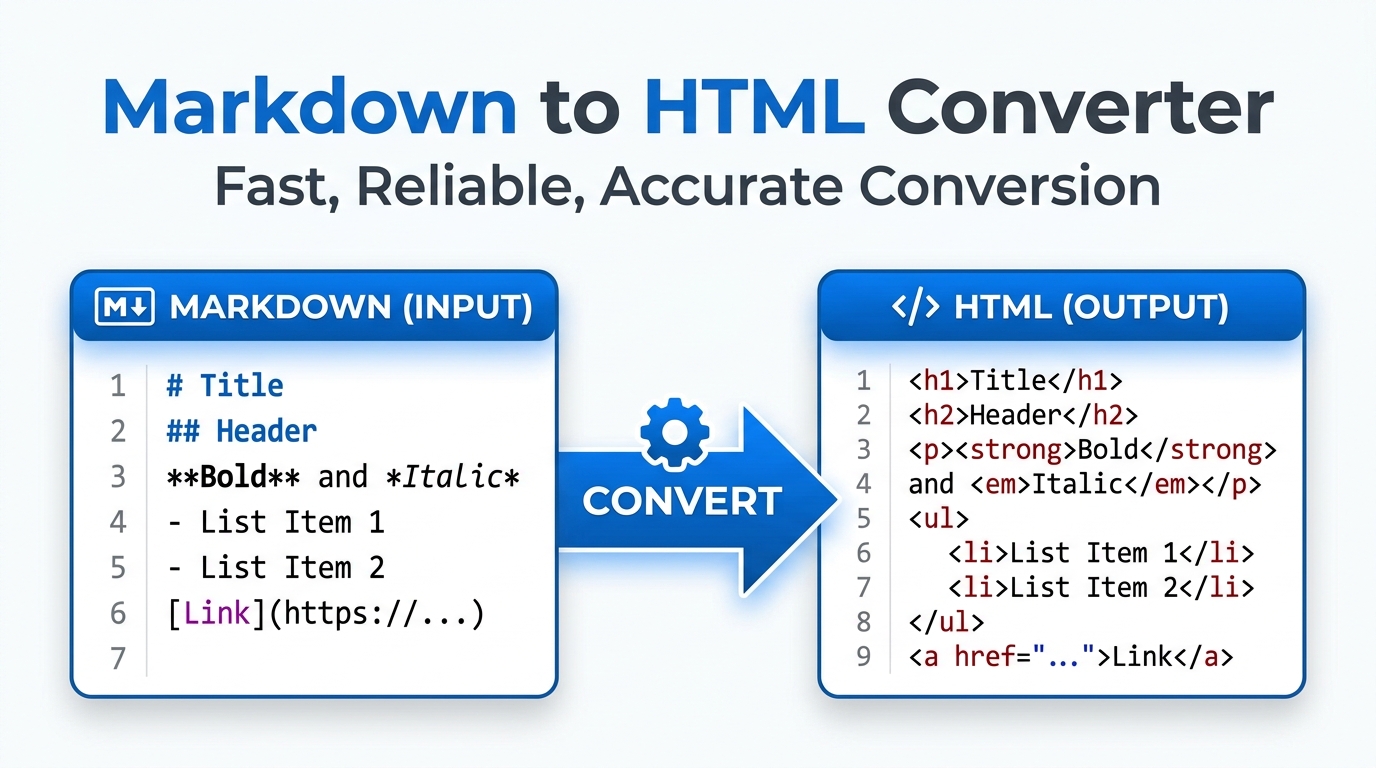
Markdown in, clean HTML out — and back again
Most Markdown tools do one direction: type Markdown, see HTML. This studio does the whole loop. Write with a live preview, convert either way between Markdown and HTML, build a table by clicking instead of counting pipe characters, and generate a proper README from a short form. Here is how each part fits into a real workflow.
Table of Contents
Have Markdown but need the HTML to paste into a page or an email? Convert your Markdown into clean HTML you can drop straight into a CMS or template. It saves hand-writing the tags when you already have the content written.
📝 Markdown Studio Pro
| What you want | Category | How to write it |
|---|
Instantly evaluates lightweight markup language and mathematically maps it to standard, structurally valid web tags.
Executes the string conversion logic entirely within the browser’s JavaScript engine, ensuring zero network latency during translations.
Strips away unnecessary formatting anomalies to deliver highly optimized, production-ready code blocks for deployment.
Paste your formatted document, documentation strings, or text arrays directly into the primary Markdown to HTML Converter input field.
The algorithmic engine automatically captures your keystrokes, instantly initiating the parsing and tag replacement sequence.
Review the visual preview area to ensure the mathematical translation correctly displays your intended headers, lists, and links.
Click the dedicated copy button to transfer the fully sanitized web code directly to your local operating system clipboard.
Last updated: July 2026
🔴 Writing with the toolbar and the live preview
The Editor tab pairs a plain-text pane with a formatted preview that updates as you type. The toolbar row above it saves you from remembering syntax: select a word and press Bold, Italic or the code button and it wraps the selection; press Block for a fenced code sample; press TOC and it scans your document for ## and ### headings and inserts a linked table of contents at the cursor. Sync scroll keeps the preview lined up with wherever you are typing, which matters once a document runs past one screen.
The stats row under the editor is not decoration. Word count and read time tell you how long a piece actually is before you publish it, and the heading count is a quick sanity check that you have not accidentally nested two H1s. Task lists render as real, disabled checkboxes in the preview, GitHub-flavoured tables get proper column alignment, and code fences carry their language name through to a class the theme’s syntax highlighter can pick up.
🟡 Converting in both directions
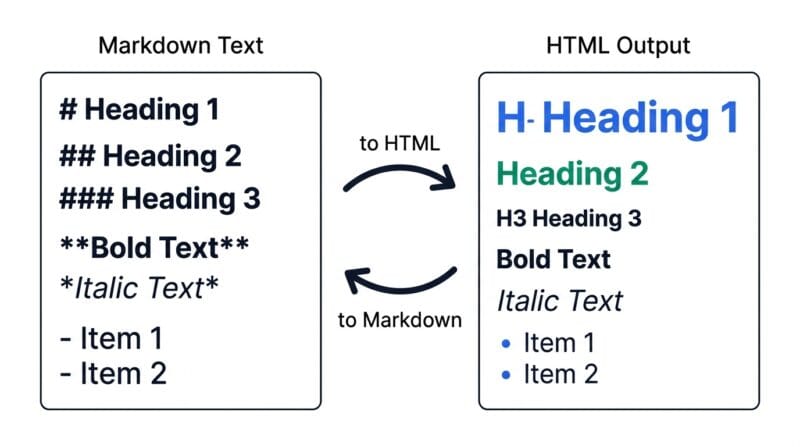
The Convert tab is where the tool earns its name. Markdown to HTML takes whatever is in the Editor and turns it into semantic, ready-to-paste HTML — real h2 and h3 tags, a real table element, a real ul or ol, not a wall of styled divs. Copy it into a CMS post or download it as a complete standalone page.
The reverse direction is the one people usually cannot find anywhere: paste HTML copied from a page or an export, press Convert, and get Markdown back. Input: a snippet with headings, a table and a couple of links copied from a webpage. Output: clean Markdown with the table’s column alignment preserved and an ordered list correctly numbered rather than flattened into bullets. That direction is what makes migrating old HTML content into a Markdown-based wiki or a static site generator practical instead of a manual rewrite.
🟢 The table builder and the README generator
Hand-writing a Markdown table means counting pipe characters and lining up dashes, and it is the single most fiddly part of the syntax. The Table Builder tab replaces that with a spreadsheet-style grid: click a cell and type, add or remove rows and columns with a button, and toggle each column between left, centre and right alignment. Paste CSV instead and the grid fills itself in, header row included, ready to insert straight into the editor.
The README Builder tab exists because every project needs one and almost nobody enjoys writing it. Fill in the project name, a one-line description, the install command and a usage example, tick the sections you want, and it assembles a proper README.md: badges, a linked table of contents, features, installation, usage and a contributing section, in the order GitHub visitors expect. Download it directly or send it to the Editor tab to keep refining it there.
Two honest notes. The HTML-to-Markdown conversion handles the common structural tags well — headings, paragraphs, lists, tables, links, images, code and emphasis — but very complex nested layouts, inline styles and embedded scripts are stripped rather than translated, since Markdown has no equivalent for them. And the syntax highlighting in the exported HTML depends on the CSS class the code fence carries; the file itself has no highlighter built in. For a full code editor with a real JavaScript console and file export, see the Web Studio, and to compare two drafts line by line, the Text Diff Checker is the right tool.
Can it convert HTML back to Markdown?
Yes, in the Convert tab. Paste HTML and it maps headings, links, lists, tables, code blocks and emphasis back into Markdown syntax.
Does the table builder support column alignment?
Yes. Click a column’s alignment button to cycle left, centre, right or default, and the separator row’s colon markers update automatically.
Can I import a table from a spreadsheet?
Paste it as CSV in the Table Builder tab and press Load CSV into grid. Quoted fields with commas inside them are handled correctly.
What does the README builder actually generate?
A complete README.md with badges, a linked table of contents, an about section, features, installation, usage and contributing, based on the fields and checkboxes you fill in.
Are checkboxes and strikethrough supported?
Yes. Task list syntax renders as real disabled checkboxes in the preview, and double tildes render as strikethrough text.
Does my document get uploaded anywhere?
No. Writing, converting and exporting all happen in your browser tab. Nothing is sent to a server, so it keeps working offline once the page has loaded.
What happens to complex HTML when converting to Markdown?
Standard structural tags convert cleanly. Inline styles, scripts and unusual nested layouts are stripped, since Markdown has no syntax to represent them.
Can I export as a standalone HTML file?
Yes. The Convert tab’s HTML download wraps your content in a complete page with basic styling, ready to open in any browser.