
Data Size & Bandwidth Studio
Instantly calculate data capacity, image file sizes, and download times offline. Convert between Bits, Bytes, KB, MB, GB, and TB with precision.

Table of Contents
Trying to work out how big a file will be, or how much a drive can hold? Do the byte math here, including working out the size of an image from its resolution and format. Useful when you are planning storage or checking whether a file will fit under a limit.
Data Size & Bandwidth Studio
Convert storage units (SI vs IEC), calculate raw image size, estimate video and audio storage by codec, predict transfer times and plan monthly bandwidth. 100% offline.
| Format | Typical Size | vs Raw | Notes |
|---|
| Codec | Bitrate | Size | Saving |
|---|
| Metric | Value |
|---|
Unit Equivalents
1 B = 8 bits1 KB = 1,000 bytes (SI)1 KiB = 1,024 bytes (IEC)1 MB = 1,000 KB1 MiB = 1,024 KiB1 GiB = 1,024 MiBReal File Sizes
| Content | Typical |
|---|---|
| Plain text page | ~2 KB |
| Web photo (WebP) | ~150 KB |
| Phone photo (JPEG) | ~3-5 MB |
| MP3 song, 320k | ~7 MB |
| 1 hr 1080p H.264 | ~3.5 GB |
| 1 hr 1080p AV1 | ~1.3 GB |
| 1 hr 4K H.265 | ~8 GB |
Codec Cheat Sheet
H.264 / AVC — plays on everything, fastest to encode, largest files. The safe default.
H.265 / HEVC — roughly half the bitrate for the same quality. Patent-licensed; browser support is patchy.
AV1 — royalty-free, smallest files, but slow to encode and needs recent hardware to decode smoothly.
SI and IEC, Side by Side
Most converters quietly divide by 1024 and print "KB" on the result. That is wrong — 1024 bytes is a KiB. This tool shows both columns at once: SI decimal (÷1000, what drive makers and ISPs use) and IEC binary (÷1024, what your operating system reports). It is the only honest way to answer why a 1 TB drive shows up as 931 GB.
Real Codec Bitrates, Not Guesses
The Media Storage tab carries 27 video presets across H.264, H.265 and AV1 — from 480p30 up to 8K — plus 10 audio presets from 64 kbps podcast mono to 1411 kbps WAV. Pick a codec and resolution and the bitrate fills itself in, then a comparison table shows the same clip encoded all three ways so the saving is visible rather than theoretical.
Transfer Times That Admit Reality
A 100 Mbps line does not move 100 Mbps of your file. Between TCP overhead, congestion and Wi-Fi loss, 80% is a realistic figure. The Transfer tab shows the honest number alongside the theoretical one, and the Bandwidth Planner turns monthly visitors and page weight into the GB figure your host will actually bill you for.
How to Use Data Size & Bandwidth Studio
Pick Your Tab
Five calculators sit behind five tabs: unit conversion, raw image size, media storage by codec, transfer time, and monthly bandwidth planning. Load Sample fills everything with a worked example.
Enter Your Numbers
Type a value or click a preset chip — HD through 8K for images, ADSL through 1 Gbps fibre for connections. Results update on every keystroke; nothing needs a Calculate button.
Read Both Standards
In the Capacity tab, use the Show Both / SI / IEC toggle. Show Both is the default and is what you want whenever a drive size or an OS reading is involved.
Compare and Decide
The codec table shows the same footage across H.264, H.265 and AV1 with the percentage saving. The bandwidth table breaks monthly transfer down by cache hit rate and growth headroom.
Last updated: July 2026
🔴 Your 1 TB Drive Is Not Missing 69 GB
Buy a 1 TB hard drive, plug it in, and Windows tells you it holds 931 GB. Nothing has been stolen, the drive is not faulty, and the manufacturer has not lied to you. Two different definitions of “giga” are being used in the same sentence, and nobody involved bothers to say which.
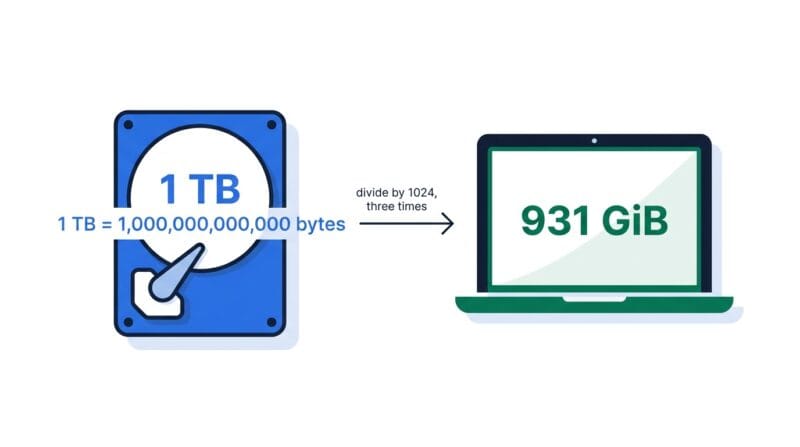
The drive maker uses the SI decimal standard, where each prefix is a power of 1000. So 1 TB means exactly 1,000,000,000,000 bytes. That is what you bought and that is what is on the platter. Your operating system, meanwhile, divides by 1024 — because computers address memory in powers of two — and then prints the label “GB” on the answer anyway. Divide 1,000,000,000,000 by 1024 three times and you get 931.32. Windows calls that 931 GB. It is really 931 GiB, gibibytes.
Both numbers describe exactly the same bytes. The gap is purely a labelling failure. The IEC standardised the fix in 1998: KiB, MiB, GiB, and TiB for the binary powers, leaving KB, MB, GB, and TB for the decimal ones. Linux tools and macOS adopted it; Windows never did, which is why the confusion has outlived an entire generation of hardware. That is why the Capacity tab here shows both columns by default rather than quietly picking one and hoping you do not notice.
🟢 When the Difference Actually Bites
- 🔵 Buying storage. The gap widens as capacity grows. A KiB is 2.4% larger than a KB, but a TiB is a full 10% larger than a TB. On a 16 TB NAS that works out to about 1.45 TB of “missing” space you should have expected.
- 🟠 Sizing an upload limit. If your server config says a 10 MB max and your validation code checks against 10 × 1024 × 1024, you have actually allowed 10.49 MB. Usually harmless, occasionally not.
- 🟣 Network speeds. Bandwidth is always SI. A 100 Mbps connection is 100,000,000 bits per second, never 104,857,600. Mixing standards here produces transfer estimates that are wrong by about 5%.
🟡 Raw Image Size, and Why Nothing Is Ever That Big
The raw image maths is refreshingly simple: width × height × bits per pixel ÷ 8. A 1920×1080 image at 24-bit colour is 1920 × 1080 × 24 ÷ 8 = 6,220,800 bytes, or about 5.93 MiB. That is the number the Raw Image tab gives you.
But no photo on your phone is 5.93 MiB per frame. Compression is why. The raw figure describes an uncompressed bitmap — every pixel stored explicitly, with no attempt to exploit the fact that adjacent pixels in a real photograph are usually similar. JPEG and WebP throw away detail the eye tends not to notice; PNG keeps everything but encodes it more cleverly. The estimate table underneath shows realistic ranges: a photographic WebP typically lands at 2–4% of raw, JPEG at 3–6%, PNG at 30–60% because lossless compression can only do so much with photographic noise.
So what is the raw number good for? Three things. It tells you how much RAM the decoded image occupies while your browser or editor is holding it — which is the raw figure, not the compressed one, and it is why opening thirty 24 MP photos at once can exhaust memory. It sets an upper bound for uncompressed formats like BMP and TIFF. And it lets you sanity-check a compression ratio: if a tool claims to have compressed a photo to 0.1% of raw, something has been destroyed. To actually perform the compression rather than estimate it, use the Advanced Image Studio Pro.
🔴 H.264, H.265 and AV1: What the Bitrates Actually Cost You
Video file size is bitrate × duration ÷ 8. The interesting question is which bitrate, and that depends entirely on the codec — because a newer codec reaches the same visual quality at a lower bitrate.
For one hour of 1080p30, the tool’s presets give you roughly this: H.264 at 8 Mbps produces about 3.6 GB. H.265 at 4 Mbps produces about 1.8 GB. AV1 at 2.9 Mbps produces about 1.3 GB. Same footage, same apparent quality, and the AV1 file is roughly a third the size of the H.264 one. Scale that to a 4K archive and the difference becomes a hard drive.
The catch is that none of this is free. H.264 / AVC is the safe default: it plays on every device made in the last fifteen years, encodes fast, and is hardware-accelerated everywhere. H.265 / HEVC roughly halves the bitrate but carries a messy patent-licensing situation, which is precisely why browser support for it is inconsistent. AV1 is royalty-free and compresses best of the three, but encoding is slow, and smooth playback wants recent hardware — older phones will decode it in software and drain the battery doing it.
Worth saying plainly: the bitrates in this tool are typical targets, not standards. A static talking-head interview compresses far better than a handheld shot of rain on a moving car, and encoder settings shift the result substantially. Treat the output as a planning figure, not a promise. Once you have decided on a target, the Video Studio handles the actual conversion, and the Audio Studio covers MP3 bitrate re-encoding.
🟢 The Reverse Question: How Much Fits?
Switch the Media tab from “Duration to File Size” to “Storage to Duration” and it answers the question people actually ask before a shoot: how many hours fit on this card? A 128 GB card recording 4K at H.265 (18 Mbps) holds roughly 15 hours 48 minutes. The same card recording 4K H.264 at 35 Mbps holds about 8 hours. The codec choice literally doubles your card.
🟡 Mbps Is Not MB/s, and 100% Never Happens
Internet speeds are sold in megabits. Files are measured in megabytes. Eight bits to a byte, so a 100 Mbps connection can move at most 12.5 MB per second. That factor of eight is the single most common mistake in this whole subject, and it makes people think their connection is broken when it is behaving exactly as advertised.
Then reality takes another cut. TCP has packet overhead. Wi-Fi loses frames and retransmits. The server on the other end has its own limits. Your neighbours are streaming. Nobody sustains their rated line speed, which is why this tool has an efficiency field instead of pretending otherwise. About 80% is a fair default for a typical home connection, 90–95% for a wired fibre link, and 70% or lower for mobile. A 5 GB download over 100 Mbps takes 6 minutes 40 seconds in theory — and about 8 minutes 20 seconds at 80% efficiency, which is the figure worth planning around.
The Bandwidth Planner tab applies the same honesty to hosting. Multiply monthly visitors by pages per visit by average page weight and you get raw transfer. Then subtract whatever a CDN serves on your behalf (the cache hit rate), and add headroom for growth, because getting throttled or billed for an overage in your best traffic month is a miserable way to learn this lesson. If your pages are heavier than you would like, the PageSpeed Code Analyzer will show you what is inflating them.
Why does my 1 TB drive show as 931 GB?
Because the manufacturer sells 1 TB as 1,000,000,000,000 bytes (SI), while Windows divides by 1024 three times and still writes "GB" on the result. That result is really 931 GiB. The bytes are all there — only the label is wrong.
Which should I use, SI or IEC?
Use SI for drive capacities, network speeds and anything you buy or sell. Use IEC for what an operating system reports and for memory allocation. When comparing a purchase against an OS reading, keep Show Both switched on.
Why is my real photo far smaller than the raw size shown?
The raw figure is an uncompressed bitmap — every pixel stored explicitly. JPEG and WebP typically reduce a photo to a few percent of that. The raw number still matters: it is roughly the RAM the decoded image occupies while open.
Are the codec bitrates exact?
No, and no honest tool would claim otherwise. They are typical streaming and recording targets. Real output depends on motion, grain, and encoder settings — a static interview compresses far better than handheld action footage. Treat them as planning figures.
Should I just use AV1 for everything, since it is smallest?
Only if your audience can play it. AV1 encodes slowly and needs fairly recent hardware to decode efficiently — older phones fall back to software decoding and burn battery. H.264 remains the safe universal choice; AV1 wins for archival and modern streaming.
Why is my download slower than the calculator’s ideal time?
Because no connection sustains its rated speed. TCP overhead, Wi-Fi retransmission, congestion and server-side limits all take a cut. Set the efficiency field to about 80% for a typical home line, or lower for mobile, and the estimate becomes realistic.
What cache hit rate should I use in the Bandwidth Planner?
If you have no CDN, use 0 — every byte comes from your host. With Cloudflare or similar in front of a typical site, a large share of static assets is served at the edge. Check your CDN dashboard for the real figure rather than guessing.
Is anything I type here sent to a server?
No. Every calculation runs in your browser as plain JavaScript. There are no uploads, no accounts, and no network requests after the page loads — you can disconnect and the tool keeps working.