🟥 How to Trim, Convert, and Add Effects to Audio Files Offline
Learn how to trim, convert, and add effects to audio files offline safely using a Free Offline Audio Studio that runs entirely in your browser without cloud uploads.
Table of Contents
Last updated: June 2026
🔴 What Is a Free Offline Audio Studio — And Why It Matters for Privacy
Every time you record a podcast, produce a voiceover, or cut audio from a video, you need to edit the raw file. The obvious choice — uploading to an online converter — sends your private recordings to a server you don’t control. Voice memos, unreleased music, confidential interviews: all of it lands on third-party infrastructure, logged, indexed, potentially stored. A free offline audio studio solves this at the architecture level. The editing engine runs inside your browser tab. Nothing leaves your device.
The Audio Studio Pro tool on PrimeToolHub loads a compiled WebAssembly version of FFmpeg directly into browser memory. You select a file, pick a tool from the 16-tool grid, and click Process. The FFmpeg engine runs locally — you see its actual output messages in the processing log panel at the bottom of the tool. When you close the tab, the temporary file data is gone from RAM. No server ever received your audio.
🟡 How FFmpeg WASM Runs 16 Audio Tools Inside Your Browser
In the past, professional audio processing meant desktop software or a cloud backend running Python or Node.js. That changed with WebAssembly — a binary instruction format that lets C and C++ codebases compile to a format browsers can execute at near-native speed. The Audio Studio Pro uses @ffmpeg/core-st, a single-thread safe FFmpeg build that avoids the SharedArrayBuffer API. Most shared WordPress hosting setups don’t send the COOP/COEP HTTP headers that SharedArrayBuffer requires — this build sidesteps the problem entirely, trading parallel processing speed for universal browser compatibility.
On first load, the tool dynamically injects the FFmpeg library script using document.head.appendChild() — no separate header snippet required. A purple loading progress bar tracks every stage: fetching the ~30MB WASM core, compiling WebAssembly modules, initializing codec libraries. When the badge changes to “✅ Engine Ready”, FFmpeg is fully compiled in your browser’s memory and the upload button unlocks. Subsequent uses in the same session skip the download — the engine stays resident in RAM.
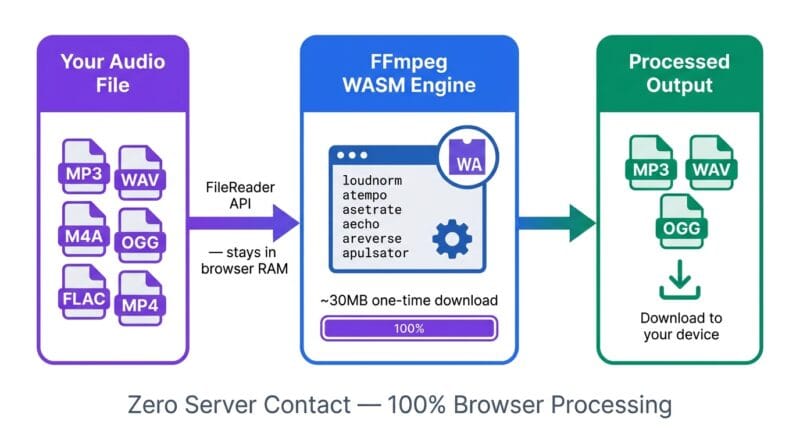
🟢 What Each Tool Does — The FFmpeg Filter Running Under the Hood
Each of the 16 tool buttons maps directly to a specific FFmpeg audio filter or operation. Normalize runs loudnorm=I=-16:TP=-1.5:LRA=11 — the EBU R128 loudness standard used by Spotify, YouTube, and broadcast television. It brings integrated loudness to -16 LUFS with -1.5dB true peak headroom. Run this last before downloading for consistent playback across platforms. Bass Boost uses bass=g=10:f=110:w=0.6, a shelving EQ that amplifies frequencies around 110Hz by 10dB without touching the vocal mid-range. Cut Silence applies silenceremove=stop_periods=-1:stop_duration=1:stop_threshold=-30dB — any gap below -30dB lasting more than one second is removed and the surrounding waveforms are spliced together. Podcast recordings with long pauses between speakers shrink significantly.
- 🔵 Pitch Shift uses
asetrate=44100*[factor],aresample=44100— changes sample rate to shift pitch, which also alters tempo. A 1.5x factor raises pitch approximately a musical fifth but shortens the track duration. - 🟠 8D Audio applies
apulsator=hz=0.125, sweeping the stereo field at 0.125Hz — one full left-to-right cycle every 8 seconds. Requires stereo headphones to perceive the spatial effect; mono speakers collapse it to a volume pulse. - 🟣 Speed uses
atempo=[value], which changes playback tempo without pitch change — a 1.5x speed file plays faster but stays in the same musical key.
🟡 Output Formats, Workflow Tips, and Privacy Architecture
The Output Format selector — MP3, WAV, or OGG — applies to every tool, not just Convert. Apply Echo and export as WAV and you get an uncompressed echo-processed file ready to import into Audacity or DaVinci Resolve without generation loss. MP3 at 192kbps is the right choice for uploads to YouTube, SoundCloud, and Spotify where quality loss is inaudible on consumer speakers. OGG Vorbis uses libvorbis -q:a 4, producing roughly 128kbps variable-rate output — better quality than MP3 at the same bitrate, with native support in Chrome and Firefox but not in Safari without a polyfill.
🟢 Try the Tool — Audio Studio Pro
Open the tool directly below and try the Load Sample button to generate a 440Hz test tone, or upload your own MP3, WAV, M4A, FLAC, OGG, or MP4 file. The File Info sidebar shows your file’s name, detected duration, input size, active tool, and output format — all updating live as you switch between the 16 processing tools.
🟢 Zero-Upload Security — What Actually Happens to Your File
The tool’s privacy model is verifiable. Open Chrome DevTools, switch to the Network tab, and upload a file. Start processing. Watch the network requests. You will see the FFmpeg WASM core fetched from a CDN on first use — that’s expected, it’s the engine binary. You will see zero POST requests, zero file uploads, zero WebSocket connections carrying your audio data. Your file is read from disk into an ArrayBuffer in JavaScript RAM using the FileReader API, written into FFmpeg’s virtual filesystem (ffmpeg.FS('writeFile')), processed, and read back out. At no point does it cross a network boundary. When you click Reset Studio, the isProcessing flag resets and the Blob URL is cleared from the UI — though the browser holds the processed Blob in memory until you close or refresh the tab, giving you time to download even after resetting the interface. For handling private transcripts of your audio recordings, our offline audio processing guide covers the full security model in detail.
Does this free offline audio studio upload my files to any server?
No. Your audio file is read into browser RAM using the FileReader API and written directly into FFmpeg’s virtual filesystem. Zero bytes of your audio data cross a network boundary at any point. You can verify this in Chrome DevTools Network tab — no POST requests appear during processing.
Why does the engine show a loading progress bar on first use?
The tool downloads ~30MB of FFmpeg WebAssembly binary from a CDN on first use per session. The purple progress bar tracks each stage — library fetch, WASM compilation, codec init — so you know exactly what’s happening instead of seeing a frozen “Please Wait” button. After loading, all processing runs offline.
Can I extract audio from MP4 video files?
Yes. Select any MP4 file from the upload button. FFmpeg applies -vn (no video) automatically, stripping the video frames and processing only the audio track. The output is a clean MP3, WAV, or OGG file depending on your selected Output Format — useful for extracting podcast audio from recorded video calls.
What does the Normalize tool actually do to my audio?
Normalize runs the EBU R128 loudness algorithm (loudnorm=I=-16:TP=-1.5:LRA=11), setting integrated loudness to -16 LUFS with -1.5dB true peak headroom. This is the broadcast standard used by Spotify and YouTube. It fixes recordings where one person speaks quietly and another loudly — the whole track gets balanced without distortion.
How does Pitch Shift differ from Speed in this tool?
Speed uses atempo to change tempo without pitch change — a 1.5x speed file plays faster but stays in the same key. Pitch Shift changes the sample rate (asetrate), which alters both pitch and tempo simultaneously. A 1.5x pitch factor raises the key by roughly a musical fifth but also shortens the track duration proportionally.
Will the tool work offline after the first load?
Yes — within the same browser session. The FFmpeg WASM engine loads into browser RAM on first use and stays resident for the session. You can disconnect from Wi-Fi and continue processing files. Closing and reopening the tab in a new session will re-trigger the engine download, though browsers often cache the WASM binary locally across sessions.
Why doesn’t the 8D Audio effect sound spatial on my laptop speakers?
8D Audio uses apulsator=hz=0.125 to oscillate audio between left and right stereo channels. Laptop speakers and mono speakers that route both channels to a single driver collapse this to a flat volume pulse. Plug in stereo headphones — the spatial rotation effect becomes immediately audible when each ear receives a separately panned signal.
What’s the correct order for chaining multiple effects?
Process in this order for best results: Trim first (remove unwanted sections) → Normalize (set a consistent level with headroom) → apply effects (Echo, Bass Boost, Pitch, etc.) → download. Each operation requires a separate process-and-re-upload cycle since the tool applies one FFmpeg filter chain per run. Reset Studio between runs keeps the engine loaded and ready immediately.
Which output format should I choose — MP3, WAV, or OGG?
Choose MP3 for sharing, uploading to YouTube/Spotify/SoundCloud, or sending to others — universally supported and small. Choose WAV when importing into a DAW (Audacity, DaVinci Resolve, Reaper) for further editing without compression artifacts. Choose OGG for web app audio assets or game projects that avoid MP3 licensing — Chrome and Firefox support it natively, but Safari requires a polyfill.