
Browser-Based AI Code Editor
Free AI code editor — Monaco editor with Claude, Gemini & Groq AI. Live preview, 7 magic buttons, Woody export & auto-save. 100% private, no install.

Table of Contents
Bring Your Own Key, Pay Nothing
Two of the three supported providers — Google Gemini and Groq — hand out API keys free, no credit card, in about two minutes. You paste your key once and it stays in your browser. There is no PrimeToolHub account, no subscription, and no per-generation charge from us: you talk directly to the AI provider on your own free tier.
Five One-Click Actions
Beyond plain generation, the action row does the jobs developers actually repeat: Optimize rewrites for performance and readability, Find Bugs lists each problem with its fix, Comments adds docblocks and inline notes, and Tailwind converts a plain layout to utility classes and injects the CDN so it renders immediately. No prompt-writing required for any of them.
Straight Into WordPress
Export the result three ways depending on your workflow: a Woody Code Snippets JSON file you import in one click, a ready-made PHP shortcode wrapped in add_shortcode() for functions.php, or plain HTML for a non-technical site manager. The same generated component reaches the page whichever route suits the person doing the pasting.
How to Use AI Code Studio
Connect an Engine
Click API Key, pick Gemini, Groq or Claude, and paste a key from that provider’s console. Gemini and Groq are free. The key is saved in your browser session only.
Describe or Pick a Preset
Set the output language, then click Generate and type what you want — or tap a preset like Pricing Table, Navbar, or WP Shortcode to skip writing the prompt from scratch.
Refine and Preview
Use Optimize, Find Bugs, Comments or Tailwind on the result. For HTML, CSS and JavaScript the live preview renders the output as you go so you see the component, not just the code.
Export
Copy it, download it with the right file extension, or open WP Export and choose Woody JSON, PHP shortcode, or HTML to drop it straight into your site.
Last updated: July 2026
🔴 What “Bring Your Own Key” Actually Means for You
Most AI coding tools work on a subscription. You pay the tool’s owner a monthly fee, they hold the relationship with the AI provider, and your requests flow through their servers on the way to the model. That is convenient, and it also means a middleman sits between your code and the AI, seeing everything that passes.
This tool takes the other approach, called BYOK — bring your own key. You get an API key directly from the AI provider, paste it here, and your browser then talks to that provider’s API directly. PrimeToolHub is not in the middle. The page’s code loads once, and from then on the request goes from your machine to Google, Groq, or Anthropic and back, carrying your key and your code but never routing through our servers.
The practical upside is cost and control. Gemini and Groq both offer genuinely free tiers with no card required, so for personal and small-project work you pay nothing at all. And because the key is yours, you see exactly what it is spending in your own provider dashboard, rather than trusting a third party’s usage meter. The honest trade is that you do the two-minute setup of fetching a key yourself — which the next section walks through.
🟡 Three Providers, Three Different Reasons to Pick Them
The tool supports three AI backends, and they are not interchangeable — each earns its place for a different situation.
- 🔵 Google Gemini (free). Get a key from Google AI Studio with no credit card. Its Flash-tier models are fast and produce strong HTML, CSS, JavaScript and Python. This is the best default for most people because it is free and capable.
- 🟠 Groq / Llama (free). Get a key from Groq Console. Groq runs open Llama models on specialised hardware that returns answers strikingly fast — often in a second or two. Reach for it when you are iterating rapidly and latency matters more than squeezing out the very best answer.
- 🟣 Claude (Anthropic, paid). Get a key from the Anthropic Console. Claude is pay-as-you-go rather than free, and tends to produce the most reliable output for complex logic and WordPress PHP, where correct escaping and structure matter. Choose it when one high-quality answer is worth more than several fast approximate ones.
One caveat worth stating plainly: AI providers rename and retire their models often. The tool ships current model names with sensible fallbacks, but the exact version you get may shift over time as providers update their line-ups. That is normal, and it does not change how you use the tool.
🔴 An Honest Word: This Tool Is Not Offline
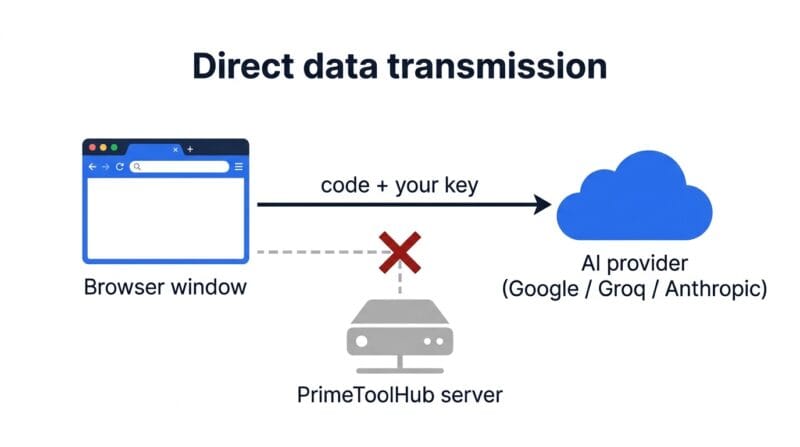
Most tools on this site run entirely in your browser with no network calls — you can pull the plug on your internet and they keep working. This one is different, and it would be dishonest to pretend otherwise. Generating code requires sending your prompt and your current code to an AI provider over the internet. There is no way around that: the intelligence lives on the provider’s servers, not in your browser.
So the accurate privacy claim is narrower than “100% offline”, and it is this: your API key and your code never touch PrimeToolHub’s servers. They go from your browser directly to the provider you chose — Google, Groq, or Anthropic — and what happens to them there is governed by that provider’s data policy, not ours. If you are working with genuinely confidential or client-owned code, read the data-retention terms of whichever provider you select, and treat the AI features accordingly. The guide to secure offline development utilities covers the fully-local tools for when you cannot send code anywhere at all.
🟢 Where Your Key Lives
The API key you paste is held in your browser’s session storage. That means it survives while the tab is open but is cleared when you close it — a deliberate trade that favours safety over convenience, since a key that does not persist to disk cannot be read back later by anything else. The cost is that you re-paste it next visit, which for a credential you should be guarding is a fair exchange. The key is sent only as part of a request to the provider, never anywhere else.
🟡 Live Preview and the Language Modes
For the three languages a browser can actually run — HTML, CSS and JavaScript — the live preview renders your code as a real, isolated page beside the editor, updating shortly after you stop typing. It does this with a sandboxed inline frame, which keeps the preview’s scripts walled off from the rest of the page while still letting buttons, forms and animations behave as they will on a real site.
The other supported languages — PHP, Python, TypeScript, SQL, JSON, Markdown, Shell — cannot execute in a browser, so for those the preview shows the code cleanly formatted rather than pretending to run it. This is the honest behaviour: a browser genuinely cannot execute PHP or Python, and any tool claiming to “run” them client-side is doing something misleading. What the AI gives you for those languages is code to take elsewhere — into WordPress, a server, or a local interpreter.
If your work is pure front-end prototyping without AI, the site’s offline tools directory lists a plain HTML/CSS/JS editor that needs no key at all. AI Code Studio is the right choice specifically when you want the model to write, fix or explain the code for you.
Is this tool free?
The tool itself is free with no account. The AI features need an API key: Gemini and Groq both have free tiers with no credit card, so you can generate code at no cost. Claude is pay-as-you-go and optional, for when you want its higher-quality output.
Does my code get sent to PrimeToolHub?
No. When you use an AI feature, your code and key go directly from your browser to the provider you chose — Google, Groq or Anthropic. They never pass through PrimeToolHub’s servers. What the provider does with them is set by that provider’s own policy.
Is this a fully offline tool like the others here?
No, and we say so plainly. Generating code requires contacting an AI provider over the internet — the intelligence lives on their servers. Most other PrimeToolHub tools are fully offline; this one cannot be, by its nature.
Where is my API key stored?
In your browser’s session storage, which clears when you close the tab. That is deliberate: a key that is not written to disk is harder to leak. The trade is that you paste it again next visit.
How do I get a free Gemini key?
Visit Google AI Studio, sign in with a Google account, and create a key — no card needed. Click API Key in the tool, choose Gemini, paste it, and save. It takes about two minutes.
Which provider is best for WordPress PHP?
Claude tends to produce the most reliable WordPress PHP, following escaping and sanitization conventions with little prompting. Gemini handles standard shortcodes well and is free; Groq is fastest but may need a follow-up prompt to tighten security details.
Why does the preview not run my PHP or Python?
Because browsers cannot execute those languages — only HTML, CSS and JavaScript run client-side. For PHP, Python and the rest, the preview shows formatted code instead. Any tool claiming to run PHP in the browser is misleading you.
Can I put the generated code straight into WordPress?
Yes. WP Export gives you a Woody Code Snippets JSON to import, a PHP shortcode wrapped in add_shortcode() for functions.php, or plain HTML. Pick whichever matches how you add code to your site.