Guide to Free Online Activity
Discover Interactive Learning Studio Pro — make crosswords, word searches, drag-sort, match pairs and memory games free. AI-powered, offline, no signup needed.
Table of Contents
Last updated: June 2026
🔴 What Is Interactive Learning Studio Pro and Who Is It For?
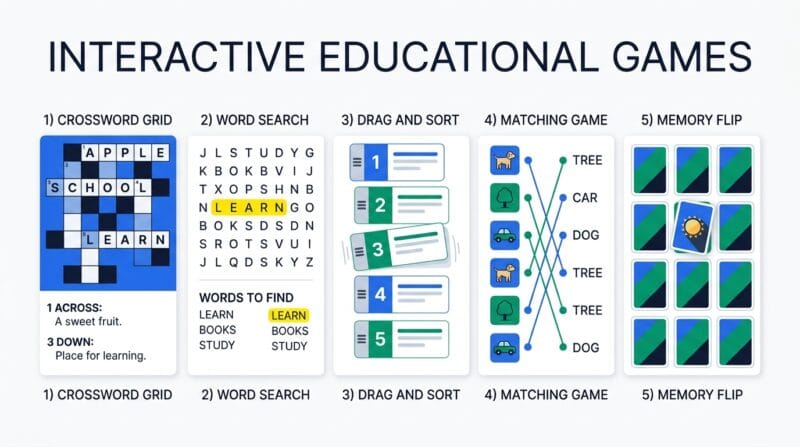
Most activity generators do one thing. A crossword tool makes crosswords. A word search site makes word searches. A flashcard app makes flashcards. Teachers building a complete lesson sequence spend more time switching between platforms than actually designing their content. Interactive Learning Studio Pro fixes this by putting five distinct activity builders — Crossword Creator, Word Search Generator, Drag & Sort Challenge, Match the Pairs, and Memory Match Game — into a single browser-based tool that works offline and costs nothing.
The target audience is broad. Primary school teachers making vocabulary games. Secondary educators building revision puzzles for exam prep. University lecturers creating terminology matching exercises. Corporate trainers designing onboarding activities. Parents homeschooling children. Content creators building language learning materials. The tool imposes no restrictions on subject matter, language, or export destination — create an activity, download the HTML, and distribute it however you want.
The offline-first design is a deliberate architectural choice, not a limitation. All processing — grid generation, word placement, flip animation, drag-and-drop logic — runs in JavaScript inside your browser. The tool page at PrimeToolHub loads once. After that, a network connection is optional. Schools with unreliable internet can use it. Students in areas with data restrictions can use it. Exported activities run on any device with a modern browser, with no CDN dependencies or external script calls.
🟡 Crossword Creator — Complete Guide to Grid Generation and Multilingual Clues
The Crossword Creator tab is the most technically complex part of the interactive learning studio. Understanding how it works helps you write better word lists and get more words successfully placed.
🟢 How the Word Placement Algorithm Works
Words are sorted by length, longest first. The first word is placed horizontally at the center of a 21×21 grid. Each subsequent word attempts up to 300 random positions. For a valid placement, the algorithm checks three conditions: the word fits within the grid boundaries; any letter it shares with an existing word matches exactly; no parallel adjacent words create unintended intersections. When all conditions pass, the word is placed and added to the list of anchor points for future words.
Words that fail after 300 attempts appear in the Stats panel under Skipped. The most common cause is a word that shares no letters with any already-placed word. Adding shorter bridging words — common letters like E, A, R, S, T appear frequently in English — reduces skips significantly. After placement, the grid trims to the smallest bounding rectangle plus one cell of padding on each side.
🟢 The 33-Language Clue System
The language picker button opens a searchable modal with 33 language options. Selecting a language loads the appropriate sample dataset and applies the correct font and text direction to the input textarea. Sinhala clues use Noto Sans Sinhala. Arabic, Hebrew, Persian, and Urdu clues apply direction:rtl and load Noto Sans Arabic. Chinese, Japanese, and Korean clues use Noto Sans CJK SC. All fonts load lazily — only the fonts for languages actually selected are downloaded.
In the exported HTML, each clue retains its font-family and text-direction as inline styles on the clue span element. A student in Japan opening the exported file will see Japanese clues rendered correctly without any additional setup. This is possible because the Google Noto font family provides comprehensive Unicode coverage across all major scripts, and the exported file links to the Google Fonts CDN for those font families.
- 🔵 Format:
WORD:Clue in any language— one pair per line, colon as separator - 🟠 WORD must be Latin A–Z letters only, 2–12 characters, no spaces or numbers
- 🟣 Clue can be any length and any script — no restrictions on language or character set
🔴 AI Assistant Complete Guide — Gemini, Groq, and Claude
The AI Assistant tab transforms the tool from a manual content builder into an AI-powered activity generator. The technical architecture follows the same pattern used in PTH AI Code Studio: direct browser-to-API calls, sessionStorage key management, and a multi-model fallback chain per provider.
🟢 Choosing the Right AI Provider
Google Gemini Flash is the recommended starting point. The free tier at Google AI Studio provides a key with no credit card requirement. The generator tries Gemini 2.5 Flash first, then falls back through 2.0 Flash and 1.5 Flash variants if the primary model returns an error. Response quality is strong for English and major European languages; multilingual output for less common languages like Sinhala or Nepali may need light editing.
Groq with Llama 3.3 70B is the fastest option — responses typically arrive in under two seconds on the free developer tier. The model fallback chain tries four Llama and Mixtral variants in sequence. Speed makes it ideal for rapid iteration: generate, review, regenerate with different parameters, and compare outputs quickly.
Anthropic Claude Sonnet 4.6 requires a paid API key but produces the most precisely structured output. For crossword generation specifically, Claude rarely produces words that fail the /^[A-Za-z]{3,12}$/ validation check, and its multilingual clues in Arabic, Tamil, and Sinhala are consistently natural-sounding.
🟢 Step-by-Step Generation Workflow
Select your AI provider and paste the key. The provider tab shows a ✅ tick when a key is stored. Keys from all three providers can be saved simultaneously — switching providers just clicks a different tab. Choose which activity tab to fill using the five target buttons. Pick a quick topic from the template chips or type your own in any language. Set item count (6–15), output language (15 options), and difficulty (Easy / Medium / Hard). Click ✨ Generate.
The loading animation shows three pulsing dots while the API request processes. On completion, the dark preview box displays the cleaned output. Invalid lines — words with non-Latin characters for Crossword, lines without a colon for Match Pairs — are filtered silently. The count badge above the preview shows how many valid items were kept. Click ➡ Use in Tab to auto-fill the target activity’s input field and switch to that tab automatically. The last 10 generations are saved in the history panel; click Use on any history item to reload it into the preview.
- 🔵 Crossword: generates WORD:Clue pairs — words validated as Latin A–Z, 3–12 characters
- 🟠 Word Search: generates uppercase single words, non-alphabetic characters stripped automatically
- 🟣 Drag & Sort: generates ordered steps in the chosen language — student activity scrambles them
For educators building activities at scale, the combination of AI generation and HTML export is particularly powerful. Generate a crossword about the water cycle in Sinhala, export the HTML, generate a word search on the same topic in English, export that too. Students get two complementary activities covering the same content from different cognitive angles — recognition via word search, then retrieval via crossword.
🟡 Word Search, Drag & Sort, Match Pairs, and Memory Match — Practical Tips
Word Search works best for vocabulary introduction. Keep words between four and ten characters — shorter words get lost in filler letters, longer words dominate the grid. The All 8 Directions mode creates the most challenge; Horizontal Only is more accessible for younger learners or non-native speakers still building directional reading confidence. The built-in timer starts when you click Start Timer and stops automatically when all words are found — a natural self-competition mechanism that works without teacher involvement.
Drag & Sort content should describe one clear, linear process. Avoid steps that could logically happen in different orders — the Check Order function marks position-exact matches only. For historical events or scientific processes with a strict sequence, this format is ideal. For creative tasks with multiple valid approaches, consider Match Pairs instead.
Match Pairs works exceptionally well for vocabulary-definition linking, country-capital matching, formula-name association, and image-description pairing when used alongside an image. Terms and definitions display in separately shuffled columns — students see all options simultaneously, which reduces random guessing and requires genuine association. The 700-millisecond wrong-match penalty is long enough to register as feedback without being punitive.
Memory Match with emoji pairs creates a highly engaging format for younger learners. The format Apple:🍎 produces a card showing “Apple” on one side and the apple emoji on the other. Mixed-language pairs — English word on one card, native language translation on the other — make vocabulary reinforcement genuinely fun. The 3D flip animation uses backface-visibility:hidden to prevent the front face from showing through during the rotation, creating a clean flip effect without JavaScript-driven position swapping.
For more free classroom and productivity tools in the same offline-first style, browse the complete PrimeToolHub free tools collection. For AI-powered coding assistance using the same Gemini, Groq, and Claude integration, the PTH AI Code Studio offers a full browser-based code editor with AI generation and magic buttons for explanation, fixing, and optimization.
❓ Frequently Asked Questions
Is Interactive Learning Studio Pro really free with no limits?
Yes — completely free with no account, no subscription, and no feature limits. All five activity tabs are fully functional without payment. The AI Assistant tab requires your own API key from a third-party provider (Google, Groq, or Anthropic), but Gemini Flash and Groq both offer free developer tiers that cost nothing to start.
How many activities can I create per session?
There is no session limit. Create and export as many activities as you want within a single browser session. Each tab retains its current state independently — you can have a crossword generated in one tab while working on a word search in another. Clearing a tab resets only that tab’s content.
What file format does the Export HTML produce?
A complete, self-contained .html file with all CSS, JavaScript, and activity data embedded inline. No external resources are loaded — the file works identically whether opened from a USB drive, shared via email attachment, hosted on a website, or placed inside a Google Classroom assignment. Students need only a modern browser to play it.
Can I create activities in languages other than English?
Yes. The interactive learning studio supports 33 languages for crossword clues with automatic font loading and right-to-left direction for Arabic, Hebrew, Persian, and Urdu. The AI Assistant generates content in 15 output languages including Sinhala, Tamil, Hindi, Chinese, Japanese, Korean, Arabic, and all major European languages. Drag & Sort, Match Pairs, and Memory Match accept any Unicode text.
Why did the Crossword skip some of my words?
The algorithm needs words to share at least one common letter with already-placed words in order to create a valid intersection. After 300 failed placement attempts, a word is marked Skipped. This usually happens with topic-specific jargon that shares few letters with other words in your list. Try adding shorter, more common words as bridges, or include words with frequently shared letters like E, A, R, S, and T.
Does the Memory Match game save best scores between sessions?
Best time and best flip count are tracked within the current browser session only — they reset when the page is refreshed or the tab is closed. The exported HTML file tracks best scores within its own session independently. For classroom use where persistent leaderboards matter, consider using the exported file through a learning management system that supports file submissions.
How does the Drag & Sort Check Order scoring work?
Each item’s current position is compared to its correct position in the original input order. A green highlight means the item is in exactly the right slot; red means it is in the wrong position relative to the correct sequence. The score percentage reflects the fraction of items in their correct positions. Reshuffling resets all highlights without regenerating the activity.
Can I edit the exported HTML file after downloading it?
Yes. The exported file is plain HTML with embedded CSS and JavaScript — open it in any text editor or code editor. The grid data is stored as a JSON string in a data-json attribute on a hidden div, making it straightforward to identify and modify. You can adjust colors, font sizes, and add additional HTML content around the activity area without affecting the interactive logic.
What happens if the AI generates invalid output?
The output cleaner validates each line before displaying it. For Crossword output, words containing non-Latin characters or outside the 3–12 character length range are silently removed. For Word Search, non-alphabetic characters are stripped and the word is uppercased. Lines that cannot be salvaged are dropped entirely. The count badge shows only valid items — if the count is lower than expected, the AI produced some lines that failed validation, and clicking Regenerate usually fixes it.