Write, Fix & Generate Code
Monaco editor AI assistant (VS Code engine), live preview, and AI from Claude, Gemini or Groq. Generate, fix, explain & export code — 100% in your browser.

Table of Contents
Last updated: June 2025
🔴 What Makes a Browser AI Code Editor Different from Cursor?
Cursor, GitHub Copilot, and Tabnine are all excellent tools — but they share three requirements: local installation, a configured development environment, and a monthly subscription after the trial. For a developer who needs to write a quick PHP snippet on a client’s computer, prototype a pricing table on a tablet, or build a WordPress tool section without running a local server, none of these options work. A browser-based AI code editor removes every requirement. No install, no subscription when you use a free API tier, and no local environment needed.
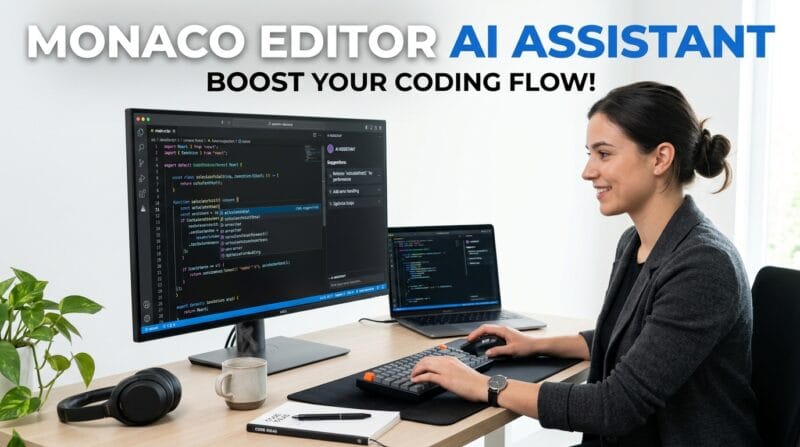
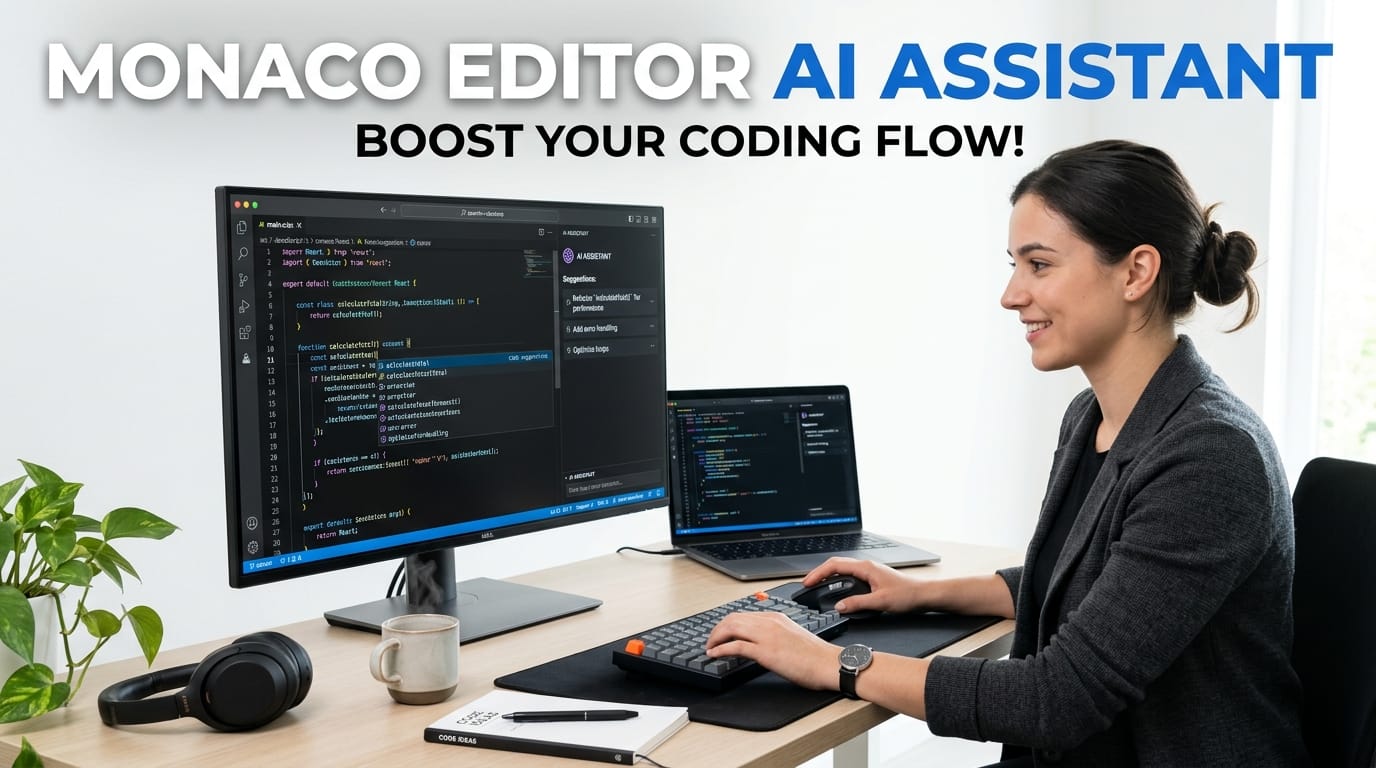
The PTH AI Code Studio is a free online AI code editor that runs in any modern browser. It uses the Monaco Editor library — the same rendering engine Microsoft ships inside VS Code — for the editing experience, and connects to your choice of three AI backends: Claude (Anthropic), Gemini 1.5 Flash (Google, free tier), or Llama 3 via Groq (free tier). You bring your own API key, which stays in your browser’s sessionStorage and never reaches the PTH server.
The Monaco Editor — Why It Matters for Browser Coding
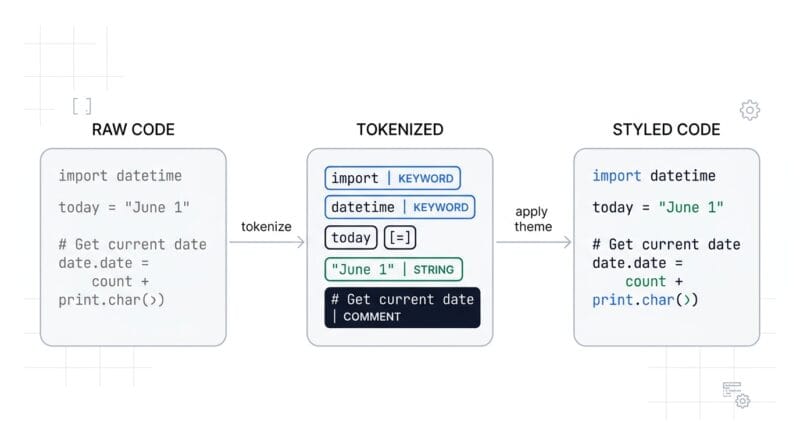
Most browser-based code editors use CodeMirror or Ace — both solid libraries, but limited compared to Monaco’s feature set. Monaco implements the same Language Server Protocol architecture that VS Code uses, enabling richer language support than simpler editors. In the browser context, this means proper token-based syntax highlighting (not just regex-based coloring), configurable formatter actions via editor.getAction('editor.action.formatDocument').run(), multi-cursor editing with Alt+Click, and a full find-and-replace dialog with regex support available via Ctrl+H.
Monaco renders using a canvas overlay for the cursor and selection highlight, with DOM-based text nodes for the actual content — a hybrid approach that gives it performance advantages over purely DOM-based editors on large files. The editor loads from the CDN using a custom AMD module loader, initializing asynchronously without blocking the page. Language grammars for all ten supported modes (HTML, CSS, JavaScript, PHP, Python, TypeScript, SQL, JSON, Markdown, Shell) are included in the bundle.
🟡 Three AI Providers — Claude, Gemini, and Groq
Claude (Anthropic) — Best Code Quality
The Claude API (claude-sonnet-4-6) produces the most reliable code output of the three providers — particularly for complex, multi-file logic, PHP WordPress development, and TypeScript. Claude’s responses are clear, well-commented, and follow modern best practices without requiring detailed prompting. The tool sends requests to api.anthropic.com/v1/messages with a max_tokens: 4096 limit, which covers most complete component builds. Claude requires a paid Anthropic API account, with pay-as-you-go pricing rather than a subscription.
Gemini 1.5 Flash (Google) — Best Free Option
Google’s Gemini 1.5 Flash model is available via Google AI Studio at no cost — no credit card required. The API key is obtained from aistudio.google.com in under two minutes. The tool sends requests to generativelanguage.googleapis.com/v1beta/models/gemini-1.5-flash:generateContent with the API key as a URL parameter. Flash is fast — typical code generation responses complete in 2–4 seconds. Code quality is strong for HTML, CSS, JavaScript, and Python. For WordPress-specific PHP or complex TypeScript, Claude produces more reliable output.
Groq / Llama 3 — Fastest Free Option
Groq runs the Llama 3 70B model on custom LPU (Language Processing Unit) hardware, producing inference speeds dramatically faster than GPU-based providers. API keys are available free from console.groq.com. Requests go to api.groq.com/openai/v1/chat/completions using the OpenAI-compatible endpoint format with the llama3-70b-8192 model. Groq is the right choice when you need fast iteration — generate a component, apply it, request a change, apply again — where response latency matters more than maximum code quality. The 8,192-token context window handles most coding tasks comfortably.
🟢 7 Magic Buttons — AI Actions Designed for Developers
The Magic button row sits between the top bar and the editor, giving one-click access to the seven most common AI coding actions without requiring you to write a prompt from scratch.
✨ Generate opens a native browser prompt() dialog — type your description and the AI returns complete working code inside a code fence. The system prompt instructs the model to return only code, no explanations, so the output is immediately usable. After generation, the code appears in the AI chat as an assistant message with an ⬆ Apply Code to Editor button — click it and Monaco’s content is replaced instantly.
⚡ Optimize sends the current code with a system prompt specifying three goals: performance, readability, and best practices for the current language. For JavaScript, this means removing unnecessary reflows, replacing var with proper scoping, and extracting repeated code. For CSS, it consolidates duplicate selectors and removes unused properties. For PHP, it enforces proper escaping and WordPress coding standards alignment.
🐛 Find Bugs is the most diagnostic button — the system prompt instructs the AI to list every bug with the line number or context reference, explain the cause, provide the fix, and then return the complete corrected code at the end. This two-part response (analysis then corrected code) means you understand what was wrong before seeing the solution, which is more useful than a silent replacement.
💅 Tailwind is unique among the seven buttons in that it modifies both the content and the structure of the output — it instructs the AI to rewrite the code using Tailwind utility classes AND inject the Tailwind CDN link if not already present. The result is a self-contained file that works without any build process, npm installation, or PostCSS configuration — paste it anywhere that serves HTML.
🔴 Live Preview — How the srcdoc Iframe Works
The Live Preview uses a standard HTML <iframe> element with the srcdoc attribute — an attribute that accepts HTML content as a string and renders it as a complete document within the iframe, without requiring a URL or a server. Setting iframe.srcdoc = htmlString is functionally equivalent to loading a URL but works entirely in the browser memory space.
The iframe updates on a 600-millisecond debounce — the onDidChangeModelContent event from Monaco fires a timer reset on every keystroke, and the preview only re-renders 600ms after the last change. This prevents flashing, partial renders, and JavaScript errors from executing half-written code. For languages that cannot execute in the browser (PHP, Python, SQL, Shell), the preview renders the code as pre-formatted syntax-highlighted text rather than attempting execution.
The sandbox="allow-scripts allow-same-origin" attribute on the iframe permits JavaScript execution (so interactive components like buttons, forms, and animations work in the preview) while blocking popups, form submissions to external URLs, and navigation that would leave the preview frame. The allow-same-origin flag is needed for inline scripts to access the document object within the frame.
🟡 Auto-Save and Session Recovery Architecture
The auto-save system uses two separate localStorage keys. The session key (pth_codestudio_v1) stores a JSON object containing the current code, the current language, and a Unix timestamp updated on every save. A two-second debounce on the Monaco onDidChangeModelContent event triggers the save — fast enough to capture every meaningful edit, slow enough to avoid excessive localStorage writes during rapid typing.
On initialization, the tool reads this key and checks two conditions: the saved data must exist, and the timestamp must be less than seven days old. If both pass, a restore prompt appears in the chat panel. The seven-day window prevents stale sessions from showing up weeks later while still covering the common case of returning to a project a day or two after the last session.
The history key (pth_codestudio_hist) stores a JSON array of up to 20 objects, each containing a label, the code, the language, and a formatted time string. New entries are unshifted to the front of the array (most recent first) and the array is trimmed to 20 entries after each addition. The History panel renders these as clickable cards — click any card to restore that code to the editor.
🟢 WordPress Export — Why Three Formats?
Different WordPress workflows require different code formats. A solo developer who manages a site using the Woody Code Snippets plugin needs the snippet in a format that Woody can import or paste. A developer building client sites needs the code as a proper PHP shortcode registered in functions.php. A developer handing code to a non-technical site manager needs the simplest possible format — just the raw HTML. The three export options cover all three scenarios from a single button.
The Woody JSON format is the most complete export. It constructs the exact JSON structure that the Woody Code Snippets plugin’s import function expects: a generator string, a creation date, and a snippets array containing the snippet name, title, content, location type, HTML type indicator, filter settings (is_single and is_page set to true), priority, description, and empty attributes and tags arrays. Import this file via Woody → Import and the snippet appears immediately in the snippets list, ready to assign to pages.
The PHP Shortcode export uses output buffering — ob_start() captures everything between the PHP open tag and ob_get_clean(), which returns it as a string that the shortcode function can pass back to WordPress’s content pipeline. This is the correct pattern for WordPress shortcodes that output HTML — it prevents the content from printing directly and ensures it appears at the right position in the page content. The generated shortcode tag ([pth_ai_generated]) can be placed in any post, page, or widget that processes shortcodes. For developer tools that complement this workflow, see the PTH Secure Hash and Crypto Studio for cryptographic operations on data before including it in generated code.

Status Bar and Editor Toolbar — Every Metric at a Glance
A dark status bar runs along the bottom of the editor panel, showing four live metrics that update automatically as you type. Language displays the current mode in uppercase — HTML, JS, PHP, and so on — matching what Monaco is using for syntax highlighting. Lines shows the current line count from model.getLineCount(). Chars shows the total character count from model.getValue().length. AI Status shows whether an API key is saved for the current provider and which provider is active — updating immediately when you save a key or switch providers.
The editor toolbar above Monaco provides four action buttons. 📋 Copy writes the full editor content to the clipboard via the Clipboard API. ⬇ Download creates a file download with the correct extension for the current language — .html for HTML, .js for JavaScript, .php for PHP, .py for Python, .ts for TypeScript, and so on. 🗑️ Clear restores the starter template for the current language — each language has its own sensible starter code that demonstrates the basic file structure. ✨ Format calls editor.getAction('editor.action.formatDocument').run(), which runs Monaco’s built-in formatter for languages that have one (HTML, JSON, JavaScript, TypeScript). The cursor position and line/column indicator updates in real time as you move through the code.
10 Language Modes — When to Use Each
The language selector controls Monaco’s syntax highlighting grammar and the starter template loaded when you click Clear. Ten modes are available, each suited to different tasks within a WordPress development workflow.
HTML is the most common starting point — generate a pricing table, a contact card, a features section, or any page component. The Live Preview renders it immediately. CSS is for styling work where you want to see the output isolated without an HTML wrapper. JavaScript renders in the preview with console output visible on screen — good for utility functions and DOM manipulation prototypes. PHP is for WordPress shortcodes, hooks, and functions — the AI understands WordPress-specific patterns when you describe them in the Generate prompt. Python is for data processing scripts, API clients, and automation — rendered as formatted code in the preview since Python cannot execute in the browser. TypeScript is for type-safe JavaScript development — the AI generates proper interface definitions and typed function signatures. SQL is for query writing and database schema work. JSON provides a quick formatter and validator with Monaco’s built-in JSON language support. Markdown is for documentation, README files, and content with syntax highlighting for headers, lists, and code blocks. Shell is for Bash scripts, server setup commands, and WP-CLI workflows.
Comparing the Three AI Providers for Code Tasks
Choosing the right AI provider for your task affects both output quality and response speed. A practical guide based on the strengths of each model helps you get the best results with minimal retries.
For WordPress PHP development — shortcodes, custom post types, admin pages, REST API endpoints — Claude produces the most reliable output. It follows WordPress coding standards without requiring explicit instruction, uses esc_html() and sanitize_text_field() correctly, and structures hooks in the conventional way. Gemini produces decent PHP but occasionally generates non-WordPress patterns. Groq’s Llama 3 handles basic shortcodes well but may need a follow-up prompt to add proper sanitization and nonces.
For HTML and CSS prototyping — pricing tables, hero sections, navigation bars, cards — all three providers perform comparably. Gemini Flash is the right choice here because it is the fastest of the three at no cost, and HTML/CSS output quality is consistent across all models for standard UI components. The Tailwind Magic button works particularly well with Gemini for converting a plain HTML layout to a modern Tailwind design in one step.
For rapid iteration — writing code, trying a change, applying it, requesting another change — Groq’s speed is the decisive advantage. When you are in a flow state of writing and refining, a 1-second response keeps you moving. A 4-second response breaks the rhythm. Use Groq when you know what you want and are adjusting details. Switch to Claude when you have a complex requirement where one high-quality response is more valuable than four fast approximate ones.
Real-World Use Cases by Developer Type
WordPress theme developers use the Generate button to scaffold template parts — set the language to PHP, prompt “create a WordPress template part for a featured post card with title, excerpt, featured image, and read more link using get_template_part pattern”, apply the code, then use Find Bugs to verify the escaping and sanitization before adding it to the theme. The Woody JSON export gets it into the site without touching the file system.
Plugin developers use the Explain button on legacy plugin code they are maintaining — paste a complex filter hook from an older plugin and Explain returns a plain-English description of what it does, what order it fires in, and what the return value affects. This is faster than reading through unfamiliar code manually and more reliable than guessing from variable names.
Front-end designers use the Tailwind button to convert static mockup HTML into utility-class markup without learning every Tailwind class individually. Paste a plain HTML card, click Tailwind, and the output is a modern-looking component with responsive breakpoints, hover states, and proper spacing using Tailwind’s design system — including the CDN link so it renders immediately in the Live Preview panel.
Technical writers and educators use the Comments button on code samples before including them in documentation or tutorials. The AI adds not just line comments but function-level docblocks, parameter descriptions, and notes on why certain patterns are used — turning a bare code sample into a self-documenting example that readers can understand without additional explanation.
🔴 Privacy Model — What Leaves the Browser and What Stays
Understanding exactly what data leaves the browser is important for developers who work with proprietary or client code. Three categories of data are in play.
Data that never leaves the browser: auto-saved session snapshots (localStorage), snippet history (localStorage), the API key (sessionStorage), and the Monaco editor content at any time when you are not using an AI feature.
Data sent to your chosen AI provider when you use Magic buttons or AI Chat: your current editor code (as part of the system prompt or user message), your natural language prompt or chat message, and your API key (as an HTTP header or URL parameter, depending on the provider). This data goes directly from your browser to the provider’s API endpoint — it does not pass through PTH’s servers.
Data sent to PTH: none. The tool’s JavaScript, CSS, and HTML load once from the PTH page and then operate entirely client-side. The Monaco editor library loads from the Cloudflare CDN (cdnjs.cloudflare.com) on first use and is then cached by the browser. No PTH page request is made during an active coding session after the initial page load.
For developers who need complete data isolation — working with client credentials, proprietary algorithms, or confidential business logic — the correct approach is to use the Explain and Find Bugs buttons on non-sensitive code during development, and only use the AI features on production code when using a provider whose data retention policies match your requirements. Each provider’s terms of service governs how your API requests are stored and used.
❓ Frequently Asked Questions
Do I need to install anything to use this AI code editor?
No. Open the page in any modern browser — Chrome, Firefox, Edge, or Safari — and the editor loads immediately with zero external dependencies. The AI features require a free API key from Gemini (Google AI Studio) or Groq, both obtainable in under two minutes with no credit card. No local server, no Node.js, no npm, and no extensions needed.
How do I get a free Gemini API key?
Go to aistudio.google.com, sign in with a Google account, click “Get API key”, and copy the key shown. No credit card required. Click 🔑 API Key in the tool, select 🔷 Gemini Flash, paste your key, and click 💾 Save Key & Start Coding. The free tier provides generous daily requests — more than enough for personal coding sessions.
How do I get a free Groq API key?
Go to console.groq.com, create a free account (no credit card needed), navigate to API Keys, and create a new key. Select ⚡ Groq / Llama in the API Key modal, paste the key, and save. Groq is the fastest provider — responses typically complete in 1–2 seconds using Llama 3, making rapid iteration very smooth.
Why are the buttons not working on first load?
If you see buttons but they are unresponsive, try a hard refresh (Ctrl+Shift+R on Windows, Cmd+Shift+R on Mac). This clears the LiteSpeed page cache. The tool includes a cache-disable directive to prevent caching, but some browser or server caches may need clearing once. After a hard refresh the tool works immediately.
Can I use this for WordPress shortcode development?
Yes — this is one of the primary use cases. Set the language to PHP, click ✨ Generate, select the 🔌 WP Shortcode task chip or type your own description, apply the generated code, refine it with AI Chat or 🐛 Find Bugs, then click 🌿 WP Export → ⚡ PHP Shortcode to get a complete add_shortcode() wrapper ready for functions.php.
Does the AI see my previous messages in the chat?
Each AI Chat message is sent with your current editor code as the system prompt context, but previous chat messages are not included in the API request (they display locally only). The AI always knows your current code but does not remember earlier exchanges. For multi-step discussions, briefly mention relevant context from previous messages in your next prompt.
What is the maximum code size the AI can handle?
The tool requests up to 4,096 output tokens from each provider. For input, your code plus the system prompt must fit the provider’s context window — Groq’s Llama 3 supports 8,192 total tokens, Gemini 1.5 Flash supports 1 million input tokens, and Claude supports 200,000 tokens. Files up to roughly 10,000–15,000 characters work reliably across all three providers.
Can I use keyboard shortcuts in the editor?
Yes. The editor supports standard shortcuts: Tab inserts two spaces, Ctrl+A selects all, Ctrl+Z undoes changes, and cut/copy/paste all work normally. The tool adds Ctrl+Enter to manually refresh the Live Preview, and Escape closes any open modal including the Generate task modal and API Key setup.
How is this different from CodePen or JSFiddle?
CodePen and JSFiddle are code playgrounds — they host your code on their servers, require accounts for saving, and have no AI features. PTH AI Code Studio is an AI-first editor: generation, debugging, and explanation are the primary purpose while live preview is secondary. Your code never reaches the PTH server, and all ten supported languages work with AI — not just HTML, CSS, and JavaScript.