AI Text Summarizer Guide | 6 Tools in One
Free offline AI text summarizer with 6 tabs: Summarize, Analyze (Flesch score, keyword density), Rewrite (5 modes), and Export in TXT/PDF/MD/JSON/SRT. 100% private.
Table of Contents
Last updated: June 2026
🔴 What Is an AI Text Summarizer?
An AI text summarizer is a tool that uses a machine learning model to read a document and generate a shorter version while preserving the most important information. There are two primary approaches: extractive summarization, which selects and concatenates existing sentences from the source, and abstractive summarization, which generates new sentences that were not in the original text. The PTH AI Text Summarizer uses abstractive summarization via the DistilBART-CNN-12-6 model — a distilled version of Facebook’s BART architecture fine-tuned on news summarization datasets.
What distinguishes this tool from standard summarizers is what happens after the summary is generated. The six-tab workspace extends the workflow into text analysis (Flesch score, keyword density, duplicate detection), offline AI rewriting with five modes, and a full export hub with six file formats. You get a complete text intelligence pipeline, not just a shorter paragraph.
How the DistilBART AI Model Works in the Browser
The tool loads the Xenova/distilbart-cnn-12-6 model using the Web Workers API and the Transformers.js library. The model runs in a dedicated Web Worker thread — isolated from the main page thread, with no network access after the initial download. This means the browser tab stays responsive during processing, and no data is transmitted to any server.
On first use, the model downloads approximately 240 MB to your browser cache. Subsequent uses load from cache — typically under two seconds. The model processes up to 4,000 characters of input text per run. For longer documents, the key sentences scored highest by the heatmap algorithm are sent first, ensuring the most relevant content reaches the model within the input window.
Tone modes inject prefix instructions directly into the input string. DistilBART, being fine-tuned on news text, responds reliably to natural language instructions when they precede the content being processed. “Write in a formal, professional, executive-level tone:” followed by your text consistently shifts the model’s output vocabulary toward professional register. This is prompt engineering in its simplest form — no fine-tuning, no API key, no cost.
🟡 The 6-Tab Workspace — One Tool, Complete Pipeline
Tab 1 — 📥 Input: Four Ways to Load Text
The Input tab is the entry point for all six workflows. Text reaches the tool four ways.
Paste from clipboard reads directly via the Clipboard API — one click, no Ctrl+V needed. Upload File supports .TXT (direct text read), .PDF (PDF.js multi-page extraction, joining all page text content), and .DOCX/.DOC (Mammoth.js raw text extraction, stripping formatting). Fetch URL uses the AllOrigins proxy to retrieve a public web page, then strips scripts, styles, navigation elements, header, and footer from the DOM before extracting body text — up to 8,000 characters. Direct typing works in both the native text box and the English text box.
The 🧹 Clean Text function is a pre-processing step that runs before any summarization. It removes HTML tags (common in content pasted from email clients and CMS editors), decodes HTML entities like & and <, normalizes smart curly quotes to straight quotes, and collapses runs of multiple spaces or three-or-more consecutive line breaks. Clean text produces better AI output because the model’s attention is not diluted by formatting artifacts.
The dual text box layout — source language on the left, English on the right — reflects the actual multilingual workflow. Twenty languages are supported via the language selector modal, including Sinhala, Tamil, Hindi, Arabic, Japanese, Chinese, Korean, Vietnamese, Thai, and Polish. The translation engine splits text into chunks under 4,500 characters, translates each chunk via the Google Translate API independently, then joins the results. This chunked approach eliminates the 400 Bad Request error that occurs when sending long texts as a single API call — a common failure mode in simpler implementations.
The Sentence Importance Heatmap Explained
The heatmap is visible in the Input tab once text is detected. It renders all sentences from the source text inline, with a background color overlay based on their importance score.
The scoring algorithm works as follows. First, a term frequency map is built for all non-stopword words in the document. Then each sentence receives a score equal to the sum of term frequencies of all its words — a sentence using words that appear frequently across the entire document gets a higher score than one using rare or generic terms. Sentences scoring above 65% of the maximum score are highlighted green. Sentences scoring 35–65% are highlighted amber. Below 35% stays unhighlighted.
Add a focus keyword and the algorithm adds a bonus of 15 points to any sentence containing it — immediately updating the heatmap. This makes the heatmap interactive: you can visually verify that your focus keyword actually appears in high-priority sentences before spending time running the AI model.
Tab 2 — 📋 Sections: Keyword-Intelligence Extraction
The Sections tab provides a no-AI alternative to the neural model for structured document analysis. Each of the twelve preset sections has a curated keyword dictionary — between 15 and 35 domain-specific terms per section.
When you select sections and click Generate, the tool runs the extraction algorithm for each section independently. Every sentence in the source text is tokenized and scored against the section’s keyword dictionary. Sentences need a word count above four and a keyword score above zero to qualify. The top four qualifying sentences are returned per section, formatted as a labeled result block with a purple left border.
You can combine any of the twelve presets with unlimited custom sections. Custom sections use a fallback extraction — the section name itself is split into content words, and those words become the keyword dictionary. “Product Defects” extracts sentences containing “product” or “defect.” “Customer Feedback” extracts sentences containing “customer” or “feedback.” This generalizes to almost any domain without requiring any configuration beyond typing a section name.
The result is immediately available in the Summary tab, with a purple “📋 Sectioned” badge in the result header. The Export Hub, Version Compare, and Translate functions all work identically on a sectioned result and an AI-generated result — the workflow after generation is the same regardless of which engine produced it.
🟢 Deep Text Analysis — Flesch, Density, Duplicates
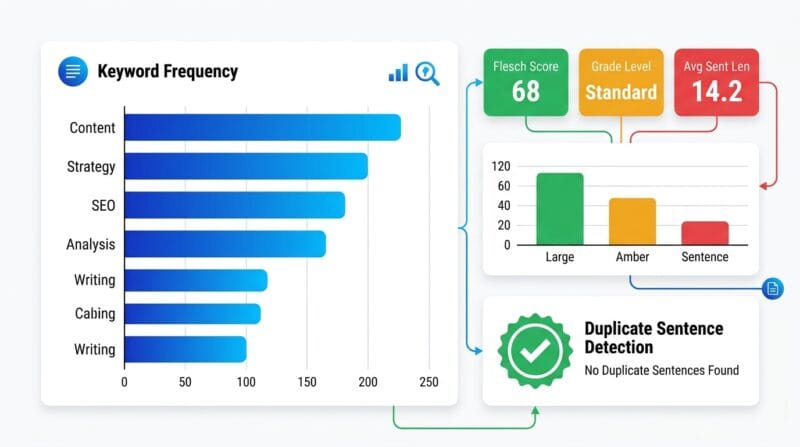
The Analyzer tab is where this tool differentiates itself most clearly from a standard summarizer. It runs five separate analyses simultaneously on the source text.
Flesch Reading Ease and Grade Level
The Flesch Reading Ease formula (206.835 − 1.015 × ASL − 84.6 × ASW, where ASL is average sentence length in words and ASW is average syllables per word) was developed by Rudolf Flesch in 1948 and remains the most widely used readability metric in English. It is used by the US Department of Defense for technical writing standards, the insurance industry for policy document requirements, and academic journals for assessing paper accessibility.
The tool calculates syllable count using a vowel cluster algorithm — counting runs of vowel characters (a, e, i, o, u, y) per word. This is an approximation that is accurate for roughly 85–90% of common English words. The result is displayed alongside Average Sentence Length, Unique Word Count, and Vocabulary Richness (unique words divided by total words, expressed as a percentage).
Keyword Density Table
The top 12 keywords table gives you the most objective view of what a document is actually about. After filtering 40 common stopwords, the remaining words are ranked by raw frequency. Density is calculated as frequency divided by total word count, expressed as a percentage. A bar visualization scales each keyword’s frequency relative to the most frequent term.
This table has practical SEO applications. Before publishing an article, check that your target keyword appears at 1–3% density — below 0.5% is under-represented, above 4% risks appearing repetitive. Check that secondary keywords appear naturally at 0.5–1.5%. If your intended main keyword does not appear in the top 12, it is either absent from the content or used less frequently than generic terms — both are signals to revise before publishing.
Sentence Length Distribution Chart
The distribution chart renders up to 40 sentences as vertical bars, height proportional to word count, color-coded by length category. Green bars (under 15 words) are easy to scan. Amber bars (15–30 words) need one complete reading. Red bars (over 30 words) require careful parsing — they are candidates for splitting.
Good writing for general audiences shows a varied pattern of mostly green and amber bars with occasional red for complex explanations. Technical documentation can tolerate more amber and red. A social media post should be all green. Marketing copy should alternate short and medium sentences for rhythm. The chart makes these patterns visible at a glance — you do not need to count words manually per sentence.
🔴 The Rewriter — Five Modes, One Offline Model
The Rewriter tab is the third AI function in this tool, alongside summarization and sectioned extraction. It uses the same DistilBART model with a different mode prefix — making it available at zero additional download cost once the model is cached.
🔄 Paraphrase is the standard mode — different words, same meaning. Use this when you have duplicate content concerns or need to restate a source without direct quotation. 🧒 Simplify is the correct choice after the Flesch analyzer returns a score below 40 — the model shifts to shorter sentences and common vocabulary. 💼 Formalize is for content that started as casual speech (meeting recordings transcribed with the PTH AI Offline Transcription Studio) and needs to become formal written English. ✂️ Shorten aggressively cuts length — equivalent to running summarization on a passage that is already a summary. 📈 Expand requests elaboration — useful when the AI summary is accurate but too brief for a formal deliverable.
The diff highlighting after rewriting is generated by a vocabulary set comparison: every word in the rewritten output is checked against the full word vocabulary of the original input. Words not found in the original vocabulary appear with a yellow background. This is a meaningful signal — if the model introduces a technical term that was not in your source, that is either a hallucination or a reasonable inference. Either way, it deserves review before publishing.
🟡 Export Hub — Every Format for Every Workflow
The Export Hub consolidates six download formats and four clipboard copy modes, replacing the scattered export buttons of previous versions.
.JSON is the most versatile format for technical users. The exported object includes every parameter that produced the summary: timestamp, length setting, format, tone, selected sections, focus keywords, compression percentage, and the full summary text. Feed this into a database, a reporting API, a content management system, or a custom script. The structure is deterministic across all tool versions — same fields, same keys.
.SRT is the least obvious but surprisingly useful format. AI summaries of video transcripts, podcast episodes, and lecture recordings are often used as video description overlays — uploading an SRT to YouTube creates auto-timed captions from the summary text. The SRT builder estimates each sentence’s display duration at three words per second, which matches average reading pace at normal video speed.
The 📱 Social (280 chars) copy mode trims the summary to exactly 280 characters — the current limit for X (formerly Twitter) posts. This is not a separate AI generation — it is a substring of the existing summary. For social media use, the 📱 Social tone mode produces the best raw summary, then the 280 char trim gives you the post-ready version. Two clicks from “Generate” to publishable social content.
🟢 Privacy, Session Storage, and History
All six functions — summarization, rewriting, analysis, translation display, export building, and copy formatting — run client-side. The DistilBART model executes in a Web Worker with no network access after loading. PDF and DOCX files are processed using ArrayBuffer operations entirely in browser memory. No document content is ever sent to a server.
The one external request is the translation API call — the Google Translate chunked endpoint receives your source text when you click the ➡️ translation button. This sends text content (not files) to Google’s servers. If end-to-end offline operation is required, skip the translation step and paste English text directly into the English text box.
The Recent Summaries panel in the sidebar stores the last ten summary previews in JavaScript runtime memory (not localStorage) — they clear when the page is refreshed. Clicking a history item restores its preview text to the Summary tab. The session has no expiry because there is no persistence — every page load starts fresh, ensuring no residual document content from previous sessions.
🔴 Who Uses This Tool — Real Workflows
Content writers and editors use the Analyzer tab to check Flesch scores before publication, confirm keyword density matches SEO targets, and run the Simplify rewrite mode on passages that score above difficulty 50. The JSON export feeds into their content management workflow. The 280-char Social copy mode gives them the Twitter post for the article in two clicks.
Legal and compliance professionals use the Sections mode with Key Points, Decisions Made, Risks & Issues, and Dates & Deadlines active — producing a structured intelligence brief from a 40-page contract in under ten seconds, entirely offline, with no document data leaving their machine.
Academics and researchers upload PDF papers, run the Academic tone summarization, check the keyword density table to confirm the paper’s stated topic matches its actual keyword frequency, and export as Markdown for their reference management workflow. The Duplicate Sentence Detector helps spot inadvertent self-plagiarism in draft papers before submission.
Business analysts and executives paste meeting transcripts (exported from the PTH AI Offline Transcription Studio), activate Action Items, Decisions Made, and Financial Data sections, and export the sectioned report as a PDF for the post-meeting minutes file — replacing thirty minutes of manual note-taking with a ten-second automated extraction.
❓ Frequently Asked Questions
Is this free with no character or file count limits?
Yes, completely free — no account, no API key, no per-summary charge, no monthly limit. The only one-time cost is your browser downloading the ~240 MB AI model on first use. After that, every summary, rewrite, and analysis runs offline with zero usage restrictions.
How long does summarization take?
On first use: 3–8 minutes for the ~240 MB model to download (depends on your connection). On cached use: 5–15 seconds for a typical 500–1,500 word document on a modern laptop CPU. Sections mode is instant (no AI model needed). URL fetching adds 2–5 seconds for the HTTP request.
Can I use this for confidential business documents?
Yes. The AI model runs in a Web Worker with no network access after loading. PDF and DOCX processing happens entirely in browser memory using ArrayBuffer operations. No document content leaves your browser. The only external call is the optional translation step — skip it and paste English text directly for complete end-to-end privacy.
What is the maximum input text length?
The AI summarizer processes up to 4,000 characters of input per run (roughly 600–700 words). For longer documents, load the full text — the heatmap and focus keyword ranking will ensure the most relevant sentences are sent first. Sections mode has no character limit since it does not use the AI model.
How is this different from ChatGPT summarization?
ChatGPT summarization sends your text to OpenAI’s servers, requires an account, and either costs money or has rate limits. This tool runs offline in your browser with no server, no account, and no limits. The AI model (DistilBART) is smaller than GPT models, so output quality is lower for complex reasoning — but for standard summarization of business, academic, and news text, the difference is minimal.
Does the .JSON export work with external tools?
Yes. The JSON export uses a flat, documented structure: generated (ISO timestamp), length, format, tone, sections (array), focusKeywords (array), compression, and summary (string). This feeds directly into Python scripts, Node.js pipelines, Zapier/Make automations, or any JSON-compatible database.
Can I use both the AI summary and Sections mode together?
Not simultaneously — when sections are active, the Generate button produces a sectioned extraction report. To compare both, generate a sectioned report, click Save v1, clear your sections, and generate an AI summary. Both versions appear side by side in the Version Comparison panel in the Summary tab.
What browsers are supported?
Chrome 90+ and Edge 90+ (Chromium-based) give the best performance for Web Worker and WebAssembly execution. Firefox 88+ works but may be 30–50% slower on model inference. Safari 16+ on macOS works for most functions. Mobile browsers on mid-range Android or iOS devices will load the model but inference may take 30–60 seconds — desktop is recommended for heavy use.
How does the Formalize rewrite mode differ from the Professional tone?
The Professional tone is applied during AI summarization — it shapes how the model writes the summary output. The Formalize rewrite mode is applied in the Rewriter tab to existing text — it takes a draft (summary or source text) and rewrites it toward formal register. Use Professional tone for first-pass summaries. Use Formalize when you have an existing draft that needs tonal adjustment without full regeneration.