Data Teams and Label Printing
A complete technical guide to the CSV file format — structure, parsing rules, encoding, common pitfalls and practical use cases including label printing and data export.
Table of Contents
Last updated: July 2026
🔴 CSV Structure — What the Format Actually Specifies (and What It Doesn’t)
CSV has a formal specification in RFC 4180, published by the IETF in 2005. The RFC defines comma as the field delimiter, double-quote as the quoting character, CRLF as the line ending, and the optional presence of a header row. That sounds comprehensive. In practice, CSV “in the wild” breaks almost every one of these rules in common ways, and most parsers handle the variations silently.
The fundamental structure is straightforward: each line is a record, each record contains fields separated by commas, and the first line optionally names the fields. A CSV with three columns and four data rows has five lines total. Fields can be unquoted (plain text) or quoted (wrapped in double quotes). Quoted fields can contain commas and newlines — which is why you cannot split on commas naively to parse CSV.
🟢 Quoting Rules — The Part Most Home-Grown Parsers Get Wrong
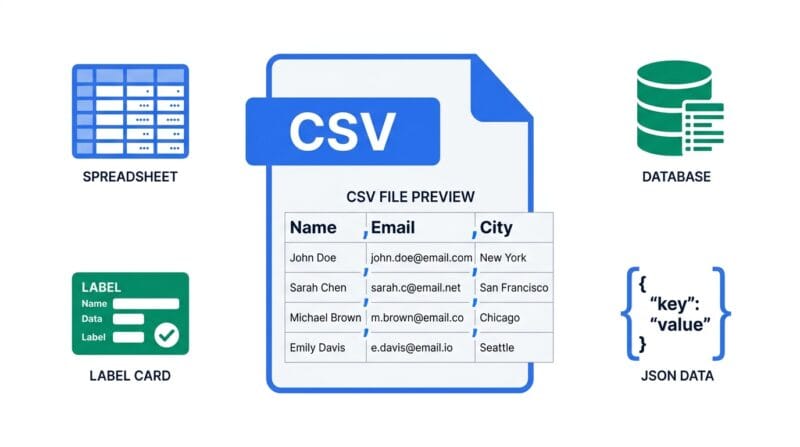
RFC 4180 specifies that fields containing commas, double quotes, or newlines must be enclosed in double quotes. A double quote character inside a quoted field is escaped by doubling it. So the value She said, "Hello" becomes "She said, ""Hello""" in a CSV field.
The most common parsing mistake is using backslash as an escape character instead of quote doubling: "She said, \"Hello\"" — this is not RFC 4180 compliant and parsers that produce it may break interoperability with Excel, Google Sheets and most data pipeline tools.
- 🔵 Comma in field → wrap field in double quotes:
"Smith, John" - 🟠 Double quote in field → double the quote:
"He said ""yes""" - 🟣 Newline in field → wrap in double quotes, use LF inside:
"Line 1 Line 2" - 🔵 Empty field → nothing between delimiters:
John,,Smith(middle field is empty)
🟡 Character Encoding — The Silent Bug That Corrupts International Data
CSV has no mechanism to declare its own character encoding. This is the most damaging omission in the format. A CSV file is just bytes. Whether those bytes represent UTF-8, Latin-1, Windows-1252, or Shift-JIS depends entirely on the application that wrote the file — and the application reading the file has to guess, or be told separately.
The most common encoding collision: Excel on Windows saves CSV files in Windows-1252 (also called CP1252) by default, not UTF-8. When a file saved this way contains characters outside ASCII — accented letters like é, ñ, ü, or non-Latin scripts — a UTF-8 parser produces mojibake. The name “Résumé” becomes “Résumé”. The name “Müller” becomes “Müller”.
The solution is straightforward but requires discipline at both ends. When exporting:
- 🔵 Google Sheets — always exports UTF-8. Safe default for international data.
- 🟠 Excel (Windows) — use “CSV UTF-8 (with BOM)” from the Save As dialog. The BOM (Byte Order Mark,
0xEF 0xBB 0xBF) tells parsers the file is UTF-8. Without BOM, Excel saves CP1252. - 🟣 Database exports — check your export tool’s encoding setting explicitly. PostgreSQL’s
COPY TOuses the database server encoding by default. - 🔵 Python pandas —
pd.read_csv('file.csv', encoding='utf-8-sig')handles UTF-8 with or without BOM safely.
🟢 Line Endings — CRLF vs LF vs CR and Why It Still Matters
RFC 4180 specifies CRLF (\r\n) as the line ending. Windows systems produce CRLF naturally. Unix and macOS systems use LF (\n) only. Old Mac OS 9 used CR (\r) only — still occasionally encountered in legacy database exports.
Most modern parsers handle all three transparently. The edge case that trips people up: a CSV field that contains an embedded newline uses LF inside the quoted field, while the record terminator might be CRLF. A parser that only looks for CRLF to split records will incorrectly treat the embedded LF as a record boundary, splitting one multi-line field across two rows.
🔴 CSV vs Excel, JSON and TSV — Choosing the Right Format for Data Exchange
CSV is not always the right format, but it is the most universally supported one. Understanding its trade-offs against the alternatives helps you make the right choice for each use case.
🟢 CSV vs Excel (.xlsx)
Excel files carry metadata that CSV cannot: cell formatting, formulas, multiple sheets, column widths, data types and comments. For human consumption — reports, financial models, dashboards — Excel is superior. For data interchange between systems — APIs, databases, import pipelines, label makers — CSV is superior. Excel files require a library to parse programmatically. CSV is readable with a five-line parser in any language. CSV files are also significantly smaller; a 10,000-row Excel file is typically 10–50x larger than the equivalent CSV.
🟢 CSV vs JSON
JSON supports nested data structures; CSV does not. A JSON record can have an array of phone numbers inside a single object. CSV can only represent flat, two-dimensional tables. If your data has nesting (orders with multiple line items, users with multiple addresses), JSON is structurally appropriate. If your data is genuinely tabular — every record has the same fields — CSV is smaller, simpler, and more widely supported by non-developer tools like spreadsheet applications, label makers, and report generators.
🟢 CSV vs TSV (Tab-Separated Values)
TSV uses a tab character as the delimiter instead of a comma. The practical advantage: tab characters almost never appear in real data, so TSV rarely requires quoting. Natural language text, addresses, names and product descriptions all commonly contain commas, making quoting necessary in CSV. The same data in TSV is often unquoted and simpler to parse. The disadvantage: TSV is less universally supported — fewer tools include explicit TSV import options, while CSV import is essentially universal.
- 🔵 Use CSV — spreadsheet import/export, label printing, email marketing lists, database seeds, report data
- 🟠 Use Excel — formatted reports, multi-sheet workbooks, data with formulas, human-readable deliverables
- 🟣 Use JSON — API responses, nested data structures, config files, front-end data consumption
- 🔵 Use TSV — data with many commas in fields, bioinformatics, log processing pipelines
🟡 CSV for Label Printing — How to Structure Your Spreadsheet for Best Results
When preparing CSV data specifically for label printing, the structure of your spreadsheet directly affects the quality of the output. Small decisions about column naming, data splitting and value formatting make a significant difference when 500 labels need to be consistent.
Split name into components. A “Full Name” column works for name badges. But for address labels, “First Name” and “Last Name” as separate columns gives you independent font size control — you might want the last name bolder or larger than the first name. The same applies to address data: “Street”, “City”, “Postcode” as separate columns rather than “Full Address” as one column gives each field its own row on the label with independent styling.
Use a URL or ID column for QR codes. If you want scannable QR codes on your labels, your CSV needs a column that contains the value to encode — a product page URL, a booking reference, a unique asset ID. Keep these values short where possible; longer strings produce denser QR modules that are harder for cheap barcode scanners to read.
Remove leading and trailing whitespace. Label printing tools display data exactly as it appears in the CSV. A cell value with accidental leading spaces shows a gap before the text. Trim your data before exporting: in Excel, use =TRIM(A1); in Google Sheets, =TRIM(A1) works the same way.
Use consistent casing. “LONDON”, “London” and “london” are all valid strings but they print differently. Decide on a casing convention and apply it consistently across your dataset before exporting. For name labels, Title Case looks most professional. For inventory codes, UPPER CASE improves readability at small font sizes.
Our Label Studio Pro tool handles all of this label data directly — upload your structured CSV, map columns to field rows, and export print-ready labels with optional QR codes for every record.
Is CSV a standard file format?
Yes, RFC 4180 defines the standard. However, many tools produce CSV files that deviate from it — using different delimiters, different quoting characters, or different line endings. In practice, “CSV” means a family of related formats, and good parsers handle the common variations gracefully.
Why does my CSV look wrong when I open it in Excel?
Usually one of two issues: encoding mismatch (the file is UTF-8 but Excel reads it as CP1252, corrupting accented characters) or delimiter mismatch (the file uses semicolons, which some European Excel versions default to). Solution: open Excel, use Data → From Text/CSV and specify the encoding and delimiter explicitly rather than double-clicking the file.
Can CSV store dates and numbers accurately?
CSV stores everything as text strings — there are no native date or number types. A date is whatever string you put in the cell. The problem arises when Excel auto-interprets values on open: “01/02/03” might become a date, “1-2” might become February 1st, and leading zeros in ZIP codes like “07030” become “7030”. Store these values with explicit quoting to prevent auto-conversion.
What is a BOM and should my CSV have one?
A BOM (Byte Order Mark) is a 3-byte sequence at the start of a UTF-8 file that declares its encoding. Excel requires a BOM to correctly identify UTF-8 CSV files on Windows. Most other tools — databases, APIs, Python, JavaScript — handle UTF-8 files both with and without BOM. If your CSV will be opened in Excel, include the BOM. For everything else, it is optional but harmless.
How large can a CSV file get?
There is no format-level size limit. In practice, Excel has a 1,048,576 row limit per sheet. Server-side parsers handle gigabyte-scale files by streaming row by row. Browser-based tools like Label Studio Pro load the entire file into memory, so practical limits depend on available device RAM — typically 50–100MB CSV files process without issues on modern devices.
Can a CSV file contain multiple tables or sheets?
No. CSV is strictly one flat table per file. For multi-sheet data, use Excel (.xlsx) or export each sheet as a separate CSV file. Some tools use multiple CSV files with a naming convention (orders.csv, order_items.csv) to represent relational data that would otherwise require a database or JSON with nesting.
Is it safe to process sensitive CSV data in a browser tool?
It depends on the tool’s implementation. A tool built with the JavaScript File API that processes data entirely in memory — like Label Studio Pro — never transmits your data anywhere. A tool that uploads your file to a server for processing sends your data over the internet. Always check whether a tool is genuinely offline or just claims to be. Look for no network requests in browser DevTools during processing.
What delimiter should I use if my data contains commas?
The RFC 4180 answer is: wrap the field in double quotes and keep the comma delimiter. The practical alternative is to use a semicolon or tab as the delimiter instead — semicolon-delimited files are common in European locales where comma is the decimal separator. Most modern parsers let you specify the delimiter at import time.
How do I split a full name column into first name and last name in a CSV?
In Google Sheets: select the column, go to Data → Split text to columns, set the delimiter to Space. In Excel: use the Text to Columns wizard under the Data tab. For programmatic splitting, be aware that names with multiple words (Mary Jane, van den Berg) require careful handling — splitting on the last space is more reliable than splitting on the first.