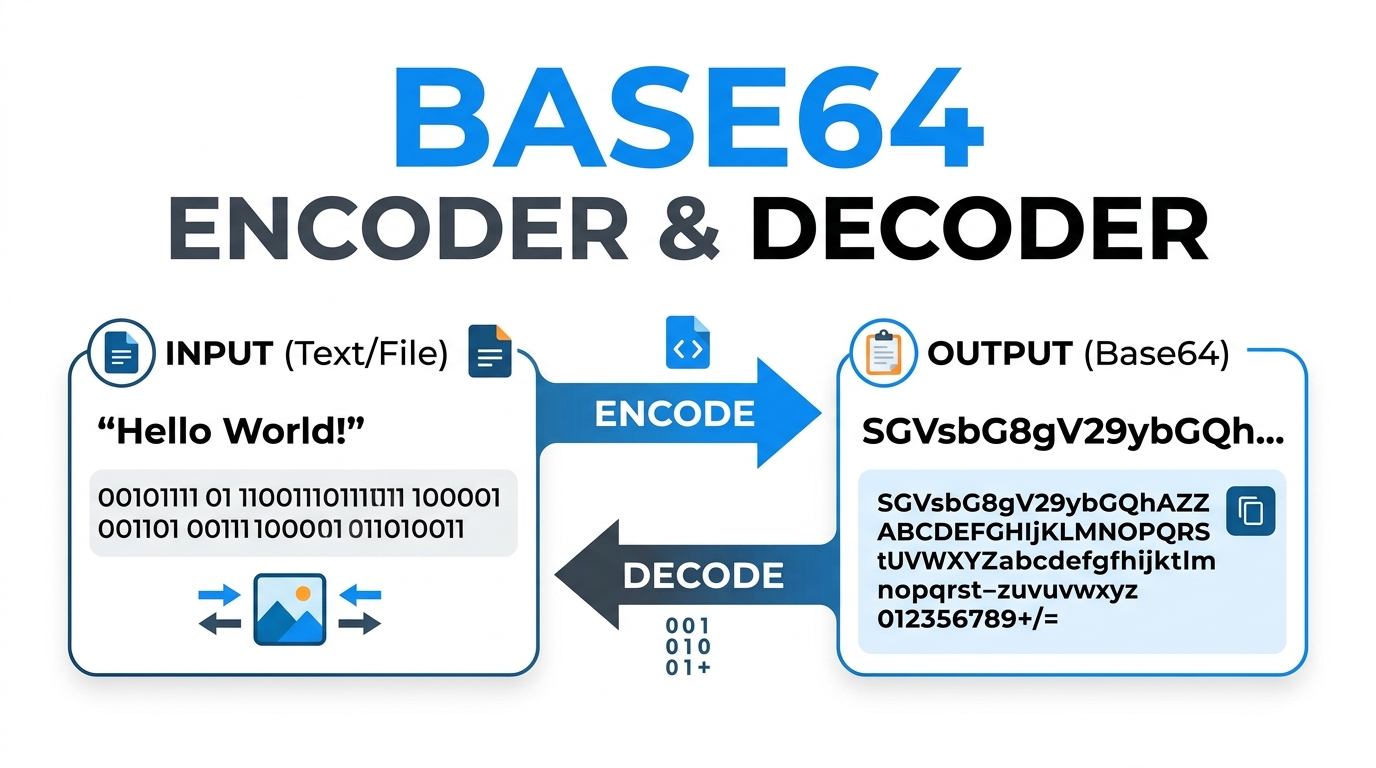
The Ultimate Guide to Base64: Why You Need a Base64 Encoder and Decoder
Learn the theory behind data encoding and why every web developer needs a reliable Base64 encoder and decoder. Understand UTF-8 support and Data URIs.
Table of Contents
Last updated: June 2026
🔴 What Is Base64 and Why Is It Used?
Base64 is a binary-to-text encoding scheme that represents binary data using 64 printable ASCII characters: the uppercase letters A–Z, lowercase a–z, digits 0–9, plus + and /, with = as a padding character. The name comes from the use of exactly 64 characters, each representing 6 bits of the input. Every three bytes of binary input (24 bits) produce four Base64 characters (24 bits, since 4 × 6 = 24). This expansion ratio is exactly 33% — a three-byte input always becomes four characters.
Base64 exists to solve a practical problem: many transmission channels — email protocols, HTTP headers, XML documents, JSON fields — were designed for text and cannot reliably transmit arbitrary binary bytes. A PDF file, an image, an audio clip, or a cryptographic key contains byte values that collide with control characters, delimiters, and encoding markers. Base64 converts these binary values to a safe subset of printable ASCII that passes through any text-oriented channel without corruption.

The Correct Way to Base64 Encode Unicode Text
The browser’s native btoa() function accepts only binary strings — strings where every character has a Unicode code point at or below 255. Any character outside this range causes a DOMException: The string to be encoded contains characters outside of the Latin1 range error. This breaks on emoji (code points like U+1F680 are well above 255), on Sinhala and Tamil characters, on Chinese and Japanese text, and on thousands of other commonly used Unicode symbols.
The correct approach uses a two-step process. First, encode the text string to UTF-8 bytes using new TextEncoder().encode(text) — this converts the string to a Uint8Array where every value is between 0 and 255, regardless of the original Unicode code points. Second, convert the byte array to a binary string and call btoa() on that. The reverse — decoding — uses atob() to get the binary string, then new TextDecoder().decode(bytes) to recover the original Unicode text. This tool uses this exact implementation for all text encoding and decoding operations.
🟡 Standard vs URL Safe Base64 — When Each Is Appropriate
Standard Base64 uses + as its 62nd character and / as its 63rd. Both characters have special meaning in URLs: + is traditionally interpreted as a space in query strings (from the application/x-www-form-urlencoded encoding), and / is the path separator. Embedding a standard Base64 string in a URL query parameter produces garbled data unless every + and / is percent-encoded as %2B and %2F.
Base64URL (defined in RFC 4648 Section 5) solves this by substituting - for + and _ for /, and omitting the = padding. Both characters - and _ are safe in URLs without percent-encoding. Base64URL is used in JWT (JSON Web Tokens) for the header and payload sections, in OAuth 2.0 PKCE code challenges, in URL shorteners that embed data in the path, and in any API that passes Base64 data as a query parameter or path segment. Toggle the 🔗 URL Safe chip in the Encode tab to produce Base64URL output; the Decode tab’s 🔗 URL Fix chip reverses the substitution before decoding.
The MIME Line Break Requirement (RFC 2045)
The original MIME standard (RFC 2045) specifies that Base64-encoded content in email must be split into lines of no more than 76 characters, with each line terminated by a CRLF. This requirement predates the web and stems from older email systems that had line-length limits. Many modern systems ignore it, but email clients, S/MIME certificate encoders, and PEM file generators still require it. The 📏 Line Breaks (76) chip in the Encode tab inserts a newline every 76 characters in the output — the simple change that makes a Base64 string MIME-compliant.
🟢 Image to Base64 — When Embedding Beats HTTP Requests
Every image in a web page that requires a separate HTTP request adds latency — the browser must establish a connection, send a request, wait for the server, and receive the response before the image can render. For small, frequently used images — icons, logos, small UI elements, favicon graphics — embedding the image as a Base64 data URI eliminates this round-trip entirely. The image data travels in the HTML or CSS file itself, which is already being downloaded.
A data URI for an image follows the format data:[MIME type];base64,[Base64 data]. For example, data:image/svg+xml;base64,PHN2Zy... embeds an SVG inline. This URI can be used as the src attribute of an <img> tag, the url() value in a CSS background-image property, or the href value in a favicon <link> tag. The 33% size overhead is usually acceptable for images under 10–15 KB, where the overhead is smaller than the cost of a new HTTP connection. For larger images, the overhead negates the request elimination benefit and standard external references are more appropriate.
The Image tab uses FileReader.readAsDataURL() to read the file and produce the complete data URI in one step — the method automatically detects the MIME type from the file header bytes and constructs the data:[mime];base64, prefix. The Include data URI toggle strips the prefix if only the raw Base64 bytes are needed (some APIs and tools expect just the payload).
🔴 File Encoding — PDFs, ZIPs, and Binary Data
Base64 file encoding is common in several technical contexts. Email attachments are Base64-encoded by the mail client before transmission — the MIME multipart format wraps each attachment as a Base64-encoded block between boundary markers. JSON APIs that need to transmit binary data — such as PDF reports, generated images, or audio files — often Base64-encode the binary payload and include it as a string field in the JSON response. XML-based web services (SOAP) similarly embed binary data as Base64 within XML elements.
The File Encoder tab reads any file using FileReader.readAsDataURL(), which handles the entire process client-side. The browser reads the file bytes from local storage, constructs the Base64 encoding, and prepends the data URI prefix — without sending a single byte to a network. The MIME type in the output URI is detected from the file header bytes, not just the extension, making the encoding accurate even for files with mismatched extensions.
🟡 Batch Processing and CSV Export
Batch Base64 encoding comes up in several real workflows. A list of email addresses to be anonymized before logging — encode each one and store the Base64 representation. A set of API keys or tokens to verify are correctly formatted Base64URL strings — decode each one and check the result. A collection of short text values to be embedded in a data attribute or URL parameter — encode all of them in sequence.
The Batch tab processes each line independently, applying the same UTF-8 safe encoding logic as the Encode tab. Failed decodes (invalid Base64) are reported as ERROR: prefixed entries rather than silently dropped — making it clear which lines in the batch had problems. The CSV download produces a properly quoted two-column file where each cell’s content is wrapped in double quotes and internal double quotes are escaped as "" per RFC 4180 — the same standard that Excel and Google Sheets use for CSV parsing.
The ▶ Run Batch button processes all non-empty lines simultaneously. Items that fail to decode are marked with an ERROR: prefix in the output so bad entries are visible rather than silently dropped. The ⬇ CSV download button saves results as a properly quoted two-column spreadsheet file. Lines are numbered in the result panel matching their order in the input — the first input line becomes row one in the CSV, preserving the sequence for any downstream processing that depends on order.
🟢 CSS/HTML Generator — Four Snippets from One Image
Embedding Base64 images in production code requires different syntax for different contexts. The CSS/HTML Generator tab produces all four simultaneously, eliminating the need to manually wrap the data URI in the correct markup for each use case.
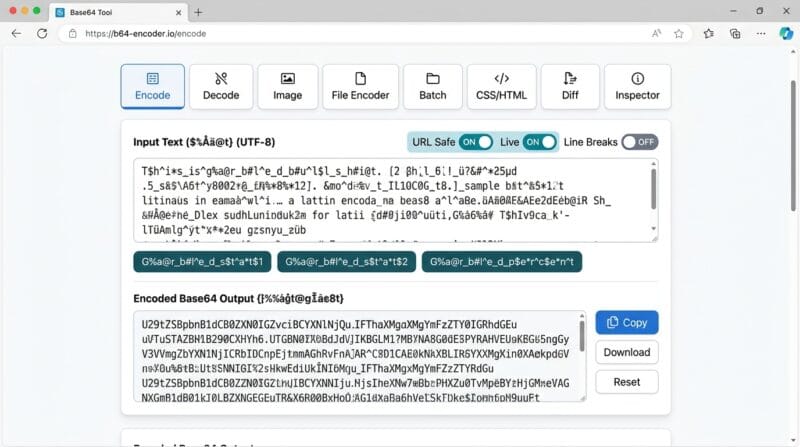
The CSS background snippet is the correct format for embedding a decorative background image without an HTTP request — useful for button backgrounds, section patterns, and logo backgrounds where the image is presentational rather than content. The HTML img tag is for content images that need to be accessible — the alt attribute is required and included in the generated snippet. The favicon link tag embeds a favicon directly in the <head> without a separate favicon.ico file request — particularly useful for single-page applications and offline-first web apps where every HTTP request matters. The Markdown image format works in GitHub README files, GitLab wikis, Notion, and other Markdown processors that support inline image data URIs.
🔴 Diff and Inspector — Debugging Base64 Problems
Two debugging tools sit at the end of the tab bar. The Diff tab addresses a specific problem: you have two Base64 strings that should be the same but your code is producing different values, and you need to know exactly where they diverge. Visual comparison of two 200-character Base64 strings is error-prone — the character-level comparison algorithm does this in milliseconds and reports the exact position.
The Inspector tab handles the opposite problem: you have a Base64 string with no context and need to understand what it is. Is it URL-safe or standard? Does it have the data URI prefix? What MIME type does it encode? Is the padding correct? What does the decoded content look like? All eight of these questions are answered in one click. For developers working with JWTs, the Inspector can decode the Base64URL-encoded header and payload sections to reveal their JSON content — paste the header or payload segment (not the full JWT), enable the URL Fix chip in the Decode tab, click Decode, and the JSON appears.
🟡 Privacy and Browser Architecture
Every operation in this tool runs in browser JavaScript with no network requests. Text encoding uses TextEncoder and btoa(). Text decoding uses atob() and TextDecoder. File and image encoding uses the FileReader API with readAsDataURL(). Image preview uses the HTMLImageElement.src property. CSV generation uses Blob and URL.createObjectURL(). None of these operations require or make network requests.
This architecture makes the tool appropriate for encoding sensitive data — internal API keys during development, personally identifiable information being tested in a data pipeline, confidential documents being converted for email transmission. The data stays in the browser tab’s JavaScript heap and is released when you close the tab or navigate away. No server logs, no request history, and no third-party scripts receive your data. For cryptographic operations on the same data — generating SHA-256 checksums, HMAC signatures, or password hashes — the PTH Secure Hash and Crypto Studio provides the same offline-first, privacy-first approach.
🟢 Real Workflows — Who Uses Each Tab
Frontend developers use the Image tab to convert small logos and icons to data URIs, the CSS/HTML Generator to produce the complete img tag or background-image rule without manually typing the wrapper syntax, and the Encode tab with URL Safe mode to encode state parameters for OAuth 2.0 authorization requests.
Backend and API developers use the Decode tab to inspect Base64-encoded values appearing in database fields and API payloads, the Inspector to diagnose whether a Base64 string is standard or URL-safe before writing a decoder, and the Diff tab to verify that their encoder produces exactly the same output as a reference implementation.
Security engineers use the File Encoder tab to produce Base64 data URIs for binary payloads during security testing, the Batch tab to encode lists of test values in bulk, and the Inspector to decode Base64 values found in HTTP headers, cookie values, and log files without sending them to a cloud service.
DevOps and system engineers use the Decode tab to decode Kubernetes secrets (which are Base64-encoded by default), the Encode tab to encode values for insertion into YAML configuration files, and the File Encoder tab to convert certificate files to Base64 for embedding in Terraform configurations and CI/CD environment variables.
❓ Frequently Asked Questions
Is Base64 a form of encryption?
No. Base64 is an encoding scheme, not encryption. It uses a publicly known, reversible algorithm with no secret key. Any Base64 string can be decoded to its original content by anyone with a decoder. Base64 provides no confidentiality whatsoever — it only changes the representation of data. For encryption, use AES, RSA, or another cryptographic cipher with a secret key.
Why does my Base64 string end with == ?
Base64 encodes 3 bytes at a time into 4 characters. When the input length is not a multiple of 3, padding characters (=) are appended to bring the output to a multiple of 4. One leftover byte produces two Base64 characters plus ==. Two leftover bytes produce three Base64 characters plus =. Inputs whose length is already a multiple of 3 produce no padding. URL Safe Base64 (Base64URL) omits padding entirely.
How do I decode a Kubernetes secret with this tool?
Kubernetes stores Secret values as standard Base64 (not URL-safe). Run kubectl get secret [name] -o yaml to see the Base64-encoded values. Copy the value field, paste it into the 🔓 Decode tab with 🔧 Auto-Pad and 🧹 Strip Spaces enabled, and click 🔓 Decode Base64. The decoded plaintext value appears in the output panel.
What file size limit does the File Encoder tab impose?
There is no hard-coded limit in the tool. The practical ceiling is your browser’s available JavaScript heap memory. Modern browsers on desktop hardware handle files up to 50–100 MB without difficulty. Very large files (500 MB+) may exhaust heap memory. For large files, consider splitting them before encoding, or use a command-line tool like base64 on Linux/macOS.
Can I use this tool to decode JWT tokens?
Yes, partially. JWT tokens have three sections separated by dots: header, payload, and signature. The header and payload are Base64URL-encoded JSON. Copy either section (without the dots), paste it into the 🔓 Decode tab with 🔗 URL Fix and 🔧 Auto-Pad enabled, and click Decode. The JSON content appears in the output. The signature section is a cryptographic hash and cannot be decoded to readable content.
Why does the same text produce different Base64 output on different tools?
The most common cause is different character encoding. If one tool encodes the text as Latin-1 and another uses UTF-8, multibyte characters produce different byte sequences and therefore different Base64 output. This tool always uses UTF-8 (via TextEncoder). Other causes include trailing newlines, different handling of whitespace, and URL-safe vs standard character substitution.
What is the maximum image size recommended for Base64 embedding?
The general guideline is to embed images smaller than 10–15 KB as Base64. At this size, the 33% Base64 overhead (roughly 3–5 KB extra) is smaller than the cost of a separate HTTP request with its connection overhead. Above 15–20 KB, the overhead begins to outweigh the benefit. For logos, favicons, and small icons, Base64 embedding is a PageSpeed improvement. For hero images, photographs, and large graphics, external files and HTTP/2 are more appropriate.
How does Live mode work in the Encode tab?
When the ⚡ Live chip is active, the encode function fires on every input event from the text area — triggered by typing, pasting, cutting, or any content change. The encoding itself is fast enough (sub-millisecond for typical text) to keep up with typing without noticeable lag. Disable Live mode for very large pastes (tens of thousands of characters) to avoid potential stutter during paste.
Does the Batch tab preserve the order of input items?
Yes. Items are processed in the same order they appear in the input textarea, from top to bottom. The result rows are numbered and displayed in input order. The CSV download preserves this order — the first input line becomes the first data row, and so on. Blank lines are skipped but do not affect the numbering of subsequent items.