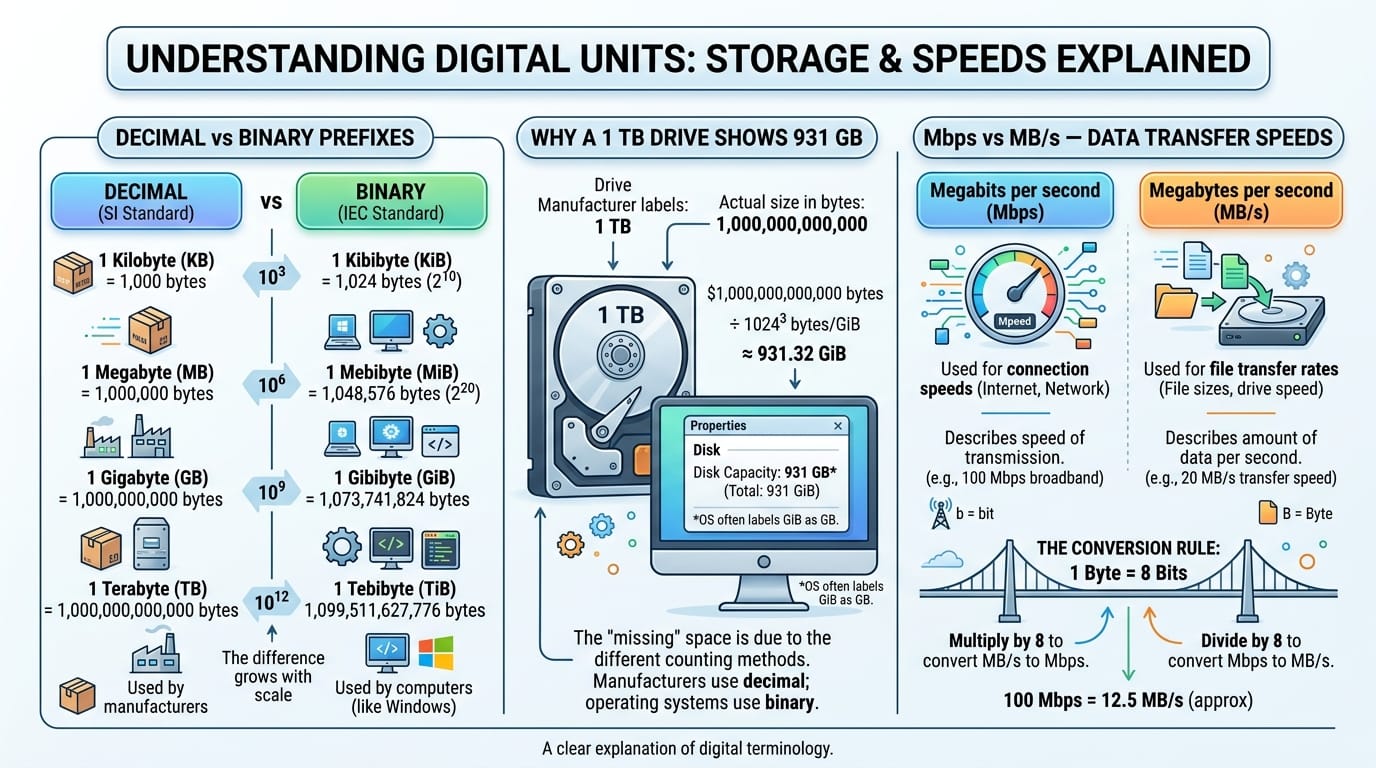
KB vs KiB: Why Your Hard Drive Lies (It Doesn’t, Really)
A 1 TB drive shows 931 GB. A 100 Mbps line downloads at 12 MB/s. Neither is a fault, a scam, or a rounding error — they are two different number systems wearing the same labels. Here is the whole story.
Table of Contents
Last updated: July 2026
🔴 Two Number Systems, One Set of Labels
Everywhere else in science and engineering, a metric prefix means a power of ten. A kilometre is 1000 metres. A kilogram is 1000 grams. Nobody argues about this. Then computing arrived, and quietly broke the rule.
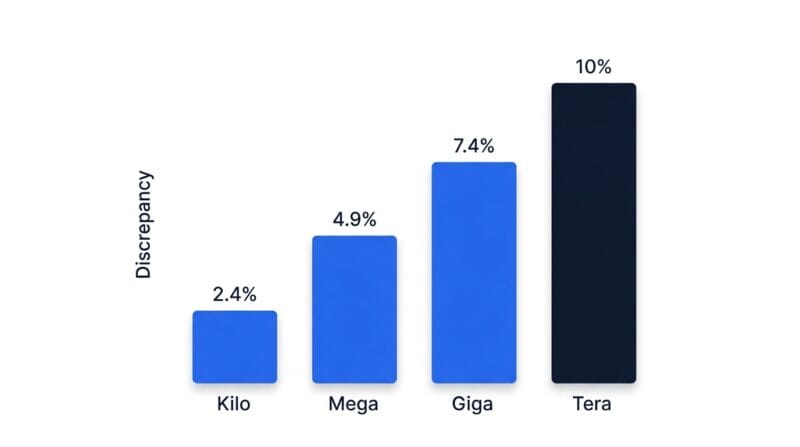
Computers address memory in binary, so hardware capacities naturally land on powers of two. The closest power of two to 1000 is 1024 (that is 210). Early engineers, finding 1024 conveniently close to a kilo, simply called it a kilobyte and moved on. It was a reasonable shortcut in 1965, when the error was a harmless 2.4%. It stopped being harmless as capacities grew, because the discrepancy compounds with every step up the ladder.
A KiB is 2.4% larger than a KB. A MiB is 4.9% larger than a MB. A GiB, 7.4%. A TiB is a full 10% larger than a TB. That is why the problem feels new even though it is sixty years old — nobody noticed a 2.4% gap on a floppy disk, but everybody notices that a 1 TB drive reads as 931 GB, some 69 GB short of the round number they expected.
🟡 The Fix That Nobody Fully Adopted
In 1998 the International Electrotechnical Commission did the obvious thing: it gave the binary units their own names. Kibibyte (KiB) for 1024 bytes. Mebibyte (MiB) for 1024 KiB. Gibibyte (GiB), tebibyte (TiB), and so on upward. The “bi” is short for binary. The decimal prefixes — KB, MB, GB, TB — were left to mean exactly what they mean everywhere else in science: powers of 1000. As the Wikipedia article on binary prefixes documents, this was endorsed by IEEE and adopted into international standards.
It was a clean solution. Adoption was not. Linux distributions and most command-line tools took it up. macOS switched to reporting decimal GB in 2009, which quietly resolved the discrepancy for Apple users — a Mac and a drive box now agree on the number. Windows did neither: it still divides by 1024 and still prints “GB”. Because Windows remains the desktop majority, the confusion persists for most of the world, and every hardware forum on the internet has a recurring thread of people convinced their new drive is defective.
There is a lawsuit-shaped footnote here too. Drive manufacturers have been sued more than once over the “missing” capacity, and have generally prevailed, because they are the ones using the prefix correctly. The settlements mostly resulted in clearer packaging labels rather than any change in the maths. The party technically at fault is the operating system printing the wrong unit — but nobody sues Microsoft over a suffix.
🟢 Which Standard Applies Where
- 🔵 Drive and SSD capacity: SI decimal, always. The box says what is on the platter.
- 🟠 RAM: binary, always. Memory is addressed in powers of two, so an 8 GB stick is genuinely 8 GiB — this is the one case where the industry’s binary habit is physically correct.
- 🟣 Network speed: SI decimal, always. 100 Mbps is 100,000,000 bits per second.
- 🔵 Windows file sizes: binary maths, decimal labels. The worst of both, and the source of nearly all the confusion.
🔴 The Other Factor of Eight: Mbps vs MB/s
There is a second, entirely separate confusion layered on top of the first, and mixing them up produces spectacularly wrong answers.
Network speeds are quoted in bits per second. File sizes are quoted in bytes. Eight bits make a byte, so the conversion is a straight division by eight. A 100 Mbps connection moves at most 12.5 megabytes per second. Not 100. This is not a trick and it is not marketing dishonesty — it is a genuine historical convention, because networking has always counted bits on the wire while storage has always counted addressable bytes.
The notation is deliberately distinguishable if you look closely: lowercase “b” means bits (Mbps, megabits per second), uppercase “B” means bytes (MB/s, megabytes per second). One character apart, a factor of eight in meaning. Miss it and your download estimate is out by 800%.
Stack both problems together and you can see how someone ends up badly wrong: a person with a 100 Mbps line expects a 5 GB file in 40 seconds, gets 8 minutes, and concludes their ISP is throttling them. In fact 5 GB is 40 billion bits, 100 Mbps is 100 million bits per second, and 400 seconds — 6 minutes 40 — is the theoretical floor. Add real-world overhead and 8 minutes is exactly right.
🟡 Why You Never Get the Speed You Pay For
Even after the maths is correct, the theoretical number is optimistic, because a connection’s rated speed is its raw capacity, not its useful throughput.
Every packet carries protocol headers — TCP, IP, Ethernet — which occupy bandwidth without carrying any of your file. TCP also probes for capacity rather than knowing it, backing off whenever it detects loss, so a connection spends time running below its ceiling by design. Wi-Fi adds retransmission of corrupted frames, and shares airtime with every other device in range. The server at the far end has its own limits and its own other users. And your ISP’s advertised figure is typically a peak, measured under ideal conditions, not a guarantee.
In practice, expect around 80% of the rated speed on a decent home connection, 90–95% on wired fibre, and often 70% or less on mobile. This is why an honest calculator has an efficiency setting rather than presenting the theoretical figure as though it were achievable. Anyone who has watched a “2 minutes remaining” download take six minutes has met this gap already.
🟢 What to Actually Do About All This
Three habits make the whole problem go away.
Write the unit you mean. If you are documenting a limit, an API contract, or a config value, write KiB or KB explicitly rather than assuming the reader shares your convention. A file upload cap of “10 MB” that is validated against 10 × 1024 × 1024 is silently allowing 10.49 MB — usually fine, occasionally the source of a very confusing bug report.
Check the direction of conversion. Bits to bytes divides by eight. Bytes to bits multiplies by eight. Network to storage divides; storage to network multiplies. Getting the direction backwards is a 64× error, which is at least large enough to notice immediately.
Never trust a single number. When a drive, an OS and a spec sheet disagree, they are almost certainly all correct and using different definitions. Convert everything to raw bytes, compare there, and the disagreement usually evaporates. The Data Size & Bandwidth Studio shows SI and IEC columns side by side precisely so you can do that comparison without doing the arithmetic by hand. For the underlying binary and hexadecimal maths, the Number Base Converter covers the powers of two directly, and the rest of the offline toolset is indexed under free web tools by category.
Is the hard drive manufacturer cheating me?
No — and they are the ones using the prefix correctly. A 1 TB drive genuinely contains 1,000,000,000,000 bytes, which is what "tera" means everywhere in science. Windows divides by 1024 and mislabels the result. The bytes are all present.
Why does my 8 GB of RAM show as 8 GB, but my 1 TB drive doesn’t?
Because RAM genuinely is binary. Memory is addressed in powers of two, so an 8 GB module really is 8 GiB — the binary reading and the marketing figure happen to agree. Drives have no such constraint, so they are sold in decimal and the gap appears.
Why has Windows never adopted KiB and MiB?
Inertia and backwards compatibility, essentially. Changing the displayed unit would alter numbers users have looked at for decades and break countless assumptions in documentation and software. macOS took the other route in 2009 by switching to decimal, which is why Mac drive readings match the box.
How big is the difference at each level?
It compounds. Measured as how much larger the binary unit is: 2.4% at kilo, 4.9% at mega, 7.4% at giga, and 10% at tera. That is why nobody argued about it in the floppy era and everybody argues now — on a 16 TB array the gap is about 1.45 TB.
Is Mbps vs MB/s the same problem as KB vs KiB?
No, they are two separate issues that often get tangled. Mbps vs MB/s is a bits-to-bytes conversion (divide by 8). KB vs KiB is a decimal-versus-binary prefix conversion (1000 vs 1024). You can get one right and still get the other wrong.
Should I use KiB in my own documentation?
If precision matters, yes — write KiB when you mean 1024 bytes and KB when you mean 1000. It costs one character and removes all ambiguity. At minimum, state your convention once at the top rather than leaving readers to guess.