Got a spreadsheet of names, addresses or product codes that needs to become a sheet of printable labels? Load your CSV, map the columns to a label layout, and generate a print-ready sheet with barcodes or QR codes if you need them, all in the browser. It saves the awkward mail-merge dance in a word processor: you pick the label size, arrange the fields, and get a clean grid that lines up with standard label stock. It suits small shops printing product tags, anyone preparing address labels for a mailout, and organisers making name badges for an event. Because the data is processed entirely on your device, a customer list or contact sheet is never uploaded to a web service, and the tool keeps working with the network switched off once the page has loaded.
Offline Custom Labels Generator
Free online CSV label maker — design, customize and print labels from any spreadsheet. QR codes, 8 templates, batch export. 100% offline.
Table of Contents
🏷️ Label Studio Pro
Click or Drag & Drop CSV File
100% offline — no upload to server
Each row = one content line. Order = top to bottom on label.
Data, Design, Fields and Export tabs work together in a single tool. Upload CSV or paste data, choose from 8 label templates, map any column to a content row, then print or export — all without leaving the page.
Add a QR Code field row and map it to any CSV column — URL, product ID, phone number, email. QR codes are drawn using the Canvas API entirely in your browser. No server, no API key, no upload. Works in print and PDF exports.
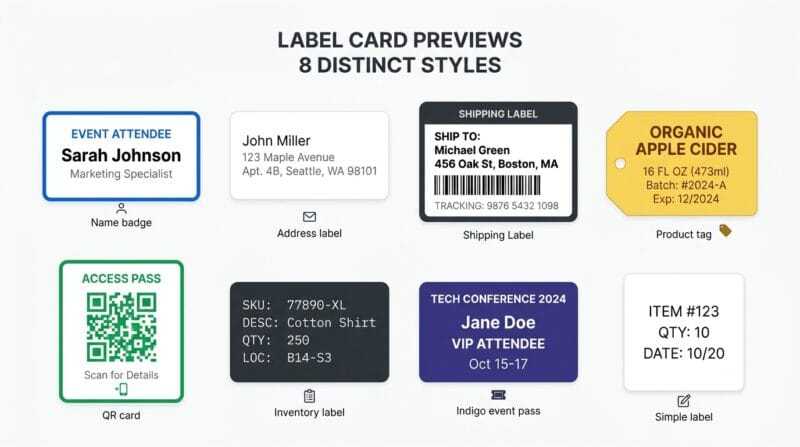
One-click templates for Name Badge, Address, Shipping, Product Tag, QR Card, Inventory, Event Pass and Square labels. Export all records at once as Print, PDF, or a standalone downloadable HTML file that opens in any browser offline.
Drag and drop a CSV file onto the 📋 Data tab, or click Paste CSV to paste spreadsheet content directly. The tool detects your column headers automatically.
Switch to the 🎨 Design tab and click any template card — Name Badge, Shipping, Product Tag and more. Each preset sets colors, fonts, dimensions and border style in one click.
In the 📐 Fields tab, add CSV Column rows and map each one to a column header. Add QR Code, Custom Text or Divider rows to complete your label layout. Set font size, weight and per-field color.
Go to the 🖨️ Export tab, set labels-per-row and page margin, then click Print, Save as PDF, Download HTML or Preview All. Every record in your CSV becomes a label.
Last updated: July 2025
🔴 What a CSV Label Maker Actually Does — and Why Spreadsheet Data Is the Right Starting Point
Every label printing problem starts with a list. A list of customers for address labels. A list of products for inventory tags. A list of attendees for event passes. That list almost certainly already exists as a spreadsheet — in Excel, Google Sheets, Notion, or any database export. A CSV label maker bridges the gap between that structured data and a physical or digital label layout, without requiring you to copy-paste each record manually.
Label Studio Pro works by treating your CSV as a data source and your label design as a template. Every row in your CSV becomes one label. The column headers become selectable fields you can place anywhere on the label, in any font size, any color, any weight. Add a QR code that pulls from the URL column. Add a divider line between the name and the company. Map a product code to tiny monospace text at the bottom. The design stays fixed; only the data changes per label.
The critical advantage over word processor mail merge or online label tools that require account creation is that nothing leaves your browser. Client data, product prices, internal reference codes — they stay on your device through the entire process, from CSV parse to final print.
🟡 The 8 Label Templates — When to Use Each One
Each template in the Design tab is a complete style preset. Clicking one sets the label dimensions, background color, text color, accent color, font family, border style, corner radius, padding and text alignment simultaneously. You can fine-tune any value after applying a template — templates are starting points, not locked layouts.
🟢 Name Badge (280×140) — Conferences, Events, Staff ID
Blue on white with a 2px blue border and centered text. Designed for the classic conference badge layout: large name on top, title below, company last. Works at 100% zoom on A4 with three columns per page. The accent color applies to divider lines between fields, creating a subtle visual separator without additional design work.
🟢 Shipping Label (384×192) — Courier, Post, Dispatch
Wider format with Arial font, dark 2px border and left-aligned text. Sized for standard 4×2 inch shipping labels. Left alignment is deliberate — address lines read more naturally left-aligned than centered on shipping labels, matching recipient expectations and post office scanning conventions.
🟢 Inventory Label (240×90) — Warehouse, Assets, Stock
Dark background (#1e293b) with light text and Courier New font. The monospace font makes reference codes, SKUs and serial numbers instantly readable at a glance. The compact 240×90 size fits standard barcode label sheets. Pair a QR Code field with a product URL or asset ID for scannable inventory tracking with zero external scanning software required.
🟢 Event Pass (320×160) — Tickets, Wristbands, VIP Passes
Indigo background with white text, centered layout and no border. The bold color makes event passes visually distinct from other label types in a stack. Add a QR Code field mapped to a unique ticket ID or booking reference — attendees can scan to check in, and because the QR is generated offline from your CSV data, no ticketing platform integration is needed.
🔴 Offline QR Code Generation — How It Works Inside the Browser
Most tools that generate QR codes on a webpage call an external API. They send your data to a server, the server generates a QR image, and that image URL comes back to your page. This means your CSV data — product URLs, customer identifiers, internal codes — travels to a third-party server you don’t control.
Label Studio Pro generates QR codes entirely using the browser’s Canvas API. When you add a QR Code field row and map it to a CSV column, the tool reads each cell value and draws the QR matrix directly onto an HTML5 Canvas element inside your browser tab. The resulting image is a data URL — a base64-encoded PNG string — that exists only in memory. Nothing is transmitted anywhere.
This approach works in every export mode. When you print, the QR image is embedded inline. When you save as PDF, it’s rasterized with the rest of the label content. When you download HTML, the QR image is encoded as a base64 string directly in the file — no external image request needed when you open the HTML offline later.
- 🔵 Map any column — URLs, product codes, phone numbers, emails, serial numbers, booking references
- 🟠 Resize freely — the QR Size field in the Fields tab controls pixel dimensions from 30px to 200px
- 🟣 Position via alignment — set the QR field’s alignment to left, center or right to control its horizontal placement on the label
- 🔵 Combine with text fields — place a QR code alongside name and contact fields on the same label for complete information density
🟢 The Fields Tab — Building Complex Label Layouts Row by Row
Every label is built from a vertical stack of content rows. The Fields tab is where you construct that stack. Four row types cover every use case:
CSV Column rows pull data from your spreadsheet. Select the column from a dropdown that lists your actual CSV headers. Set font size (8–60px), font weight (Regular through ExtraBold), per-field text color, and per-field alignment. The first field typically gets ExtraBold at a larger size for the primary piece of information — name, company, product title.
Custom Text rows are static across every label. Use them for fixed lines like “VISITOR”, “FRAGILE — HANDLE WITH CARE”, a department name, or a website URL that applies to all labels in the batch. The same font controls apply.
Divider rows insert a 1px horizontal line in your chosen accent color. They add visual hierarchy between sections — separating the name from the address, or the product code from the description — without adding text clutter. Thin lines at the right position make labels read faster at a glance.
QR Code rows generate a scannable QR from any CSV column value per label. Size is independent from font size — a 60px QR sits comfortably on a 280×140 name badge alongside three text lines. A 120px QR fills a dedicated zone on a larger event pass or inventory label.
You can also read our Data Tools collection for related CSV processing utilities, or check the guide on CSV file format best practices for structuring your data before label creation.
How many labels can I create from one CSV file?
There is no record limit. Every row in your CSV becomes one label. The preview area shows the first 9 to keep the tool fast, but the Print, PDF and HTML exports include every single record. A CSV with 500 rows generates 500 labels in one export action.
Do my CSV files get uploaded to a server?
No. The entire tool runs inside your browser using the JavaScript File API and Canvas API. Your CSV data, background images and generated QR codes never leave your device. There is no account, no upload, and no server involved at any stage.
Can I add a logo to every label?
Yes. In the Design tab, use the Background Image upload to add a PNG or JPG logo or watermark. Control its opacity with the slider — lower values create a subtle watermark effect, higher values create a bold background graphic. The image fit mode lets you choose Cover, Contain or Actual Size.
What CSV format does the tool expect?
Standard comma-separated format with headers in the first row. Fields containing commas should be wrapped in double quotes. The tool handles Windows (CRLF), Unix (LF) and Mac (CR) line endings automatically. You can also export directly from Google Sheets via File → Download → CSV.
How do I get the labels onto physical label sheets?
Use the Export tab’s Print action. Set the labels-per-row to match your physical sheet layout — typically 3 per row for A4 address sheets, 2 per row for larger shipping labels. Set page margins to match the sheet’s bleed area. Print at 100% scale (no fit to page) for accurate sizing.
Can I use the Paste CSV option instead of uploading a file?
Yes. Click the Paste CSV button on the Data tab to show a textarea. Copy your data from Excel, Google Sheets or any text source and paste it directly. Click Parse and Load and the tool processes it identically to an uploaded file — same column detection, same field mapping, same exports.
What does the Download HTML export do?
It saves a self-contained HTML file to your device. All labels and QR code images are embedded as inline data — no external files needed. Open the HTML file in any browser, even without an internet connection, and print from there. Useful for archiving a label run or sharing a printable file with someone else.
Can I mix QR codes and text on the same label?
Yes. In the Fields tab, add any combination of CSV Column, Custom Text, QR Code and Divider rows in any order. A typical product label might have a product name text field, a price text field, a divider, and a QR code field pointing to the product URL — all on one 200×100px label.
Does the tool work on mobile devices?
Yes. The layout switches to a single column on screens below 768px. All tabs, field controls and export actions are accessible on mobile. Printing from mobile depends on your device’s print support — for best results with physical printers, use a desktop browser.