
AI Image Eraser — Remove Background, Erase Objects & Upscale
Need a free AI background remover? Instantly remove backgrounds from images offline in your browser. 100% private, no uploads, and unlimited free cutouts.

Table of Contents
Product photo that needs a clean cutout, or an object you want gone from a shot? This studio removes backgrounds, erases unwanted objects, and can upscale the result, all inside your browser. Since the image never uploads, it suits client work and personal photos you would rather keep private.
🪄 AI Image Eraser
Remove backgrounds and erase unwanted objects from your photos — right in your browser. No upload, no login.
✨ AI Background Remover Pro v3.7
Click or Drag & Drop an Image
100% Secure • Processed locally • Supports JPG, PNG, WebP
✂️ Adjust & Crop Image
Focus on the main subject for better AI results.
🤖 AI is Analyzing...
Preparing AI Engine...
✨ AI Magic Eraser Pro
🎯 Ultra Natural ModeClick or Drag & Drop an Image
100% Offline • Red Mask Stays Visible in Live Preview
✨ AI Image Upscaler Pro 2x/4x AI Engine
Click or Drag & Drop an Image
100% Secure • Processed locally • Up to 2000px recommended
📸 Original Image Ready
Original Size: 0 x 0 px
🤖 AI is Initializing...
Preparing Environment...
🎛️ Live Fine-Tune Filters
Three Tools, One Photo
Cut out a background, erase a photobomber, and upscale the result without leaving the page or re-uploading. Each job hands its output to the next tab.
Nothing Leaves Your Device
Every pixel is processed in your browser using WebGL and JavaScript. No sign-up, no upload, no watermark stamped across your export.
Fine-Tune Before You Save
The upscaler adds live brightness, contrast, saturation and a sharpen slider, so you can crisp up a soft result instead of settling for the raw output.
How to Use the AI Image Eraser
Pick a Tab
Background Remover, Magic Eraser, or AI Upscaler — choose the job you need first.
Drop Your Image
Drag a file in or paste a URL. Processing starts locally, nothing uploads.
Erase or Enhance
Let the AI cut the background, brush over an object, or upscale 2×–4×.
Adjust and Download
Tune the result, pick PNG/JPG/WebP, and save it straight to your device.
Last updated: July 2026
🔴 One Photo, Three Jobs, No Round Trips
Most people don’t need a background remover OR an object eraser OR an upscaler — they need all three on the same picture, in a row. You cut a product out of its cluttered background, erase a stray cable someone left in the shot, then upscale the clean version for a print listing. Doing that across three separate sites means exporting and re-uploading twice. Here the three tabs share the workspace, so the output of one becomes the input for the next.
🟡 When Each Tab Earns Its Place
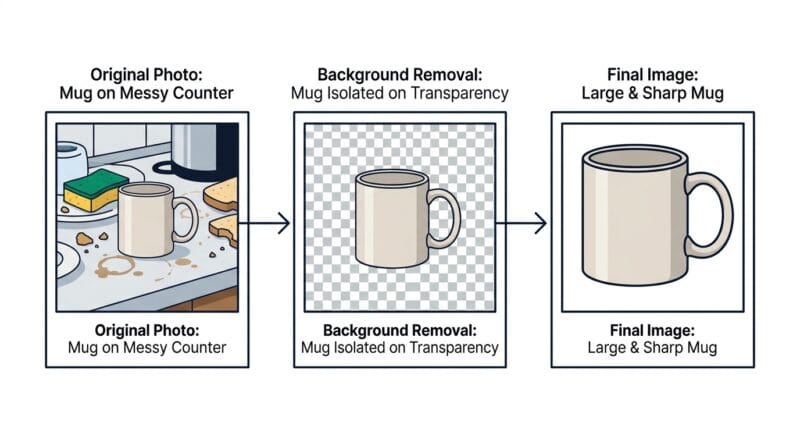
The Background Remover is for product shots and profile pictures — anything that needs a clean transparent PNG. The Magic Eraser is for removing one specific thing: a bystander, a trash can, a date stamp burned into the corner. The AI Upscaler is for when your only copy of an image is small or slightly blurry and you need it larger without it turning to mush. A common real workflow: remove the background of a sneaker photo, erase the price tag still clipped to the laces, then upscale to 3× for a marketplace that rejects low-resolution images.
🟢 A Real Example
Say you photograph a 900×900 px handmade mug on a messy kitchen counter. Background Remover isolates the mug on transparency in a few seconds. You switch to Magic Eraser and brush out a smudge on the rim. Then the Upscaler takes it to 3× (2700×2700) so it meets a print-on-demand site’s minimum. The upscaled edge looks a touch soft, so you nudge the new Sharpen slider to about 30% and it reads crisp. Total time: under a minute, and the photo never left your laptop.
🔴 Where It Struggles — and What to Do
Background removal is weakest on fine detail like flyaway hair, fur, or glass, where the edge between subject and background is genuinely ambiguous — check those edges before you trust the cut. The Magic Eraser fills the erased area by guessing from surrounding pixels, so it shines on simple backgrounds (a wall, grass, sky) and struggles when the object sits in front of a busy, detailed scene. And the 4× upscale runs a two-pass AI model, which is genuinely slow on large images since all of it happens on your device’s graphics processor, not a server farm. For very large source files, 2× or 3× finishes far faster and is usually enough.
If you also need to resize, crop, or compress the final file, our Advanced Image Studio handles that side of the job, and you can convert vector art with the SVG to PNG Converter. For a wider look at what runs fully in your browser, see our roundup of the best client-side offline tools.
Do my images get uploaded to a server?
No. All three tools run in your browser using JavaScript and WebGL. Your photo stays on your device from start to finish.
Can I use the output of one tab in another?
Yes — that’s the point of combining them. Remove a background, then switch tabs to erase an object or upscale the same result.
Why is the background cut rough around hair?
Fine strands sit on the hardest edge for any AI to judge. Zoom in and check hair, fur, and glass before relying on the cutout.
Why does the erased area look smudged?
The eraser rebuilds the gap from nearby pixels. It works best over plain backgrounds; busy, detailed scenes are harder to fill convincingly.
Which format should I download?
Use PNG to keep a transparent background, JPG for the smallest photo files, and WebP for a good balance of quality and size.
Why is 4× upscaling slow?
It runs a two-pass AI model on your device’s GPU. For big images, 2× or 3× is much quicker and often enough.
Is there a watermark on my downloads?
No watermark and no sign-up. What you export is exactly what you see in the preview.