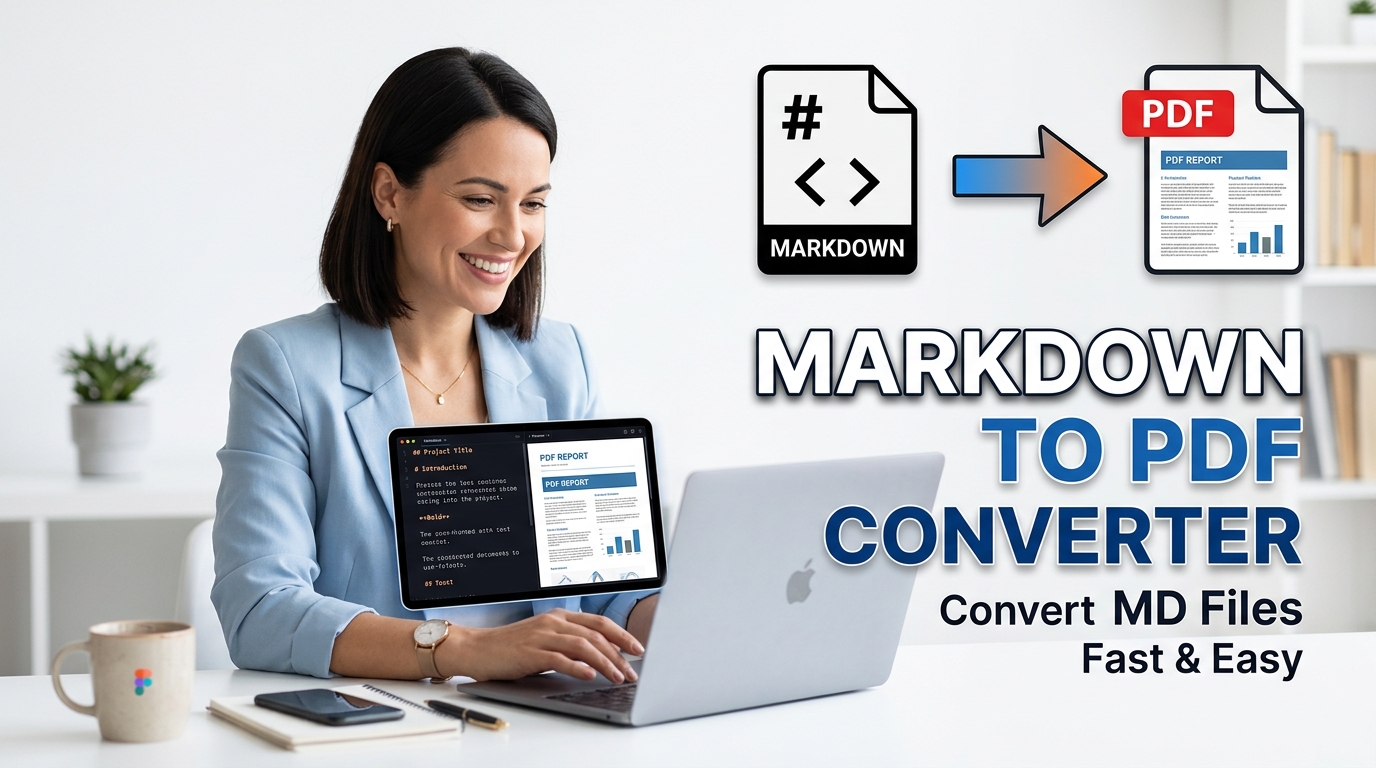
Markdown to PDF Converter
Convert Markdown to PDF instantly with our free offline converter. Write in Markdown, preview the live A4 page, and download a styled PDF securely.
Table of Contents
Wrote something in Markdown and need a clean PDF to send? Paste your Markdown and export a formatted PDF, with headings, lists, and code blocks rendered properly. Good for turning notes, README files, or documentation into a shareable document.
MD Studio Pro
Live Preview
Confirm Action
Are you sure you want to proceed?
The internal compiler tokenizes the raw text strings locally, translating markdown notation into structurally compliant HTML nodes inside your browser memory.
The engine recalculates the visual output synchronously as you type, rendering specific CSS typographical themes like GitHub or Modern Clean immediately.
This Markdown to PDF Converter bypasses server interactions completely, mapping the generated HTML5 canvas directly into a downloadable binary blob array.
Enter your raw text into the CodeMirror editor or upload an existing file directly into the local memory stack.
Select the exact physical page dimensions, choosing between A4, Letter, or Legal sizing parameters.
Instruct the Markdown to PDF Converter to apply your preferred CSS theme to the structural elements.
Trigger the rendering protocol to download the compiled high-resolution document locally.
🟥 Textual Compilation with a Markdown to PDF Converter
Software documentation and technical writing require highly structured syntax processing to generate readable output formats. A Markdown to PDF Converter operates as a specialized local compiler that bridges raw string characters with finalized binary document arrays. By executing a Markdown to PDF Converter, engineers and writers can write natively in plain text while algorithmically generating correctly formatted, print-ready documents without needing complex word-processing applications.
🟧 Abstract Syntax Trees and DOM Painting
When inputting characters into the editor block, the system does not merely apply visual styles. The internal Marked.js engine parses the string, breaking it into an abstract syntax tree of headers, paragraphs, and code blocks. The Markdown to PDF Converter maps these tokens into actual Document Object Model (DOM) elements simultaneously. This execution loop happens completely offline, meaning the live preview pane updates in milliseconds without generating external HTTP requests.
- 🟢 Code blocks calculate syntax highlighting parameters mathematically before rendering the background boundaries.
- 🔵 The user specifies exact orientation vectors, instructing the compiler to structure the matrix for portrait or landscape rendering.
- 🟣 CSS overriding logic forces the DOM to apply specific typographical spacing rules, such as GitHub’s standard padding variables.
- 🟤 Local processing isolates the text strings entirely within the active browser tab.
🟨 Buffer Serialization and Cryptographic Privacy
Transferring proprietary company documentation or confidential legal notes to external rendering APIs creates extreme data vulnerability. Therefore, this Markdown to PDF Converter secures your textual data by running the HTML2PDF scripts entirely on the client side. The compiler translates the painted DOM into an HTML5 Canvas, converts that canvas into a highly compressed JPEG matrix, and serializes the array into a final PDF blob directly inside your local volatile memory.
🟩 Typographic Standards and Extensibility
Understanding lightweight markup languages fundamentally improves development velocity. For an academic overview of the syntax structures powering these parsing algorithms, developers should read the Wikipedia documentation on Markdown. If your technical writing pipeline demands additional offline syntax adjustments before serialization, you can systematically browse the Prime Tool Hub directory to locate integrated text formatters alongside this Markdown to PDF Converter.
🤔 Frequently Asked Questions
How does the Markdown to PDF Converter generate documents offline?
The compiler reads the syntax using native JavaScript libraries, generating local HTML nodes, painting them to a canvas, and calculating the final binary arrays securely within your hardware RAM.
Does this Markdown to PDF Converter support custom page dimensions?
Yes. Before triggering the serialization script, users can mathematically define the bounding box by selecting standard A4, Letter, or Legal sizing arrays directly from the interface.
Are my textual inputs secure during compilation?
Absolutely. The engine prevents external API calls entirely. Your text strings are processed locally, ensuring strict privacy for your internal business documents and proprietary code blocks.
Can I alter the visual layout of the generated document?
Yes, developers can select specific CSS variables through the theme controller, instantly switching the abstract syntax tree rendering between GitHub standard typography or Modern Clean styles.