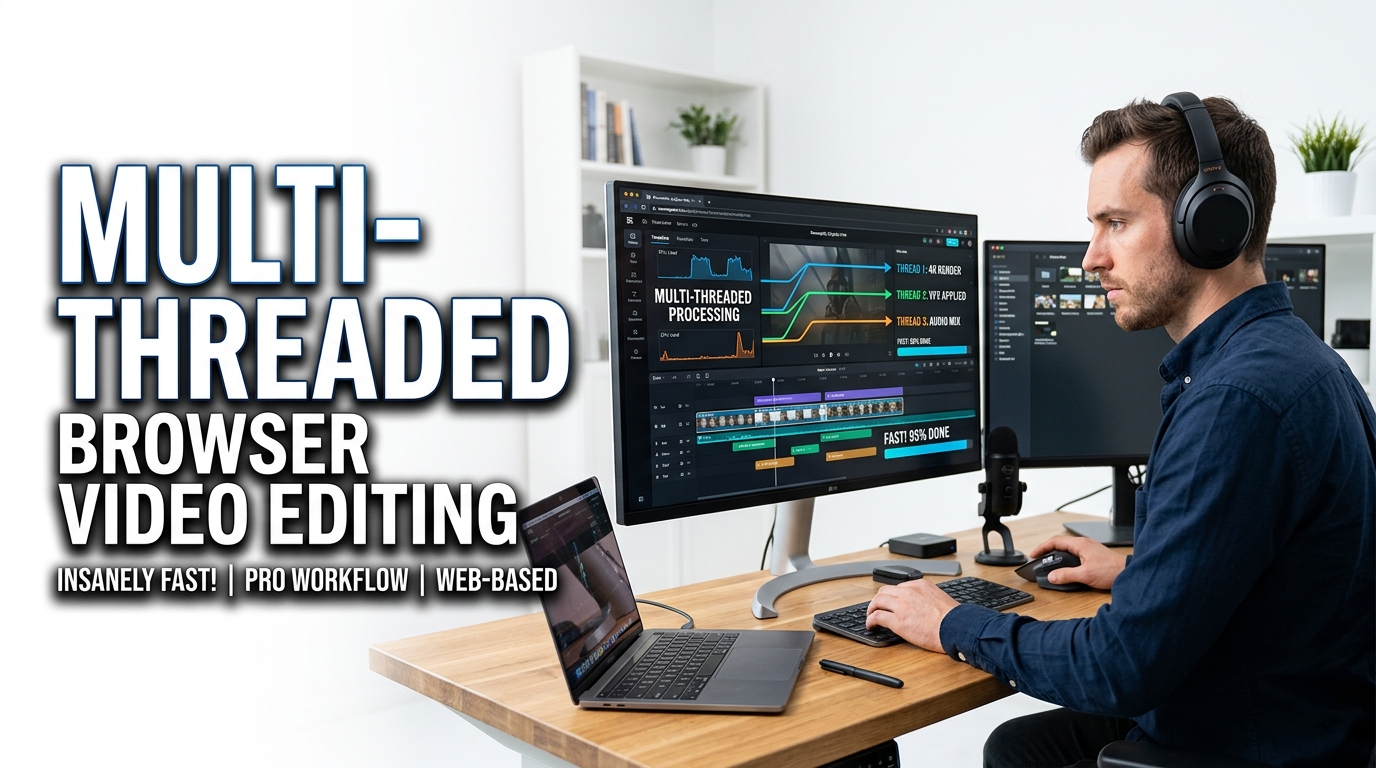
Multi-Threaded Browser Video Editing: A Performance Guide
Explore the ultimate performance guide to multi-threaded browser video editing. Learn how WebAssembly and offline client-side processing deliver secure, lightning-fast rendering.
Table of Contents
Last updated: July 2026
🔴 How Video Editing Moved Into the Browser
For years, anything involving video meant a desktop program, because the browser simply was not fast enough to decode and re-encode frames. That changed with WebAssembly — a way to run compiled, near-native code inside a web page. Video engines like FFmpeg were compiled to WebAssembly, and suddenly the same operations a desktop app performs could run locally in a tab.
The result is a new kind of tool: a full browser video editing studio that needs no install, no upload, and no server. Your clip stays on your device, and the work happens on your own processor. The catch is that a single thread of WebAssembly, while fast, still handles one frame at a time. That is where multi-threading comes in.
🟡 What “Multi-Threaded” Actually Means Here
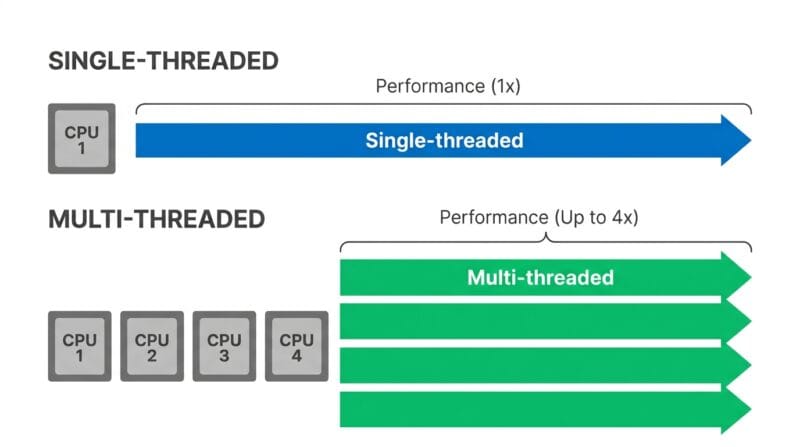
A thread is a single stream of work your CPU carries out. Older browser tools ran everything on one thread — the same thread that keeps the page responsive — so a heavy encode could freeze the whole tab. Multi-threaded editing spreads the work across several background threads using Web Workers, so the interface stays smooth while frames are processed in parallel.
For this to work, the threads need to share the same block of memory rather than copying data back and forth. That shared memory is what lets a modern browser editor split a video into chunks, hand each chunk to a different core, and reassemble the result — the same divide-and-conquer approach a desktop encoder uses.
🟢 Why Threads Make Editing Faster
Most machines today have four, eight or more CPU cores. A single-threaded tool uses one of them and leaves the rest idle. A multi-threaded tool puts those spare cores to work, so an encode that took a minute on one thread can finish in a fraction of the time when the load is shared.
The speed-up is not perfectly linear — there is overhead in splitting the job and stitching it back together — but the difference is large and obvious on longer clips. Two practical wins come out of it:
- 🔵 The page stays usable while a video processes, because the heavy work is off the main thread.
- 🟠 Encoding finishes sooner, especially for compression and format conversion, which are the most CPU-hungry operations.
🟡 What Decides the Performance You Get
Two people running the same browser editor can see very different speeds. A handful of factors explain most of the gap:
- 🔵 CPU cores and speed: more cores and higher clock speeds mean more parallel work. This is the single biggest factor.
- 🟠 Available memory: video frames are large. When shared memory runs low, the browser slows or stops, so a machine with more free RAM handles bigger files comfortably.
- 🟣 File size, resolution and length: a 4K, ten-minute clip is far more work than a 720p, thirty-second one. Downscaling first can dramatically cut processing time.
🟢 The Operation Itself Matters Too
Not every edit costs the same. A simple trim barely touches the frames and finishes almost instantly, because it copies existing data without re-encoding. A full compression or a heavy filter, on the other hand, rebuilds every single frame — which is why those are the operations that most benefit from extra threads and a faster processor.
🟢 Getting the Best Speed From a Browser Editor
You can influence performance more than you might expect:
- 🔵 Close other heavy tabs before a big job — they compete for the same cores and memory.
- 🟠 Downscale before you compress — dropping 4K to 1080p removes a huge amount of work up front.
- 🟣 Trim first, then encode — cut the clip to the part you actually need so the encoder has less to process.
You can try all of this in the free Turbo Video Studio Pro, which runs multi-threaded and entirely offline — nothing is uploaded and the output has no watermark. If your goal is a smaller file, the companion guide on compressing video without losing quality covers the exact bitrate and resolution settings to use.
🔴 Honest Limits: Browser vs Desktop
Multi-threaded browser editing is genuinely fast for everyday jobs — trims, compression, conversion, filters and single-clip fixes. For those, it removes the friction of installing software and uploading files. It is fair to be clear about the ceiling, though: a browser tab has less memory to work with than a native app, and it does not replace a professional multi-track suite for long projects with dozens of clips, transitions and layered audio. The sweet spot is quick, self-contained edits done privately on your own machine — and for that, a modern browser editor is often the faster choice.
What makes browser video editing possible at all?
WebAssembly lets compiled, near-native code run inside a web page. Video engines built for the desktop were compiled to it, so the same decode and encode work can now happen locally in a tab without a server.
Does multi-threading really make a difference?
Yes, especially for compression and conversion. Spreading the work across several CPU cores finishes the job much faster than one thread, and it keeps the page responsive while processing runs.
Why is the same tool faster on my laptop than my phone?
Laptops usually have more CPU cores and more memory. Both directly affect how many frames can be processed in parallel and how large a file the browser can handle.
Is my video safe when editing in the browser?
With an offline tool, the file never leaves your device — there is no upload and nothing stored on a server. All processing happens in your own browser memory.
Why did a big file slow down or stop?
Large videos need a lot of shared memory. If the browser runs low, it slows down or halts. Downscaling the resolution or trimming the clip first reduces the load.
Can a browser editor replace desktop software?
For quick edits — trim, compress, convert, filters — it often is faster and more convenient. For long multi-clip projects with transitions and layered audio, a dedicated desktop suite is still the better tool.