Secure AI Offline Transcription Studio | Client-Side Audio to Text
Convert speech to text securely using our AI offline transcription studio. It runs Whisper neural network models entirely client-side for zero-upload privacy.
Table of Contents
🌐 Translate To Language
Preview
Keyboard Shortcuts
Got a recorded interview, lecture or meeting you need turned into text? Transcribe the audio to a written, searchable transcript right in your browser, without uploading the recording to a cloud service. That keeps confidential conversations, medical notes or unreleased material on your own machine, which is the whole point for anyone who cannot hand a recording to a third-party site. Load an audio file, let it process, and get text you can copy, edit and save. It suits journalists working with source interviews, students turning a recorded lecture into notes, and anyone who needs a rough transcript to search through rather than a broadcast-perfect one. Because the work happens on your device, there is no per-minute bill and no privacy trade-off, and once the page and model have loaded it keeps working with the network switched off.
Auto-formatted meeting notes generated from your transcription. Edit freely — changes stay here only.
Load transcription into the text tool area, apply transformations, copy result.
All export formats in one place. Click any format to download.
🟢 5-Tab All-in-One Workspace
One upload powers five complete tools. The Transcribe tab gives you an inline segment editor with speaker tags, search/replace, and undo/redo history. Switch to Smart Notes for auto-generated meeting notes. Jump to Deep Analytics for sentiment clouds, pace-per-minute graphs, and silence detection — all from a single audio file without re-uploading.
🔵 Professional Export Hub
The dedicated Export Hub tab puts every format in one grid: .TXT, .SRT, .VTT, .PDF, and .JSON with full timestamp data. Four Smart Copy Modes let you copy as Plain Text, With Timestamps, SRT Format, or Meeting Notes — instantly ready for YouTube, Premiere Pro, Notion, or email without reformatting.
🟣 Offline AI — Zero Data Sent
The Whisper AI model downloads once to your browser cache — after that, every transcription runs entirely client-side with zero server calls. Your audio never leaves your device. Supports 20 languages including Sinhala, Tamil, Hindi, Japanese, Arabic, and Ukrainian. Works on a plane, in a meeting room, or anywhere with no Wi-Fi after the first model load.
How to Use the AI Transcription Studio
Four steps from audio file to polished, exported transcript.
Drag & Drop an MP3, WAV, MP4, WEBM, or OGG file onto the Media Input zone — or click Start Live Recording to capture from your microphone. Set a Trim Range if you only need part of the file.
Pick your AI Model (Whisper Tiny for speed, Base for accuracy), select your Language or leave it on Auto-Detect, toggle Filler to strip out “um” and “uh”, then hit 🚀 Start Transcription.
Segments appear in the 🎬 Transcribe tab. Click timestamps to seek media. Tag speakers with 👤 Spk 1 / 👥 Spk 2. Bookmark key moments, use Find & Replace, and switch between Subtitle View and Paragraph View.
Click the 🎯 Export Hub tab. Choose .SRT for subtitles, .JSON for developer data, .PDF for formal documents, or use a Smart Copy Mode to paste straight into Notion, Google Docs, or email.
Last updated: June 2025
🔴 Why One Tab Is Never Enough for Real Transcription Work
Every other free transcription tool on the web does one thing: it spits out a wall of text and leaves you to figure out the rest. You then open a second tab to reformat the output. A third to export subtitles. A fourth to analyze speaking pace for your podcast. The PTH AI Offline Transcription Studio v3.0 refuses this pattern. Upload once — everything else happens in a five-tab workspace that stays right where you are.
The tool is built around a single principle: a transcription is not a final product. It is raw material. Real workflows turn raw speech into meeting notes, subtitle files, content analytics, and social copy — all from the same source. Version 3.0 was rebuilt from scratch to serve that reality.
The 5-Tab Workspace — Every Step in One Place
The interface opens on the 🎬 Transcribe tab, where AI-generated segments appear as editable rows. Each row shows a clickable timestamp that seeks your audio or video player to that exact moment. Confidence is shown as a three-tier color dot — green for high-confidence segments (6+ words), amber for medium, red for short clips that may need a manual check. Click any dot to see the confidence level as a tooltip.
Speaker diarization is manual but fast: click any segment, then hit 👤 Spk 1 or 👥 Spk 2 in the toolbar. The segment instantly gets a left-border color — blue for Speaker 1, green for Speaker 2. This is enough for 95% of interview and podcast use cases without requiring a separate ML model. The 🔗 Merge button fuses short segments together, cleaning up choppy output from fast speech.
Bookmarks are persistent within your session. Star any segment with the ☆ action button on hover — it flips to 🔖 and the segment gets an amber left border. A Bookmarked Segments panel appears below the editor, listing every bookmarked line. Click any item in that panel to jump to the segment in the editor and seek the media player simultaneously. This is the workflow for pulling quotes from long interviews.
Smart Notes — From Speech to Structured Document
The 📝 Smart Notes tab solves a problem every meeting recorder knows: a raw transcript is not a meeting summary. Click ✨ Generate Notes and the tool builds a structured document automatically — a date header, total duration, eight key bullet points pulled from the highest-information sentences, a three-sentence summary, and a placeholder for action items.
The notes are fully editable in a plain textarea. Two format buttons let you reformat: • Bullets converts every line to a bullet point, stripping existing list markers cleanly. 1. Numbered applies sequential numbering. The word count updates live as you type. When ready, 📋 Copy Notes copies the entire block — ready to paste into Notion, Confluence, or a Google Doc.
🟡 Deep Analytics — What Your Speech Data Actually Reveals
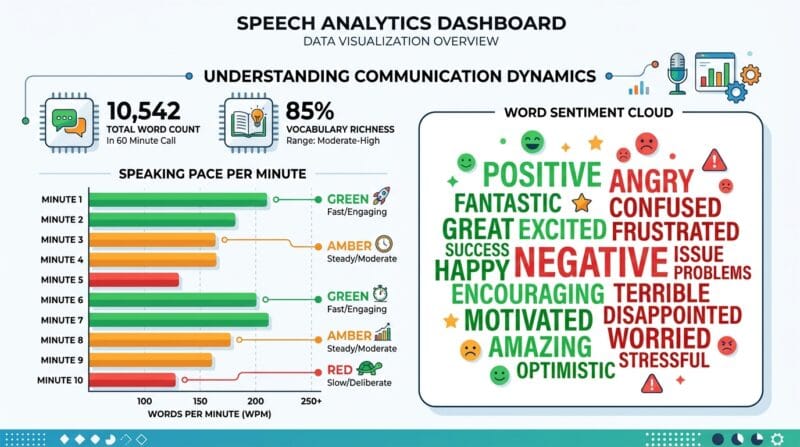
The 📊 Deep Analytics tab does not just count words. It runs four separate analyses on the same transcription data.
Sentiment Word Highlights scans every word against a positive and negative dictionary. Positive words render in green, negative in red, inside a cloud layout. This is a fast gut-check for customer calls, interviews, or lecture recordings — you can see the emotional tone of an hour of audio in about three seconds.
Top Phrases extracts the most frequent bigrams (two-word sequences), filtering stopwords. If a phrase like “machine learning” or “budget approval” appears eight times in a one-hour recording, it surfaces at the top. Each phrase tag shows its frequency count in a small badge — this is the feature content researchers use to spot recurring themes without reading the full transcript.
Speaking Pace per Minute renders as a horizontal bar chart — one bar per minute of audio. Bars are color-coded: green for under 100 wpm (relaxed), amber for 100–150 wpm (conversational), red for over 150 wpm (fast). Podcast editors use this to spot where a guest is rushing. Teachers use it to find where they lost control of their pace. Public speakers use it to identify sections that need deliberate slowdown.
Silence / Gap Detection flags every gap over two seconds between segments. Each silence shows its duration and position in MM:SS format. A recording with eight detected silences across forty minutes tells a completely different story than one with zero — the first is an interview with natural pauses, the second is a continuous lecture. This data matters for audio editors deciding where to cut.
Text Tools — Clean and Reformat Without Leaving the Tool
The 🔤 Text Tools tab gives eight transformations that every transcript needs at some point. Load your transcription with one click, or paste any text. The left panel is your editable input; the right shows the transformed result.
Remove Filler Words strips the twenty most common spoken fillers — “um”, “uh”, “like”, “you know”, “sort of”, “kind of”, “basically”, “literally”, “actually”, “i mean”, and more. The regex-based cleaner handles both standalone occurrences and those followed by commas. A transcript of casual speech that runs 1,200 words often drops to 1,050 after filler removal — cleaner for publishing, faster to read.
Remove Duplicates catches consecutive repeated words — a common Whisper output artifact where “the the” or “it was was” appears due to audio overlap. Clean Spaces collapses double whitespace and triple line breaks. Three social media limit chips let you trim output to exactly 280 characters (Twitter/X), 500 characters (YouTube short description), or 2,200 characters (Instagram caption) — one click, no counting.
🟢 Export Hub — Six Formats, Four Copy Modes
The 🎯 Export Hub tab consolidates every download option that was previously scattered across multiple buttons. Six export cards sit in a responsive three-column grid.
.TXT is plain text, one line per segment — fastest for notes or copy-paste. .SRT and .VTT are the two subtitle formats needed for YouTube, Vimeo, and most video players. SRT uses comma-separated milliseconds; VTT uses dot-separated and adds the WEBVTT header — the tool builds both formats correctly from the same timestamp data. .PDF generates a formatted document with a title, horizontal rule, and every segment listed as a paragraph with its timestamp in blue. .JSON is the developer format — an array of objects with start, end, text, speaker, and bookmarked fields, ready to feed into any downstream script or API.
Below the export grid, four Smart Copy Modes handle clipboard workflows without saving a file. 📄 Plain Text copies clean prose. ⏱️ With Timestamps adds [MM:SS] markers before each line — the format YouTubers use for chapter descriptions. 📝 SRT Format puts the full SRT block on the clipboard so you can paste directly into a video editor’s subtitle import field. 📋 Meeting Notes triggers note generation and copies the structured output in one action.
Playback Speed Control and Audio Trimmer
Five playback speed buttons live below the waveform display in the sidebar: 0.5x, 0.75x, 1x, 1.25x, and 1.5x. The active speed is highlighted in purple. Slowing to 0.5x is the standard workflow for transcribing heavily accented speech or overlapping dialogue that the AI misses. Running at 1.5x is how you skim a one-hour recording in forty minutes during review.
The Trim Range inputs use MM:SS format. Set a start and end, then click 🚀 Start Transcription — only the trimmed range is sent to the AI. This is essential for long files: a 90-minute podcast where you only need minutes 12 to 45 should not waste processing time on the full file. The Download Trimmed Audio (WAV) button exports just that range as a 16 kHz WAV — useful for archiving interview clips or extracting quotes for social audio.
Live Microphone and 20-Language Support
The 🎤 Live Microphone card uses the MediaRecorder API to capture audio directly in-browser. Hit Start Live Recording, speak, then hit ⏹️ Stop Recording. The recorded blob is handed to the same file handler as an upload — it appears in the media player, the waveform draws, and you can trim and transcribe identically to a file upload. No extra steps.
Language support covers twenty languages including Sinhala (si), Tamil (ta), Hindi (hi), Arabic (ar), Japanese (ja), Korean (ko), Chinese (zh), Ukrainian (uk), Vietnamese (vi), and Thai (th). Set the language dropdown before transcription for best results, or leave it on ✨ Auto-Detect for multilingual content. The 🌐 Translate button in the editor opens a searchable language grid and uses the Google Translate API to convert every segment — preserving timestamps and segment structure while replacing the text.
🔴 Who Uses This Tool — Real Use Cases
Podcast editors upload their raw recordings, check the pace graph for rushing sections, export SRT for show notes timestamps, and copy the meeting notes format for episode descriptions — one tool, full workflow.
Students and researchers record lectures or interviews on their phones, upload the file, let Whisper transcribe while offline in the library, then use the Text Tools tab to clean and reformat before pasting into their thesis notes. The JSON export gives structured data for any digital humanities project.
Legal and medical professionals who need local processing use Whisper Tiny for speed or Whisper Base for accuracy, with the noise filter on to suppress hallucinated filler content. The 100% offline guarantee means sensitive recordings never touch an external server.
Content creators use the social media character limit chips in Text Tools to trim quotes to Twitter/X length, copy with the SRT copy mode for Premiere Pro caption import, and use the sentiment cloud to pick the most emotionally positive quote for their caption. See also our PTH Ultimate Text and SEO Studio for further content optimization after transcription.
❓ Frequently Asked Questions
Does the AI transcription work without internet?
After the Whisper model downloads to your browser cache on first use — around 74 MB for Tiny or 140 MB for Base — every transcription runs completely offline. No audio is ever sent to a server. Reload the page with Wi-Fi off and it still works.
What audio and video formats are supported?
The tool accepts MP3, WAV, MP4, WEBM, and OGG files up to 500 MB. Any format your browser’s AudioContext can decode will work — which covers almost every common audio and video format. The file is processed entirely in your browser memory.
What is the difference between Whisper Tiny and Whisper Base?
Whisper Tiny (~74 MB) is faster and ideal for clear speech in common languages like English or Spanish. Whisper Base (~140 MB) is more accurate for accented speech, technical vocabulary, and less common languages. For podcasts and meetings, Tiny is usually sufficient. For medical or legal content, use Base.
How do I export subtitles for YouTube?
Go to the 🎯 Export Hub tab and click the .SRT card. Download the file, then in YouTube Studio go to Subtitles → Add → Upload file and select your .SRT. YouTube reads the timestamps automatically and syncs captions to your video.
Can I transcribe only part of a long audio file?
Yes. After uploading, use the Trim Range (MM:SS) inputs in the sidebar. Enter your start and end times, then click Start Transcription. Only the trimmed segment is processed. You can also download just that trimmed clip as a WAV file using the Download Trimmed Audio button.
What languages does the transcription support?
The tool supports 20 languages including English, Sinhala, Tamil, Hindi, Spanish, French, German, Portuguese, Japanese, Chinese, Arabic, Korean, Italian, Russian, Dutch, Polish, Turkish, Vietnamese, Thai, and Ukrainian. Select your language before starting, or use Auto-Detect for multilingual recordings.
What does the Filler Word Filter chip do?
When the 🔤 Filler chip is active, words like “um”, “uh”, “like”, “you know”, “basically”, and “literally” are stripped from the display in real time. This does not modify the underlying data — toggle the chip off to see the original. You can also apply filler removal permanently in the Text Tools tab.
How does the JSON export work?
The .JSON export in the Export Hub creates an array of segment objects. Each object has start (seconds), end (seconds), text (string), speaker (1, 2, or null), and bookmarked (boolean). This format is ideal for developers building search indexes, subtitle renderers, or transcript databases.
Does the session auto-save feature work offline?
Yes. Every transcription is automatically saved to your browser’s localStorage after each change. If you accidentally close the tab, click the ♻️ Restore button in the top bar to recover your last session. Sessions expire after 24 hours.