Free AI Text Summarizer & TL;DR Generator (100% Offline)
Summarize long articles and documents instantly with our 100% offline free AI text summarizer. Generates accurate TL;DRs securely in your browser.

Table of Contents
🌐 Select Source Language
Long report or article you do not have time to read in full? Paste the text and get a short summary that keeps the main points, so you can grasp the gist before deciding whether to read the whole thing. Good for triaging a growing reading list.
Select preset focus areas or add custom ones. When active, the AI produces a structured sectioned report instead of a standard summary.
💡 How Custom Sections Work
Each section uses keyword-intelligence to extract relevant sentences from your text — instant, 100% offline, zero AI model needed. When sections are active, click Generate to produce a structured sectioned report. Mix presets + custom sections for maximum control.
Load the generated summary or paste any text, choose a rewrite mode, and get an offline-rewritten version with change highlights.
All export formats in one place. Summary must be generated first.
🟢 6-Tab All-in-One Intelligence Hub
One upload, six specialized tools. The 📥 Input tab handles text paste, PDF/DOCX upload, and URL fetching. Switch to 🔍 Analyzer for Flesch readability scores, keyword density tables, and sentence distribution charts. The ✍️ Rewriter tab offers five rewrite modes with live diff highlighting. Every feature operates on the same source text — no re-uploading, no switching apps, no wasted time.
🔵 Offline AI with Tone & Focus Control
The Xenova DistilBART model (~240 MB, downloads once) generates summaries entirely in your browser. Five Tone Modes shape the output: Neutral, Professional, Simple (ELI5), Academic, and Social Media. Pin up to five Focus Keywords and the AI pre-filters your text so keyword-containing sentences are prioritized — giving you summaries that actually highlight what matters to you.
🟣 Export Hub — 6 Formats + 4 Copy Modes
The 📤 Export Hub tab consolidates every output format: .TXT for plain notes, .PDF for formal documents, .MD for Markdown editors, .JSON for structured data, .SRT for video subtitles, and Email for ready-to-send correspondence. Four Smart Copy Modes let you copy as Plain Text, Markdown, Email Format, or Social Media (280 chars) — all without saving a file.
How to Use the AI Text Summarizer
Four steps from raw text to polished summary, analysis, and export.
In the 📥 Input tab, paste text directly, click 📂 Upload File to load a .TXT, .PDF, or .DOCX, or paste a URL and hit 🔗 Fetch. For non-English text, click 🌐 English ▾ to set your source language then hit ➡️ to translate to English first.
Choose your Length (Short / Medium / Detailed), Format (Paragraph / Bullets), and Tone (Neutral / Professional / Simple / Academic / Social). Add Focus Keywords to pin the AI’s attention on specific topics. Then click ✨ Generate AI Summary.
The 🎯 Summary tab shows your result with the animated Compression Gauge. Switch to 🔍 Analyzer to check the Flesch readability score, top keyword frequency table, duplicate sentence alerts, and sentence length distribution bars — all from the same source text.
Head to ✍️ Rewriter, click 📥 Load Summary, choose a rewrite mode (Paraphrase / Simplify / Formalize / Shorten / Expand), and hit ✍️ Rewrite. Changed words highlight in yellow. Then go to 📤 Export Hub and download in any of six formats.
Last updated: June 2026
🔴 Why Most Summarizers Stop Too Early
A typical AI summarizer does one thing: it returns a shorter version of what you gave it. That is useful for about thirty seconds — until you realize the output is in the wrong tone for your audience, you need to check keyword density before publishing, you want a subtitle file for your video, or you need to email the result without reformatting it by hand. The PTH AI Text Summarizer and Intelligence Hub v5.0 PRO was built because every one of those follow-up tasks deserved its own tab in a single tool.
Version 5.0 is a full rebuild from v4.3. The flat card layout is replaced by a six-tab workspace. The Google Translate widget dependency is removed — replaced with a direct chunked API call. A new Text Analyzer tab, a Rewriter tab with five modes, a dedicated Export Hub, tone selection, focus keywords, a compression gauge, and a sentence heatmap are all added as first-class features — not afterthoughts bolted onto a summarizer.
Tab 1 — 📥 Input: Everything Starts Here
The Input tab accepts text four ways. 📋 Paste reads from your clipboard. 📂 Upload File opens a file picker supporting .TXT, .PDF (via PDF.js), and .DOC/.DOCX (via Mammoth.js). 🔗 Fetch retrieves the text content of any public URL using the AllOrigins proxy, stripping scripts, styles, navigation, and footer elements automatically. You can also type directly into either text box.
The dual text box layout separates source text from English text. If your source is in Sinhala, Arabic, Japanese, or any of the twenty supported languages, click the language selector, set your language, then hit the ➡️ button. The tool splits the text into chunks under 4,500 characters and translates each chunk via the Google Translate API, then joins the results into the English box — ready for summarization without any character limit errors.
The 🧹 Clean Text button pre-processes your source: it strips HTML tags, decodes common HTML entities, normalizes smart quotes to straight quotes, and collapses multiple spaces and line breaks. Run this before summarizing any text copied from a web page or exported from an email client — it eliminates the junk that causes AI models to waste tokens on formatting noise.
Below the text boxes, the ⚡ Instant TL;DR banner appears automatically once text is loaded — no AI model download required. It extracts the first and last sentence of the source text and displays them as a fast preview of the document’s opening claim and closing conclusion. For short articles, this alone is often sufficient.
The 🌡️ Sentence Importance Heatmap renders below the stats row when text is detected. Each sentence is highlighted based on a TF-IDF style score — sentences with the highest concentration of high-frequency non-stopwords glow green. Medium-importance sentences are amber. Low-importance sentences stay unhighlighted. This is a visual preview of what the AI will prioritize, before you spend time waiting for the model to run. Add Focus Keywords and the heatmap updates immediately — keyword-containing sentences jump to green.
Focus Keywords and Tone Modes
📌 Focus Keywords are the single most useful addition in v5.0 for professional users. Type a keyword and press Enter or click + Add — it becomes a blue pill badge below the input. Add up to five. When you hit Generate, the tool reorders your sentences before sending them to the AI: sentences containing your focus keywords move to the front of the input array. Since DistilBART is an extractive-abstractive model that weights early content more heavily, this effectively tells the model what to emphasize without needing a custom prompt.
Five Tone Modes inject a prefix instruction into the AI prompt. ⚖️ Neutral sends no prefix — standard output. 💼 Professional prefixes “Write in a formal, professional, executive-level tone.” 🧒 Simple prefixes “Explain in very simple language, like explaining to a 10-year-old.” 🎓 Academic prefixes “Write in an academic, scholarly tone with formal language.” 📱 Social prefixes “Write in a casual, engaging, social media friendly tone under 280 chars.” The tone badge appears in the Summary tab result header so you always know which mode produced the current output.
🟡 Tab 2 — 📋 Sections: Structured Intelligence Extraction
The Sections tab replaces the standard summary with a structured sectioned report. Twelve preset chips cover the most common document intelligence needs: 🎯 Key Points, ✅ Action Items, 📅 Dates & Deadlines, 👥 People & Orgs, 💰 Financial Data, ⚠️ Risks & Issues, ⚖️ Decisions Made, 💡 Recommendations, 🔧 Technical Details, 📖 Background Context, 📊 Statistics & Numbers, and 🏁 Conclusions.
Each section uses keyword-intelligence extraction — no AI model download needed. Every sentence in the source text is scored against a keyword dictionary for that section. The top four scoring sentences (minimum five words, minimum one keyword match) are returned as the section content. Financial Data, for example, scores sentences containing “revenue”, “profit”, “million”, “billion”, “percent”, “budget”, and twenty-eight other financial terms. Click a chip, it turns purple and active. Click multiple chips to build a multi-section report. Add a completely custom section — type “Legal Clauses” or “Safety Requirements” and click + Add.
When sections are active, the Generate button produces the structured report instantly — no waiting for the AI model. This is important: for legal review, executive briefings, or meeting minutes analysis, sections are often faster and more precise than the AI model because they pull exact matching sentences rather than generating abstractions. Use sections when you need verbatim extraction; use the AI model with tone modes when you need rewritten prose.
Tab 3 — 🎯 Summary: Result, Gauge, and Compare
The Summary tab is where results appear after clicking Generate. The result header shows the word count, compression percentage, and estimated read time. Below the metrics, an animated SVG Compression Gauge renders as a radial arc — blue for low compression, amber for medium, green for high. The same gauge appears in the sidebar for at-a-glance reference without switching tabs. A compression of 78% means you reduced a 1,000-word document to roughly 220 words.
The 💾 Save v1 button stores the current summary as Version 1. Generate a second summary with different settings — different length, different tone, different sections — then both appear side by side in the 🔁 Version Comparison panel below the result. This is the workflow for A/B testing summary approaches: short neutral vs. detailed professional, or sectioned extraction vs. AI prose.
The 🌐 Translate button in the Summary tab runs the reverse translation — it takes the English AI output and translates it to the source language you selected in the Input tab. This is the end-to-end workflow for multilingual content: paste French → translate to English → summarize → translate back to French. The translated result appears in a dashed green box below the English summary.
🟢 Tab 4 — 🔍 Analyzer: Four Deep Text Metrics
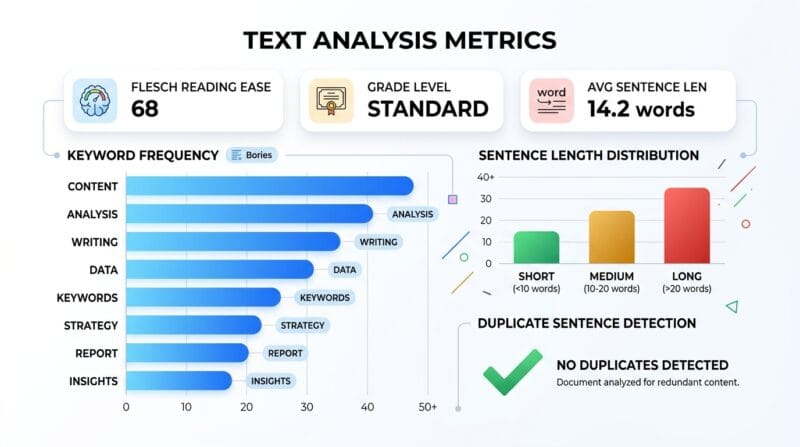
The Analyzer tab runs automatically when you switch to it with source text loaded. All analysis is client-side and takes under 200ms on any modern device.
Flesch Reading Ease Score is calculated using the standard formula: 206.835 minus 1.015 times the average words per sentence, minus 84.6 times the average syllables per word. The result (0–100) is translated to a grade label — Easy (70+), Standard (50–70), Difficult (30–50), or Expert (below 30). A company memo should target 60–70. An academic paper typically lands at 20–40. A social media post should be 80+. Knowing this number before publishing lets you adjust the rewrite mode accordingly.
Top 12 Keywords by Density renders as a sortable table with five columns: rank, keyword, count, density percentage, and a colored frequency bar. Stop words (the, a, an, in, is, are, of, for, to, etc.) are excluded. This table tells you instantly which terms dominate your document — useful for SEO analysis, ensuring your intended keywords actually appear at the right frequency, and detecting when a document has drifted from its stated topic. A 5,000-word report where “risk” appears 41 times at 1.2% density is quantifiably different from one where it appears twice.
Duplicate / Near-Duplicate Sentences flags any sentence whose first 60 characters match another sentence in the document. This catches copy-paste errors, repeated boilerplate paragraphs, and accidentally duplicated meeting minutes entries. Each duplicate is displayed in an amber alert box. If no duplicates are found, a green confirmation shows instead.
Sentence Length Distribution renders as a horizontal bar chart — one thin vertical bar per sentence (up to 40 sentences), height proportional to word count, color-coded green (under 15 words), amber (15–30 words), or red (over 30 words). A document with mostly red bars is dense and hard to skim. A document with all green bars may lack depth. The ideal mix for professional content is mostly green with some amber. Red bars indicate candidates for the ✂️ Shorten mode in the Rewriter tab.
Tab 5 — ✍️ Rewriter: Five Modes with Diff Highlighting
The Rewriter tab uses the same DistilBART model as the summarizer, with a different prefix instruction to shape the output. Click 📥 Load Summary to import the current result, or 📄 Load Source Text to rewrite the original. Five modes cover the standard rewriting needs.
🔄 Paraphrase rewrites with the same meaning using different vocabulary and sentence structure. 🧒 Simplify reduces sentence complexity and substitutes difficult words for common ones — the correct choice when the Flesch score is below 40 and the audience is non-specialist. 💼 Formalize replaces casual language with professional alternatives, tightens contractions, and restructures passive voice constructions. ✂️ Shorten aggressively condenses — useful when you need to cut a 150-word paragraph to 60 words without losing the core meaning. 📈 Expand adds elaboration and supporting detail — useful when the AI summary is too brief and needs to be padded for a formal document.
After rewriting, the output panel shows the result with changed words highlighted in yellow. This diff is generated by comparing each word in the output against the vocabulary of the original input — words not present in the original are marked. This lets you immediately see how aggressively the model changed the text, verify that no key terms were dropped, and catch hallucinated additions before publishing.
Tab 6 — 📤 Export Hub: Six Formats, Four Copy Modes
The Export Hub tab puts all download and clipboard actions in one organized grid. Six export cards become clickable once a summary is generated.
.TXT is plain text, clean and minimal. .PDF generates a formatted document using html2pdf.js — title, generation timestamp, compression percentage, a horizontal rule, and the summary in readable paragraphs at letter size. .MD produces a Markdown file with a heading, metadata block (date, compression), and the summary body — paste directly into Notion, Obsidian, GitHub README files, or any Markdown editor. .JSON exports a structured object with generation timestamp, length setting, format, tone, active sections, focus keywords, compression percentage, and the summary text — ready for any downstream script or API. .SRT converts the summary into a subtitle file by splitting on sentence boundaries, assigning each sentence a duration based on word count, and formatting with SRT timestamp syntax — useful for adding AI-generated video summaries as captions. Email wraps the summary in a proper email template with a subject line, greeting, separator, summary body, and signature placeholder.
Four Quick Copy Modes handle clipboard workflows without files. 📄 Plain Text copies the summary prose. ⬇️ Markdown copies the full Markdown format with heading and metadata. 📧 Email Format copies the email template for direct pasting into Gmail, Outlook, or any email client. 📱 Social (280 chars) copies the first 280 characters of the summary — the exact character limit for X (formerly Twitter) posts. See also the PTH AI Offline Transcription Studio for converting audio to text before running it through this summarizer.
❓ Frequently Asked Questions
Does the AI work without internet after the first use?
Yes. The DistilBART model downloads once to your browser cache — about 240 MB on first use. After that, every summarization, rewrite, and analysis runs 100% offline with zero server contact. Close the browser, turn off Wi-Fi, and it still works on the cached model.
What file types can I upload for summarization?
The tool accepts .TXT (plain text), .PDF (processed via PDF.js page-by-page text extraction), .DOC, and .DOCX (processed via Mammoth.js raw text extraction). Image-based PDFs (scanned documents without a text layer) cannot be extracted — use an OCR tool first to convert them to text.
What is the difference between Sections mode and AI Summary mode?
Sections mode uses keyword-intelligence to extract exact matching sentences from your text — instant, offline, no model download. AI Summary mode uses the DistilBART neural network to generate new abstractive prose. Use Sections when you need verbatim extraction (legal review, meeting minutes, financial reports). Use AI Summary when you need rewritten, coherent prose output.
How do Focus Keywords change the AI output?
When you add a focus keyword, the tool reorders your input sentences before sending to the AI — sentences containing that keyword move to the front of the text array. Since the DistilBART model weights earlier content more heavily in its attention mechanism, this biases the summary toward your keyword topics without modifying the model or requiring a custom prompt.
What does the Flesch Reading Ease score mean?
The Flesch score (0–100) measures how easy a text is to read. Scores above 70 are Easy (plain English, short sentences). Scores of 50–70 are Standard (business writing). Scores of 30–50 are Difficult (academic). Below 30 is Expert (scientific or legal writing). Use this score to decide which Rewrite mode to apply — Simplify for high-difficulty text, Formalize for overly casual text.
Can I summarize text in languages other than English?
Yes. The workflow is: set your source language using the language selector, paste the non-English text in the left box, click ➡️ to translate to English (appears in the right box), then click Generate. The AI summarizes the English version. Use the Translate button in the Summary tab to convert the English summary back to your original language.
How does the Rewriter’s diff highlighting work?
After rewriting, the tool compares each word in the output against the full vocabulary set of the original input text. Words that appear in the output but were not in the original input are highlighted in yellow. This shows which words the AI introduced — it is not a character-level diff, but a vocabulary-level diff, which is more useful for reviewing content changes.
What is the .SRT export used for?
The .SRT export converts your AI summary into a subtitle file by splitting the text on sentence boundaries, estimating each sentence’s duration based on word count (roughly 3 words per second), and formatting with SRT timestamp syntax. Upload this to YouTube, import into DaVinci Resolve or Premiere Pro, or use it with any SRT-compatible video player to add text overlays.
How does Version Compare work?
Generate a summary, then click 💾 Save v1 to store it. Change your settings (different length, tone, or sections) and generate again. Both versions appear side by side in the Version Comparison panel below the result — Version 1 on the left, the current result on the right. This is the fastest way to compare a short neutral summary against a detailed professional one.